 Free Practice Workbook
The Copilot function can be used to type a plain-English instruction inside the Excel formula. Instead of writing a traditional formula, the function lets you describe what you want Excel to do. You can point it at a range of cells and ask it to summarise or classify text. In this article, you will learn all about the Excel COPILOT function in Excel.
Key Takeaways:
- COPILOT lets you use plain-English instructions in Excel.
- It can summarize and classify text.
- You can use cell ranges as context.
- It requires an internet connection and a Copilot license.
- Microsoft will discontinue the function on September 14, 2026.
Table of Contents
Introduction to the COPILOT Function
The COPILOT function is a text function that lets you give Excel a natural-language instruction inside a formula and use selected cells or ranges as context. The syntax of this function is:
=COPILOT(“Summarize these comments”, A2:A20)
- COPILOT → the Excel function
- “Summarize these comments” → your instruction
- A2:A20 → the data the function should use
This function can be used to do tasks like summarise text, highlight information, categorize data, etc.
How to use the Excel COPILOT function
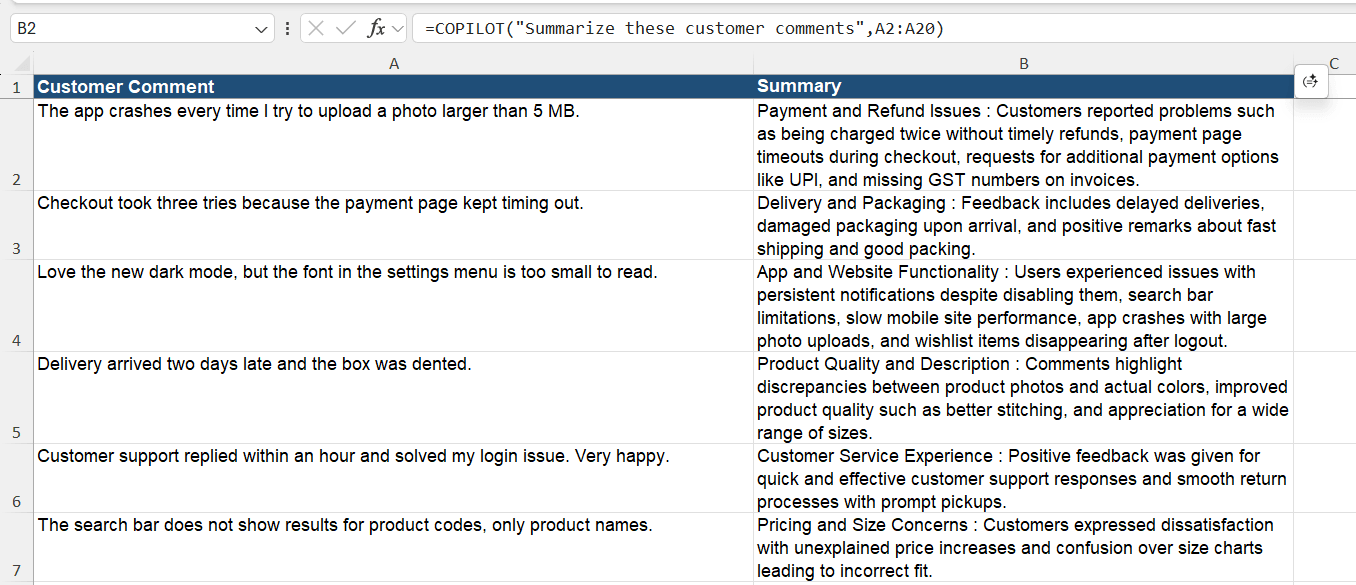
Summarize Text
Suppose the data contains customer comments and you want to use the COPILOT function to summarise the data. Follow the steps below to summarise the customer comments:
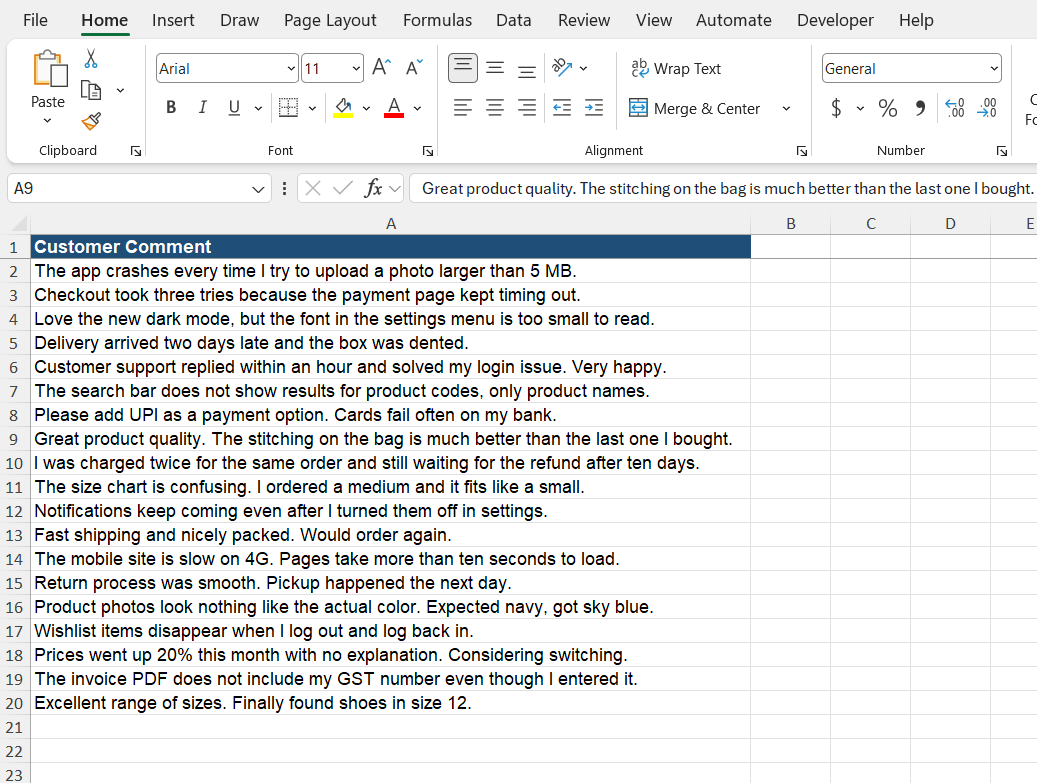
STEP 1: Enter the customer comments in column A.
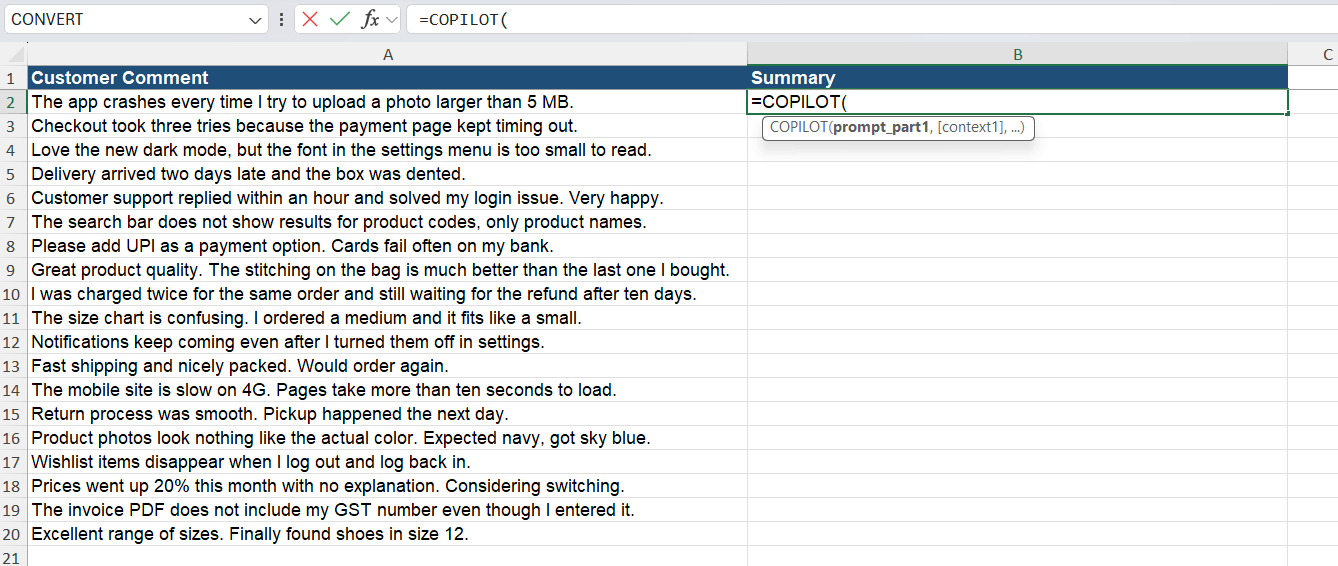
STEP 2: Enter the COPILOT function.
=COPILOT
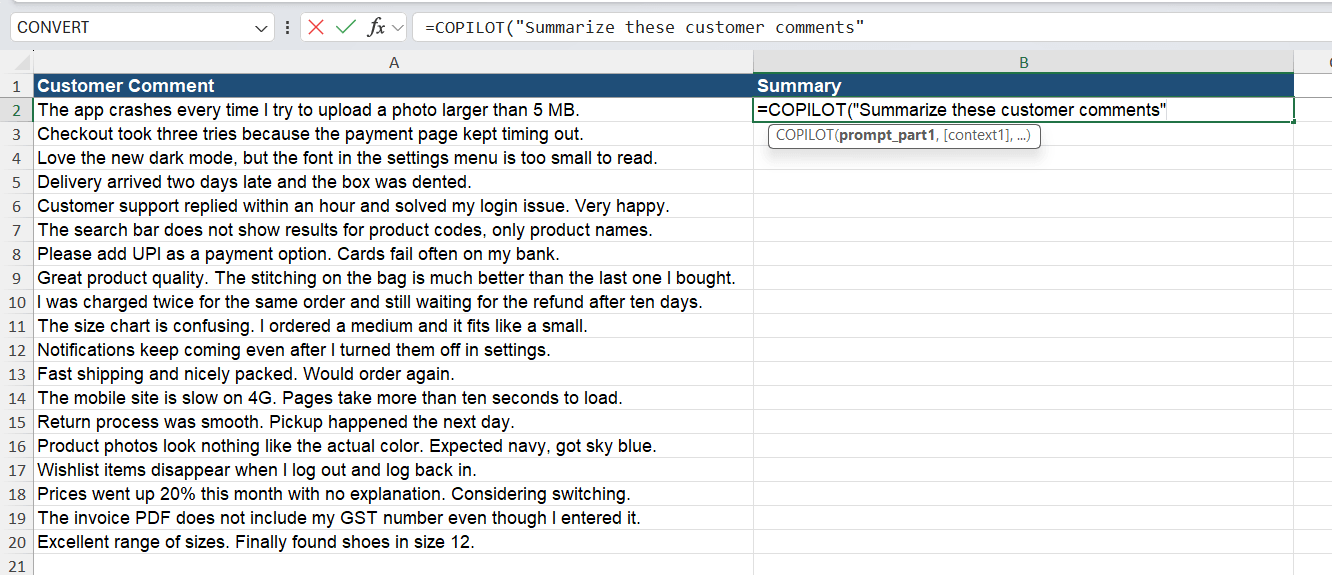
STEP 3: Type the first argument, i.e., the instruction of what you want Excel to do. Make sure to enter the text within quotes.
=COPILOT(“Summarize these customer comments”,
STEP 4: Enter a comma and then select the range that contains the data.
=COPILOT(“Summarize these customer comments”,A2:A20)
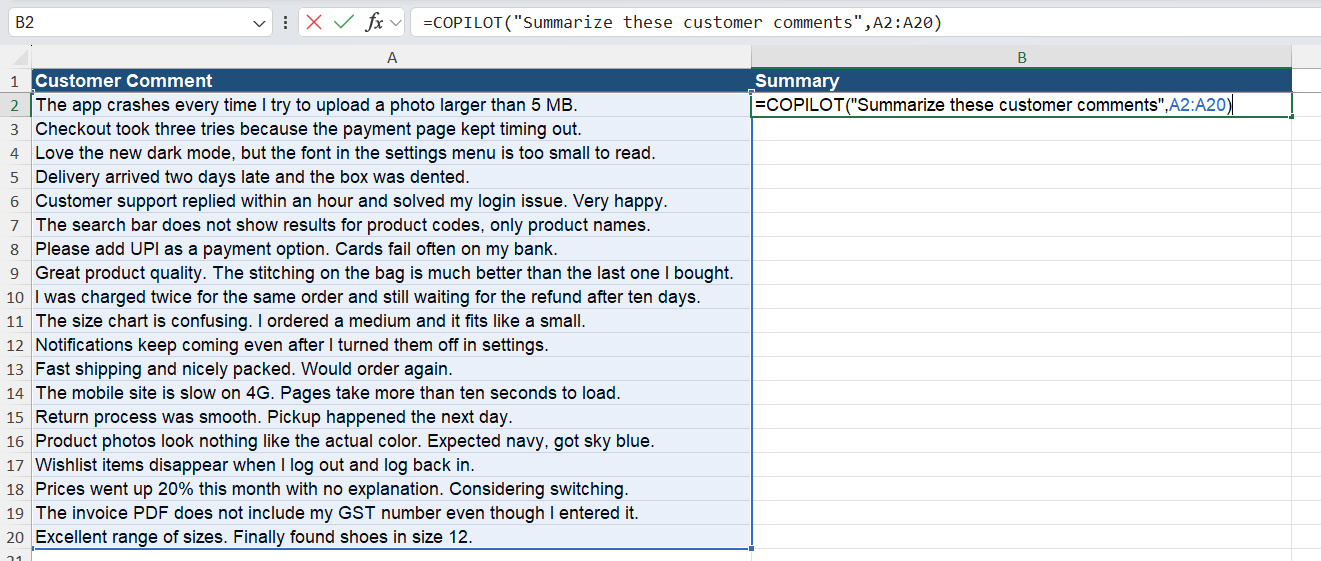
The result provides a concise summary of the information in the selected cells.
Classify Data
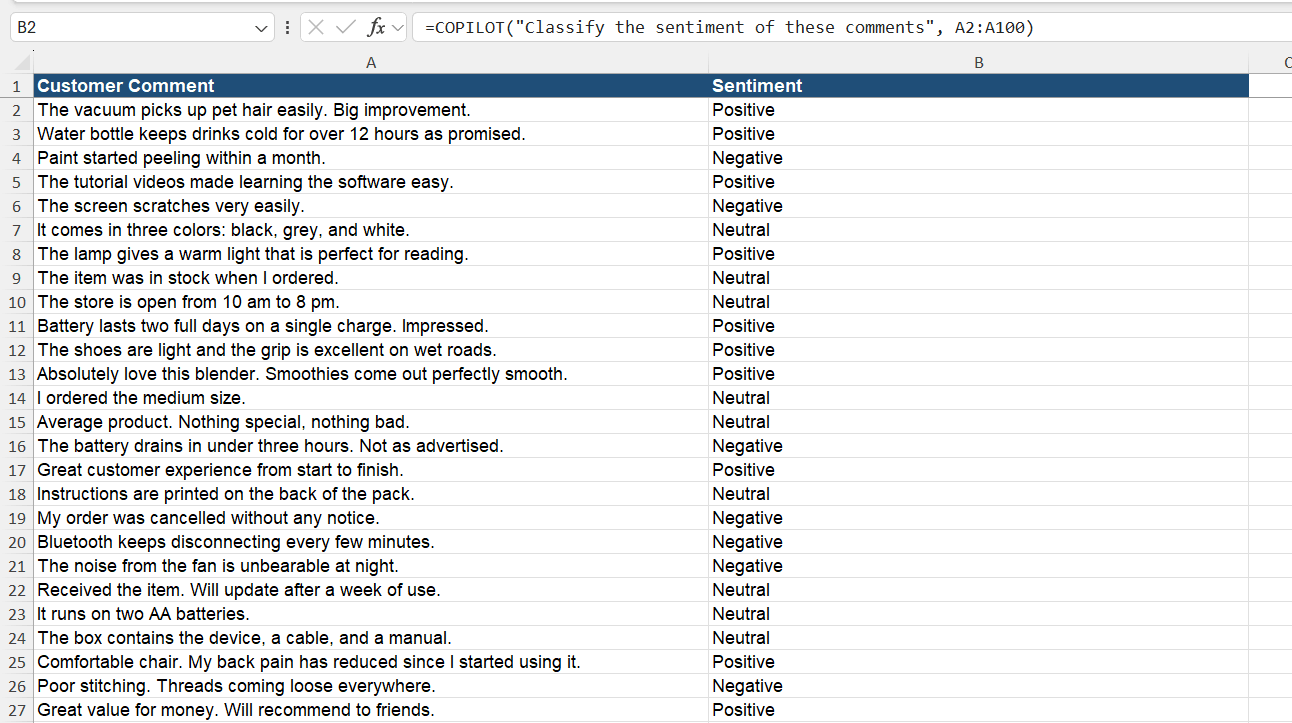
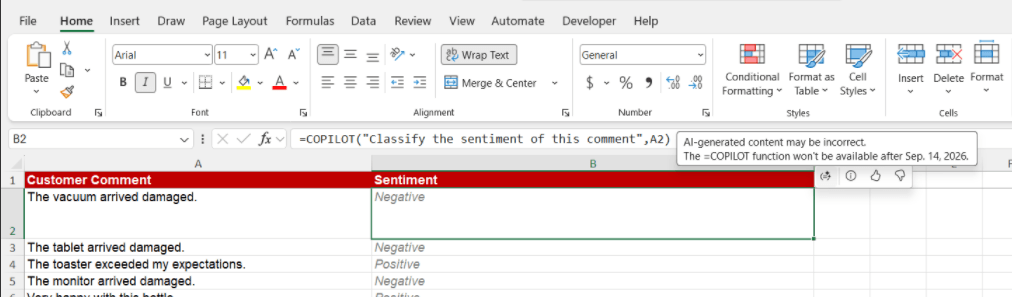
Suppose you have a list of customer comments and want to classify them as Positive, Negative, or Neutral.
You could use:
=COPILOT(“Classify the sentiment of these comments”, A2:A100)
Generate Product Descriptions
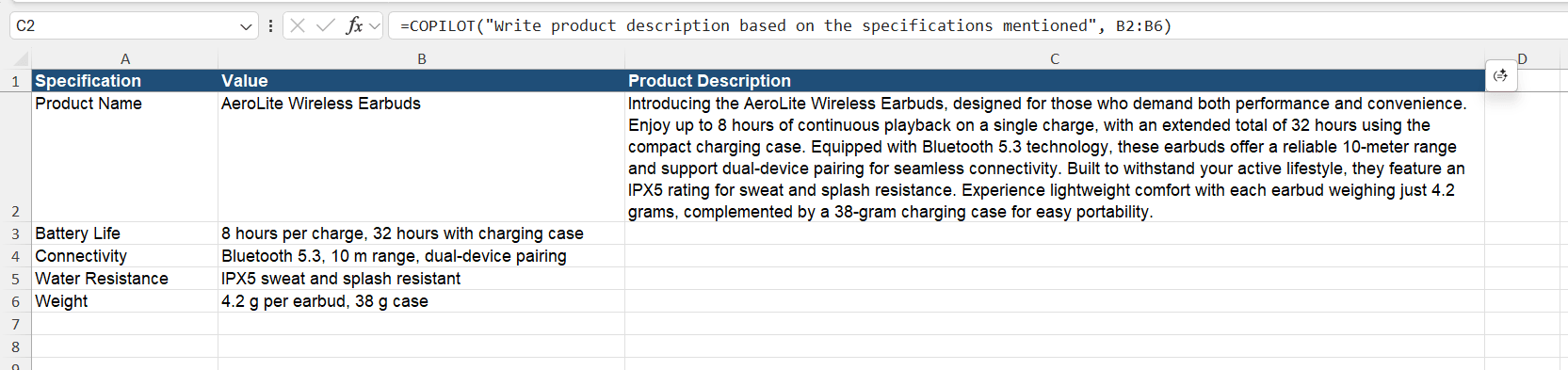
If a worksheet contains product specifications, you can ask COPILOT to create a description.
For example:
=COPILOT(“Write product description based on the specifications mentioned”, B2:B6)
Generate Sample Data
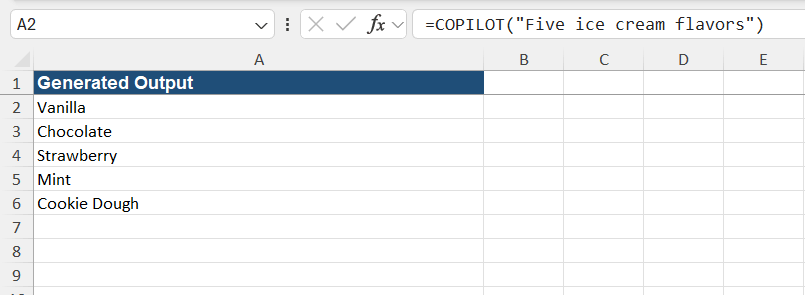
COPILOT can also be used to generate example or placeholder information.
For example:
=COPILOT(“Five ice cream flavors”)
COPILOT Function Limitations
- The COPILOT function requires a Microsoft 365 and Copilot license for access.
- The function requires an active internet connection because it processes requests using Microsoft’s cloud-based AI models.
- COPILOT generates responses rather than performing fixed calculations.
- Microsoft documents a limit of up to 100 COPILOT calculations every 10 minutes, after which you may receive a #CONNECT error.
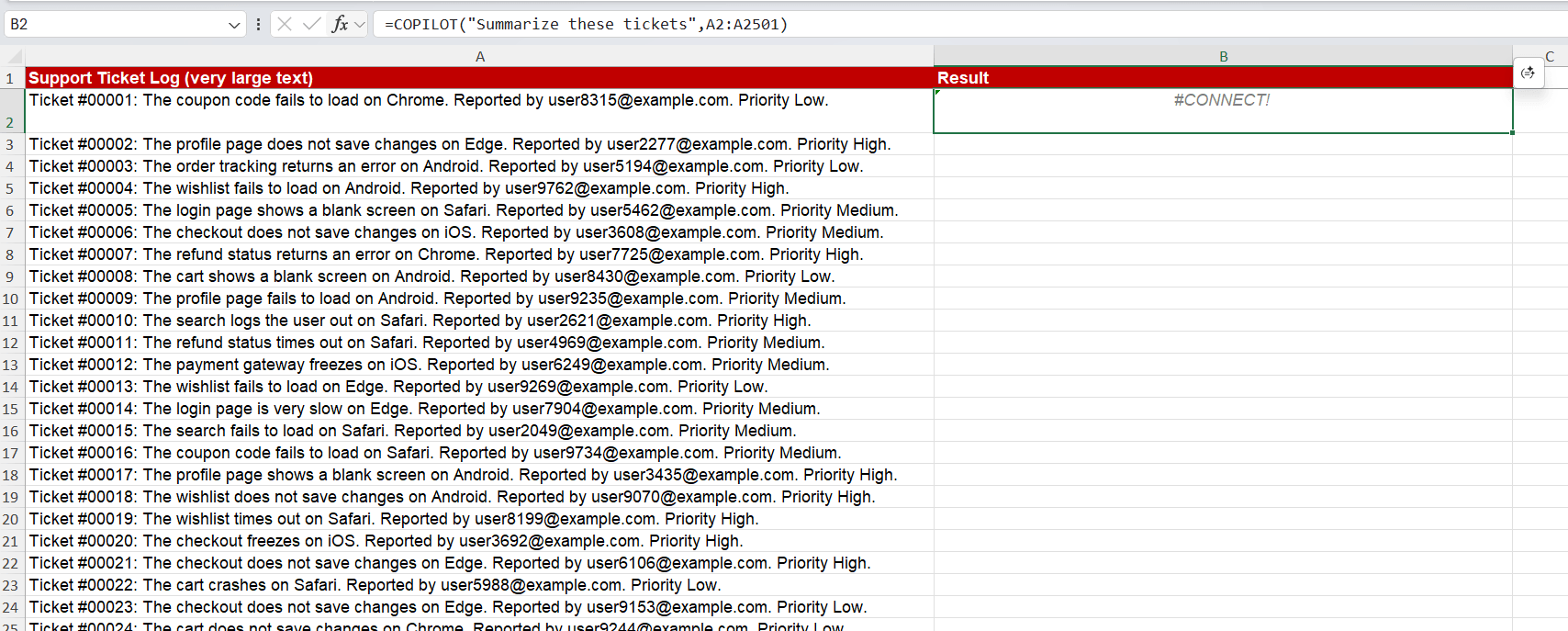
- The function only uses the prompt and cell or range references provided to it and does not access your entire workbook or other files.
- Microsoft has announced that the COPILOT function will no longer be available starting September 14, 2026.
FAQs
1. What is the COPILOT function in Excel?
The Excel COPILOT function is a text function that lets you enter a natural-language instruction in a formula and use selected cells or ranges as context.
2. What can the COPILOT function do?
The COPILOT function can be used to summarize text, classify comments, categorize information, generate descriptions, and create sample text or data.
3. What is the syntax of the COPILOT function?
The basic syntax is =COPILOT(“instruction”, range), where the instruction tells COPILOT what to do and the range provides the data it should use.
4. Does the COPILOT function require an internet connection?
Yes, the COPILOT function requires an active internet connection because it processes requests using Microsoft’s cloud-based AI models.
5. Can COPILOT replace normal Excel functions?
No, COPILOT should not replace traditional Excel functions such as SUM, or AVERAGE when you need precise calculations.

John Michaloudis is a former accountant and finance analyst at General Electric, a Microsoft MVP since 2020, an Amazon #1 bestselling author of 4 Microsoft Excel books and teacher of Microsoft Excel & Office over at his flagship MyExcelOnline Academy Online Course.

 30 Days - Full Access









