 Free Practice Workbook
Earlier, Copilot served as a chat assistant that could only answer questions about your data. Now, Copilot’s capabilities have expanded, and it can build and edit the workbook directly using Edit or Agent Mode. In this article, you will learn all about the Excel Agent Mode, or Edit with Copilot in Excel.
Key Takeaways:
- Copilot in Excel has three modes: Edit, Plan, and Chat.
- Edit with Copilot can make changes directly to your workbook.
- You can use natural language to give Copilot instructions.
- Copilot can create formulas, tables, charts, and PivotTables.
- Always review Copilot’s changes and check the results.
Table of Contents
Introduction to Copilot
What is Copilot?
Copilot is an AI assistant available in Excel that helps you work on your data. You describe what you want in plain language. Copilot reads your workbook and responds with an answer, a formula, or a set of changes, depending on the mode you pick.
Modes in Copilot
Copilot has three modes: edit, plan, or chat.
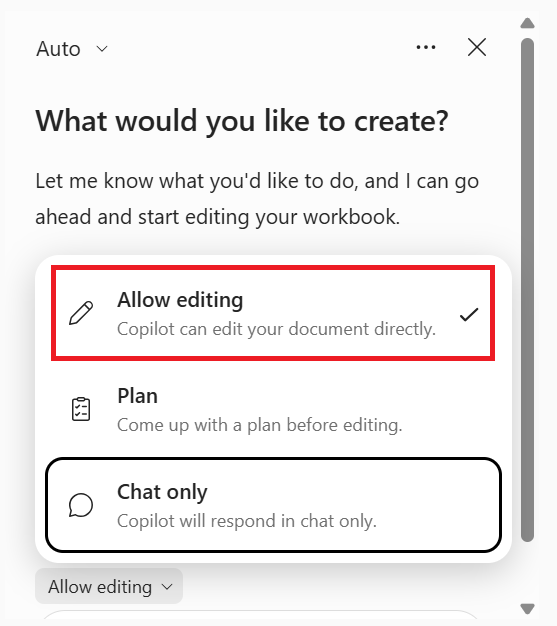
- In edit mode, Copilot in Excel can edit your workbook directly based on your requests.
- In plan mode, Copilot will provide a plan before editing your workbook.
- In chat mode, Copilot responses are contained within your chat.
Platform availability
Copilot in Excel is available across platforms, including Excel on Windows, Mac, the web, iPad, iPhone, and Android.
- Windows – Edit, chat, and plan modes.
- Mac – Edit, chat, and plan modes.
- Web – Edit, chat, and plan modes.
- iPad – Chat and plan modes.
- iPhone – Chat mode.
- Android – Chat mode.
How to Use Edit with Copilot Option
- Go to Home

- Click Copilot to open the Copilot pane

- Click the arrow next to the Chat Only option
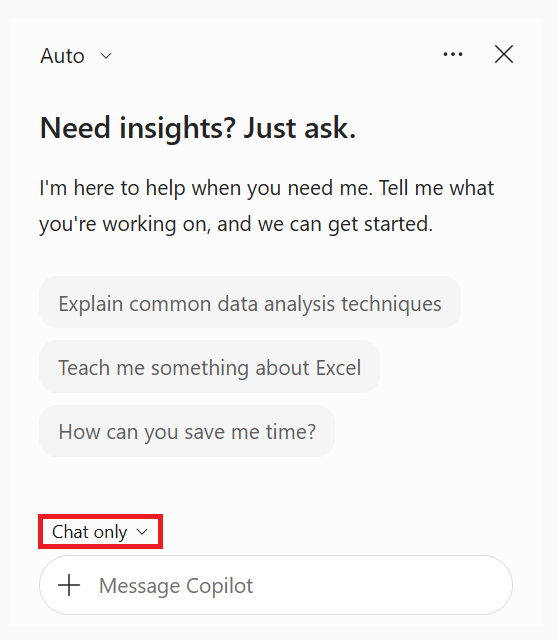
- Select Edit with Copilot
- Enter your prompt using natural language
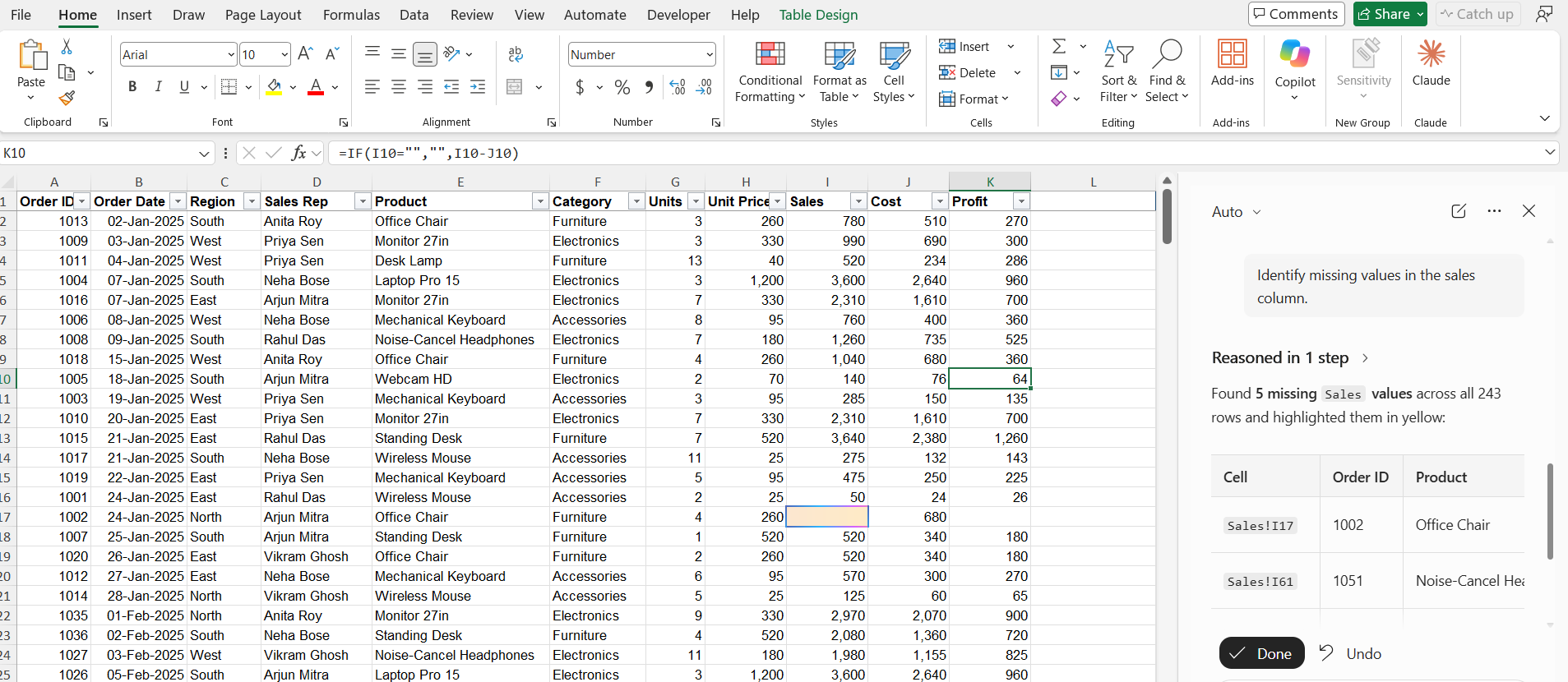
- Copilot will plan and execute each step
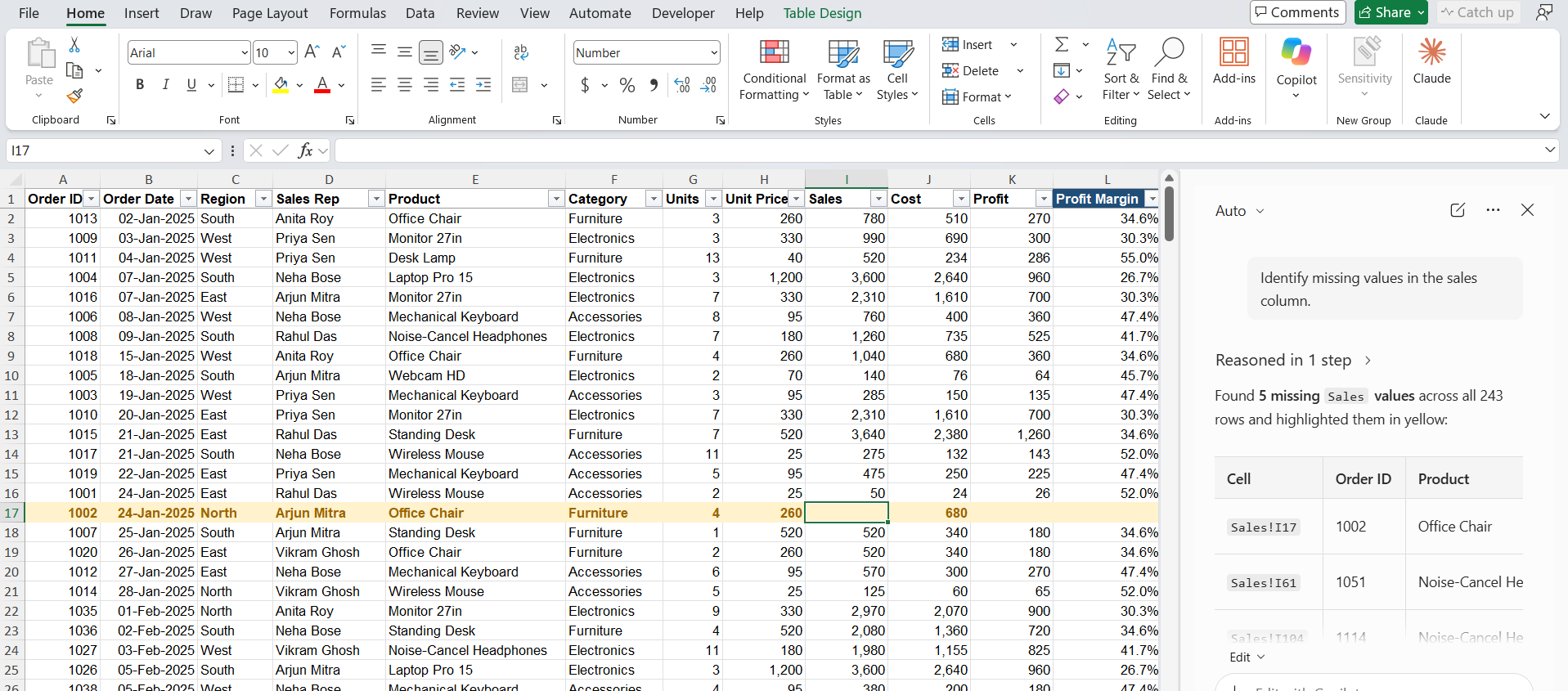
- Give additional instructions to modify the work, if required
Excel Chat Only vs Edit with Copilot Mode
Both modes use the same pane and the same prompts. The difference is what happens after you press Enter.
Chat only mode
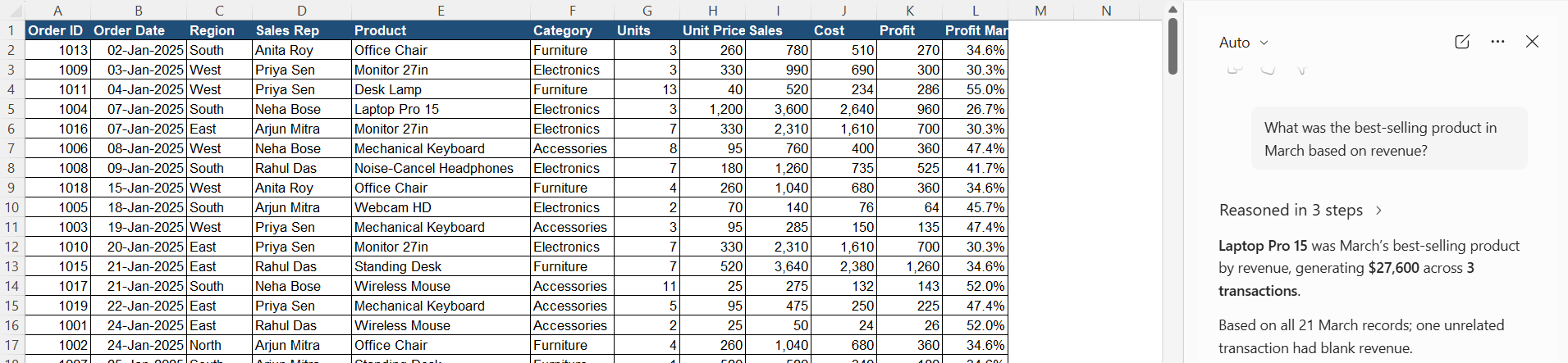
- Reads your data and replies in the chat.
- Does not change any cell.
- Good for questions like “What was the best-selling product in March?” or “Explain this formula.”
- If it suggests a formula, you copy it into the sheet yourself.
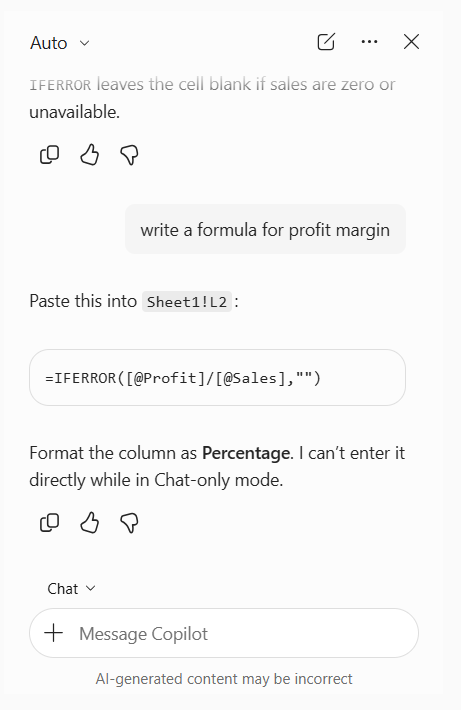
Edit with Copilot mode
- Reads your data and makes the changes in the workbook.
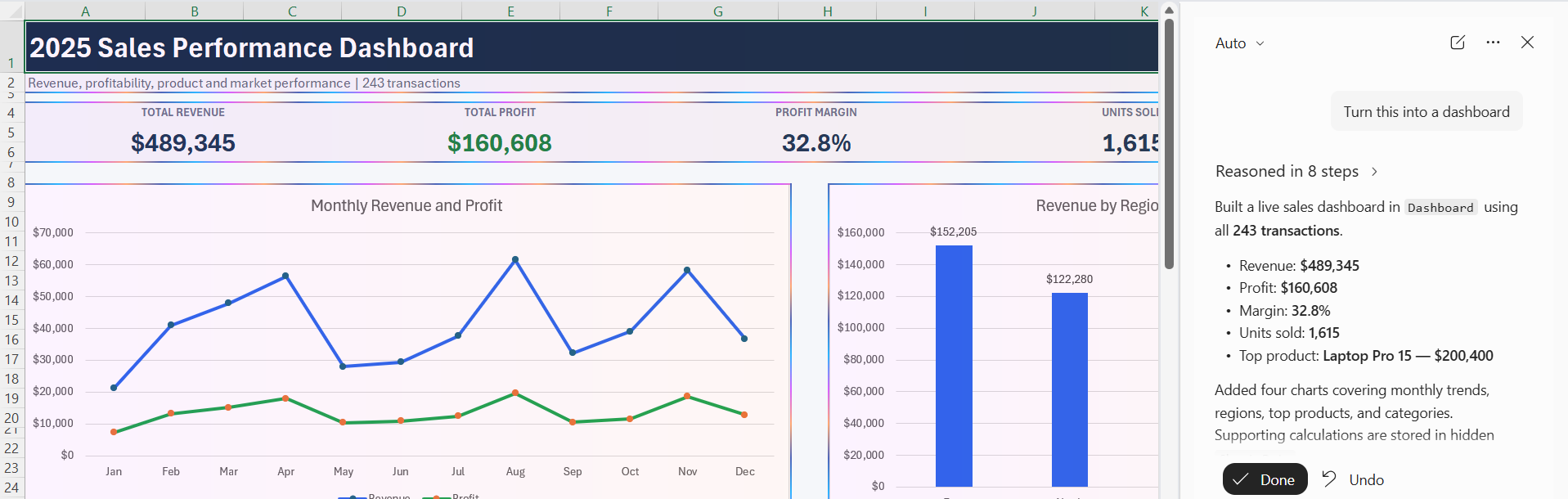
- Can add columns, formulas, tables, charts, PivotTables, and new sheets.
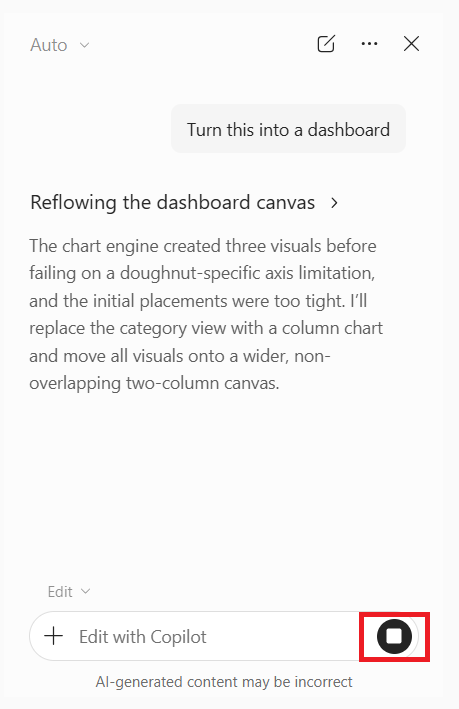
- Good for tasks like “Clean this table,” “Build a summary by region,” or “Turn this into a dashboard.”
Tips & Tricks
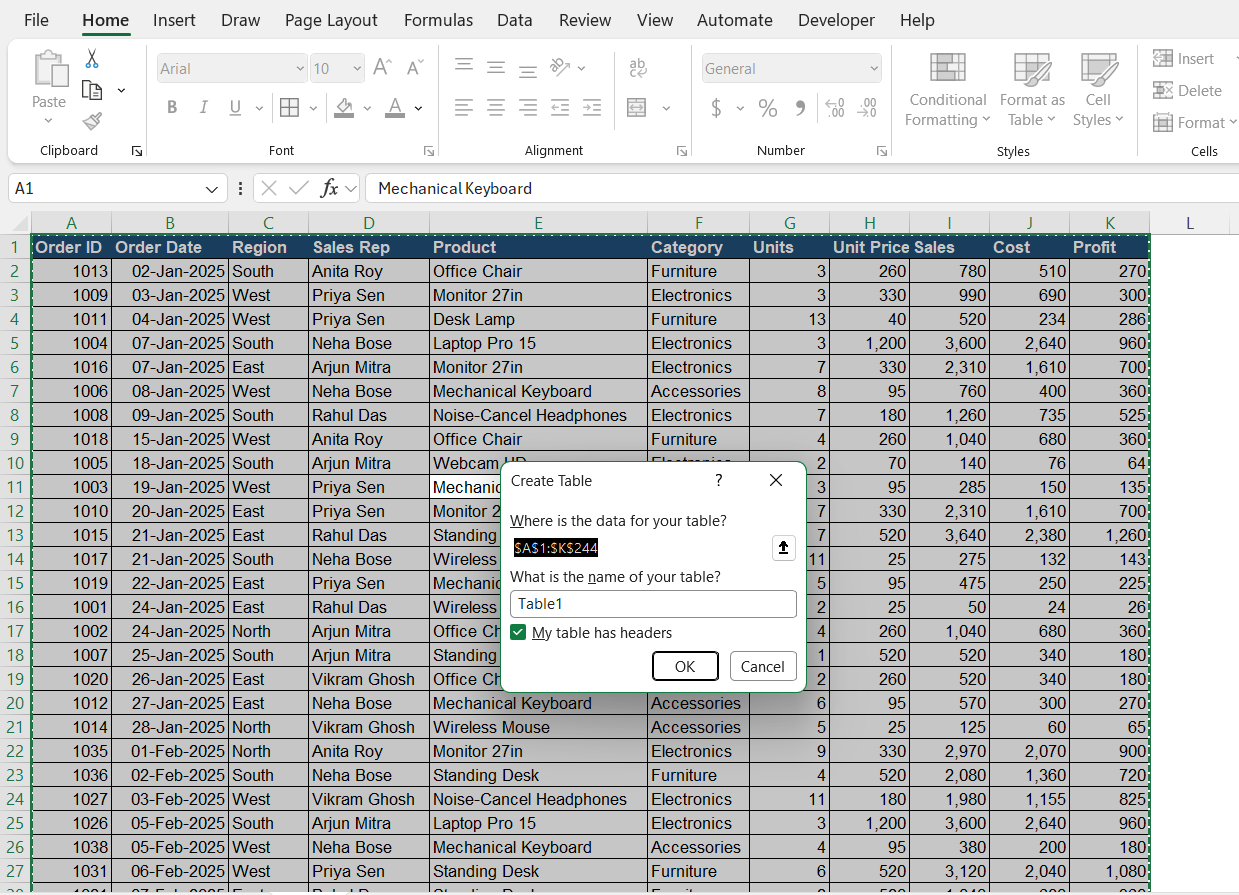
- Put your data in a table. Select the range and press Ctrl+T. Copilot reads columns better this way.
- Describe the result you want, not the steps.
- Name the sheet and the columns in your prompt. This keeps the output consistent.
- Use follow-up prompts. Copilot remembers the conversation.
- Press Stop if Copilot starts doing something you did not ask for.
- Check the result carefully before you share the file.
FAQs
1. What is Excel Agent Mode?
Excel Agent Mode lets Copilot plan and make changes directly in your workbook.
2. What is Edit with Copilot in Excel?
It is a mode that allows Microsoft Copilot to edit your workbook based on your prompts.
3. What is the difference between Chat and Edit mode?
Chat answers your questions, while Edit mode can change the workbook.
4. Can Copilot create charts and PivotTables?
Yes, Edit with Copilot can create charts and PivotTables.
5. Can I undo Copilot’s changes?
Yes, you can review the changes and undo them when needed.

John Michaloudis is a former accountant and finance analyst at General Electric, a Microsoft MVP since 2020, an Amazon #1 bestselling author of 4 Microsoft Excel books and teacher of Microsoft Excel & Office over at his flagship MyExcelOnline Academy Online Course.

 30 Days - Full Access









