 Free Practice Workbook
Dragging a formula in Microsoft Excel is a simple yet powerful feature that helps in quickly copying formulas across multiple cells. You can drag a formula using a small square at the bottom right corner of the cell (known as the fill handle). This action allows Excel to automatically adjust cell references, streamlining the process of applying calculations across a range of data. In this guide, we will learn how to drag formula in Excel.
Key Takeaways:
- Dragging formulas in Excel quickly replicates calculations across multiple cells.
- Excel automatically adjusts cell references when dragging formulas.
- Use the fill handle to easily copy formulas down rows or across columns.
- Understand relative and absolute references to maintain formula integrity.
- Keyboard shortcuts like CTRL+C, CTRL+V, and CTRL+D can streamline formula replication.
Table of Contents
Formula Dragging Techniques
Understand Cell References
Before you start dragging away, take a beat to understand cell references – they’re crucial. Cell references are simply pointers to other cells. They can be relative, like A1, changing as you drag the formula down; or absolute, like $A$1, staying put no matter where you go. Check that your formulas adjust correctly as you expand your data set – and that’s a big deal for maintaining accuracy.
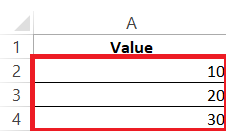
Suppose you have data in cells A2 to A4:
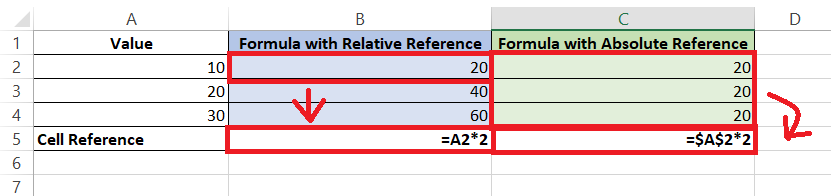
- Formula with Relative Reference: Enter in B2: =A2 * 2. Dragging down from B2 to B4 adjusts the formula to =A3 * 2 and =A4 * 2, multiplying each cell value by 2 as you drag.
- Formula with Absolute Reference: Enter in C1: =$A$2 * 2. Dragging down from C2 to C4 keeps the reference as =$A$2 * 2, consistently multiplying each value by 2 based on the original cell A1.
Result Comparison: Side-by-side, you’ll see B2 changing values (20, 40, 60) and C2 staying constant (20, 20, 20), illustrating the effect of relative vs absolute referencing.
Fill Handle
The fill handle is your best friend for formula replication. This tiny square in the cell’s corner is a powerhouse allowing you to copy a single formula down rows or across columns quickly. Click, drag, and bam – your formula is everywhere you need it to be. The secret sauce?
As you drag, Excel smartly adjusts relative cell references so each formula works for its new location without missing a beat.

Troubleshooting Common Issues
Resolving Reference Errors
When formulas go wild and start spitting out errors after you’ve dragged them, it’s often a sign that cell references didn’t travel as expected. Have a close look at those cell references – a rogue relative reference might have wandered off-track. If that’s the case, swapping it with an absolute or mixed reference can be the quick fix you need to get those formulas back in line, error-free.
What to Do When Dragging Formulas Doesn’t Work as Expected
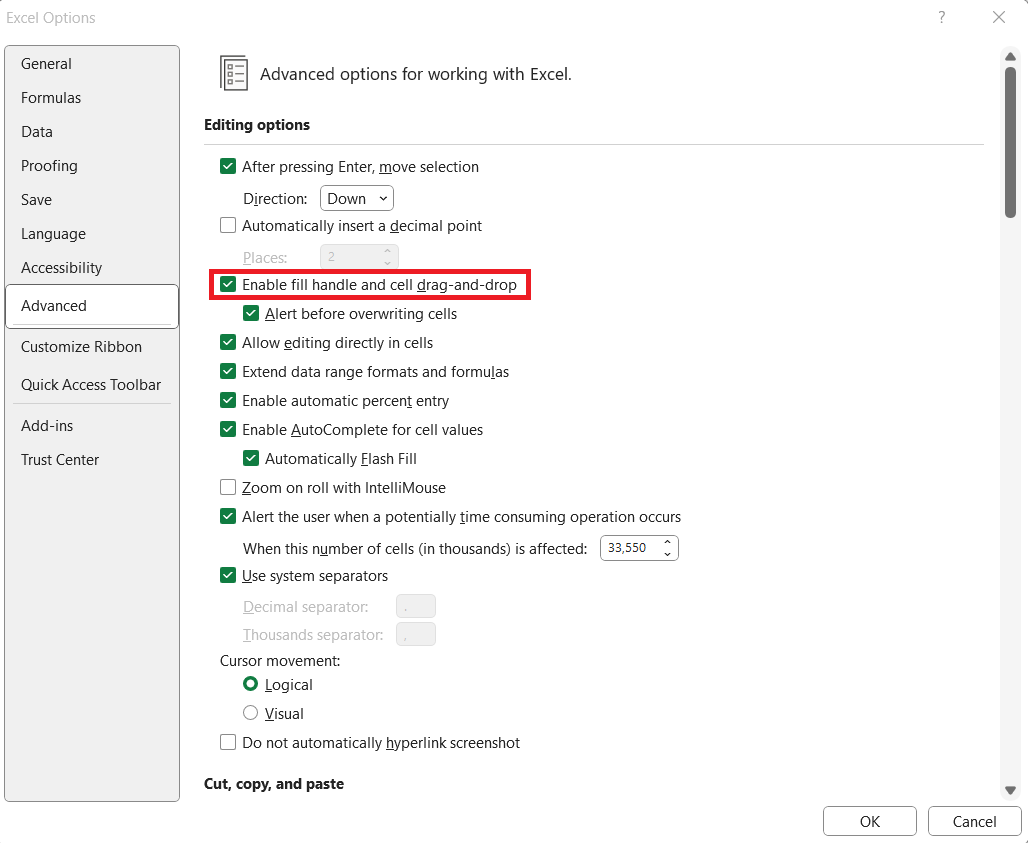
When dragging doesn’t play nice, it’s troubleshooting time. First up, is your fill handle showing? If not, dive into Excel’s preferences and check if it’s enabled.
Then, check your workbook’s calculation setting – it needs to be automatic for formulas to update on the fly.

And watch out for empty cells; they can stop a formula in its tracks when double-clicking to autofill. Lastly, if you’re mixing it up across sheets or workbooks, make sure those links are intact and functional.
Frequently Asked Questions
What is the fastest way to drag down a formula in Excel?
The fastest way to drag down a formula in Excel is to double-click the fill handle. This applies the formula to all cells in the column directly below, down to the row where the adjacent column data ends.
How to Drag Formulas Across Worksheets and Workbooks?
Yes, you can drag formulas across worksheets and workbooks. Simply copy the formula with CTRL + C and paste it into the desired cell in another worksheet or an open workbook using CTRL + V.
How to Drag Formulas Without Changing Relative References?
To drag formulas without changing relative references, convert them to absolute references by adding a dollar sign ($) before the column letter and row number. For example, change A1 to $A$1 before dragging.
Are There Any Shortcuts to Speed Up the Dragging of Formulas Down?
Certainly! Instead of dragging, use the ‘CTRL + D’ shortcut after selecting the range you want to fill. This will copy the topmost cell’s formula down through the selected cells quickly and efficiently.
What Are Some Best Practices for Dragging Formulas in Large Excel Files?
When working with large Excel files, always check for and remove blank cells that may interrupt the autofill, use Tables for consistency, and take advantage of Excel’s ‘Fill Down’ shortcuts. Additionally, regular audits of your results can make sure accuracy is maintained.

John Michaloudis is a former accountant and finance analyst at General Electric, a Microsoft MVP since 2020, an Amazon #1 bestselling author of 4 Microsoft Excel books and teacher of Microsoft Excel & Office over at his flagship MyExcelOnline Academy Online Course.

 30 Days - Full Access









