 Free Practice Workbook
Table of Contents
Basics of Row Height and Column Width
Before starting to resize a cell, it is important to know the basics of row and column dimensions:
- Row height is the vertical size of a row in an Excel spreadsheet
- Column width is the horizontal size of a column.
Proper cell sizing is key to making your Excel data clear and easily digestible. Excel has a default row height and column width set. But, you can change the size as per your requirement.
How to Adjust Row Height and Column Width
Use Mouse
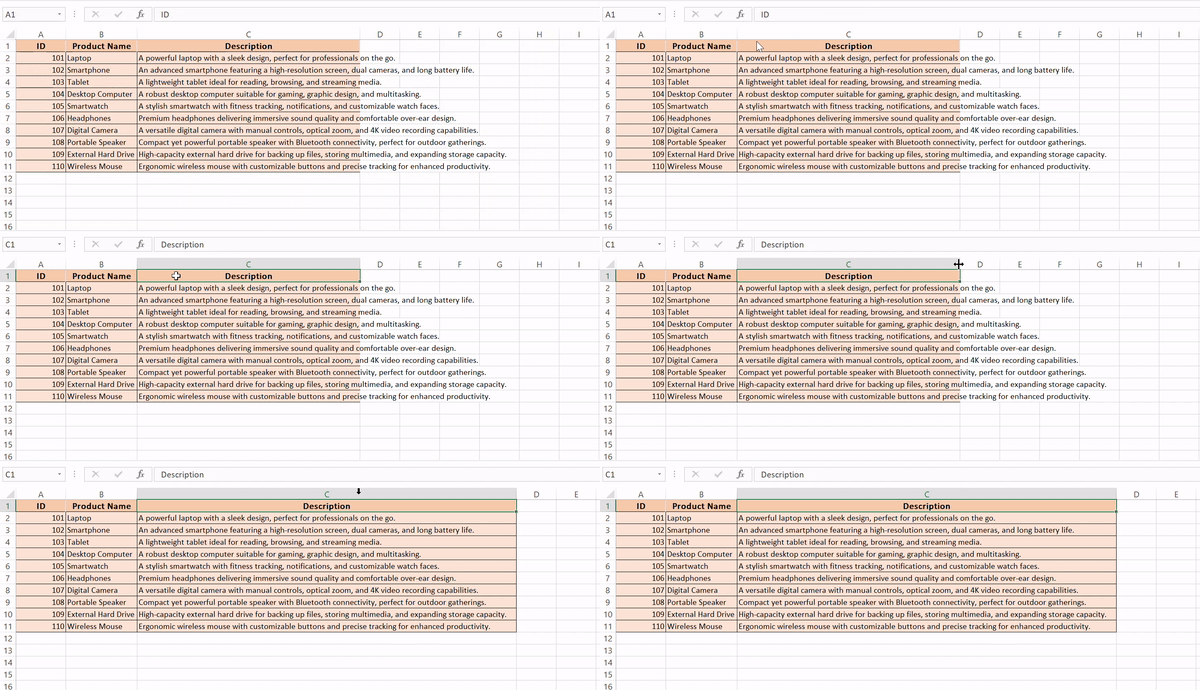
STEP 1: Hover your mouse pointer over the column border you want to adjust until it turns into a double-headed arrow.
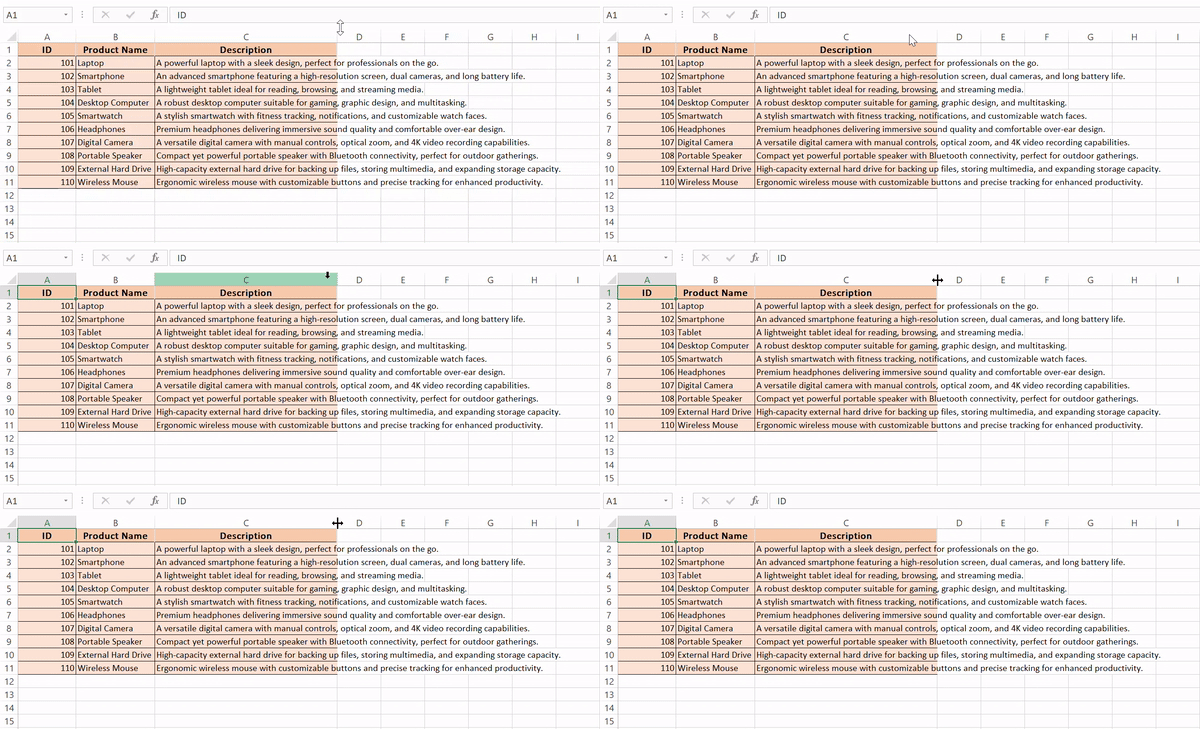
STEP 2: Click and hold the left mouse button.
STEP 3: Drag the column border horizontally to the desired width.
STEP 4: Release the mouse button to set the new column width.
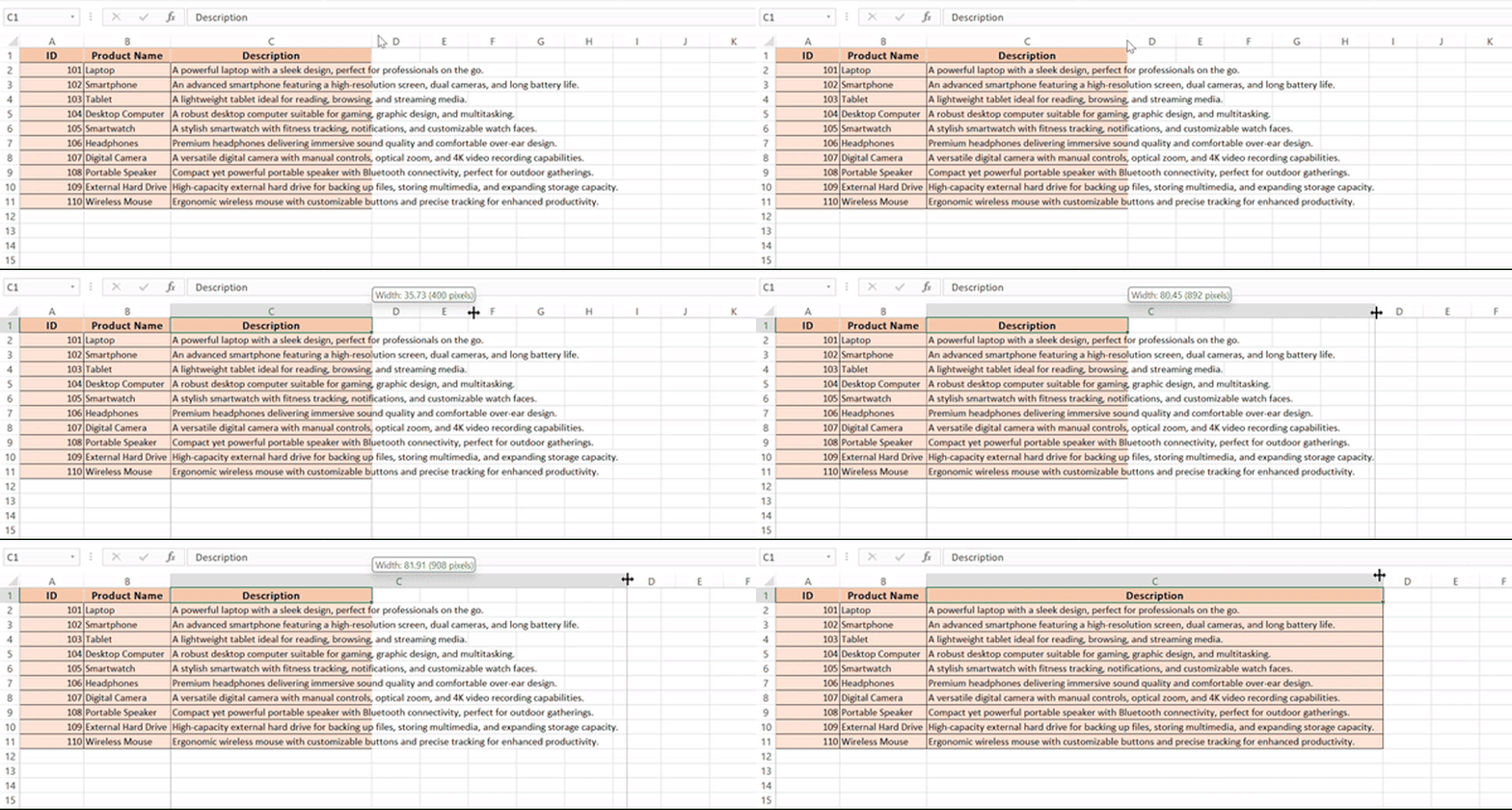
This manual method provides immediate visual feedback and control. But, it might not be useful when you want to keep the size uniform.
Keyboard Shortcut
To adjust a column’s width, select the column and press Alt + H, then O.
- Type I for autofit
- Type a numerical value to set a specific width.
Similarly, for rows, use Alt + H, O, and then A to autofit row height, or manually enter a value.
Formatting Option
STEP 1: Click on the row number or column letter you want to adjust.
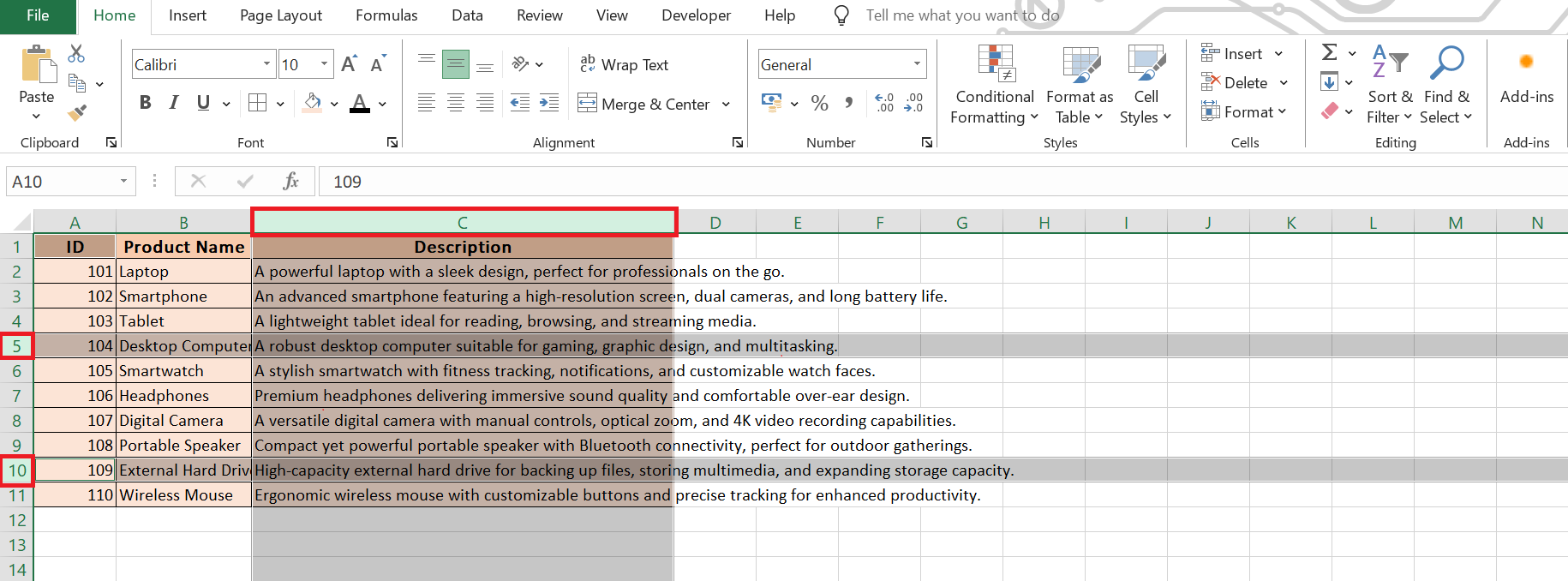
STEP 2: Go to the Home tab.
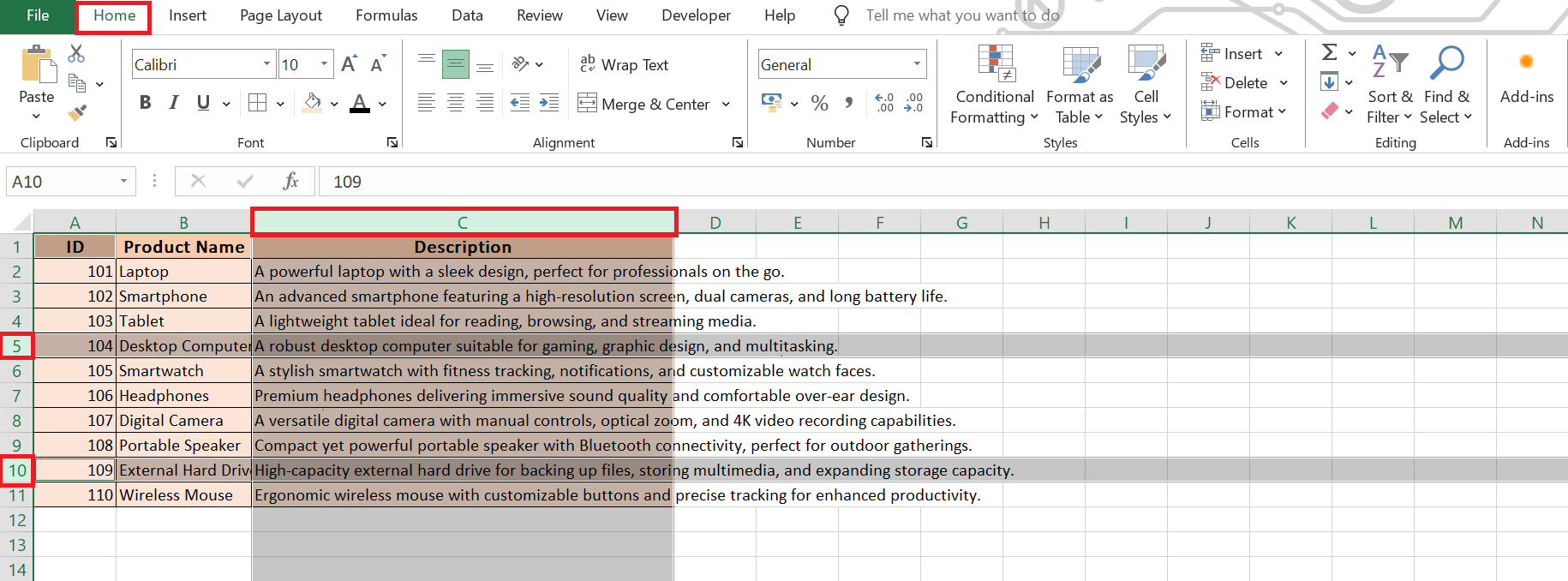
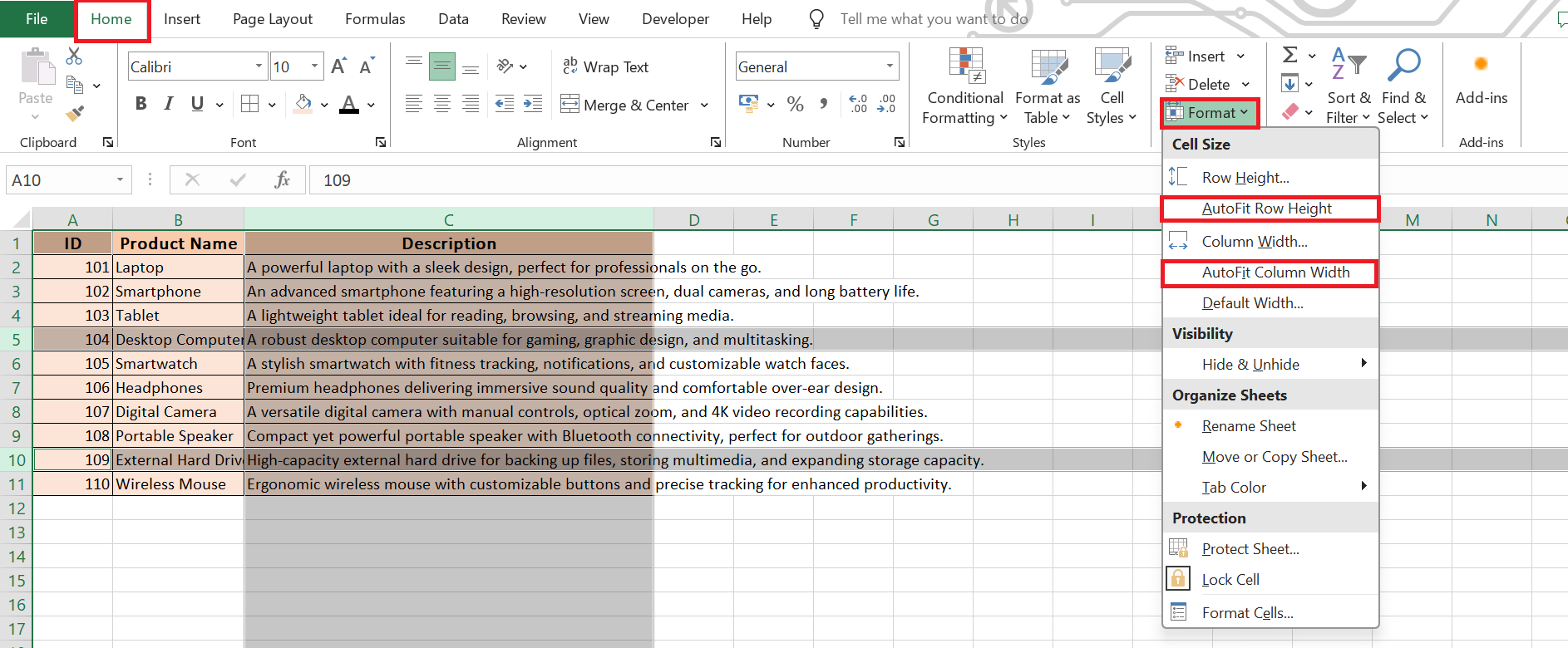
STEP 3: Click on the Format button.
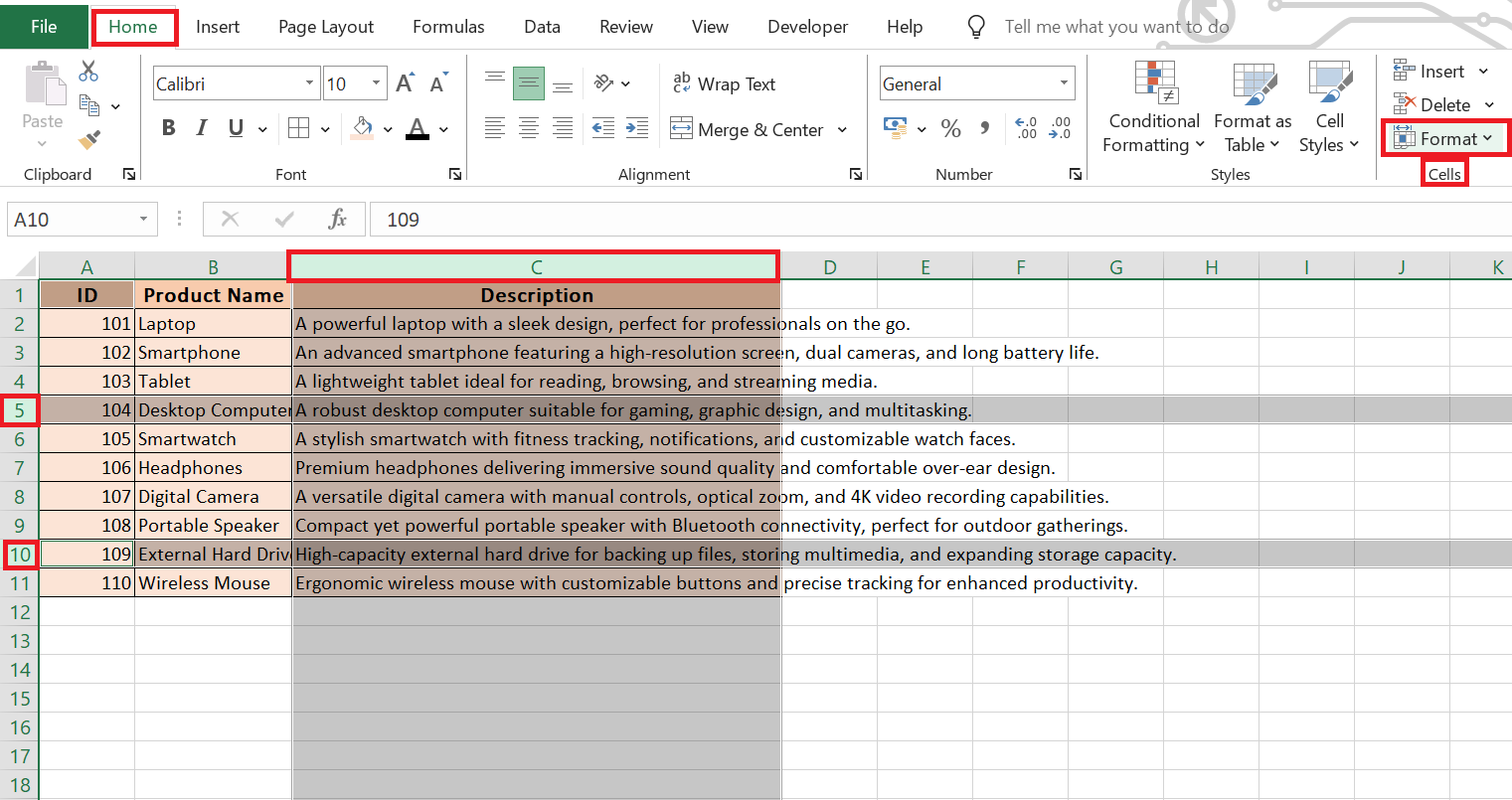
STEP 4: Click on “AutoFit Row Height” or “AutoFit Column Width”.
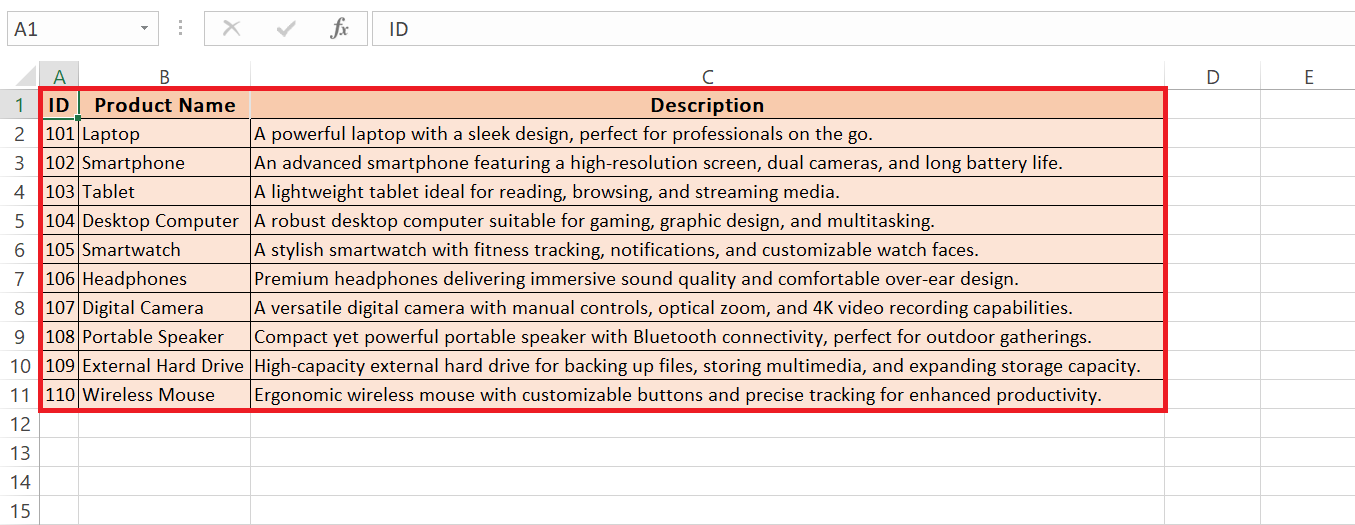
After clicking on the same, we see the result below with rows and columns adjusted properly.
Advanced Tactics
AutoFit Option
AutoFit allows you to automatically match the size of the contents. Double-click the boundary of the column or row header, and the cell size will increase as per longest data. This eliminates any guesswork involved in manual adjustments and makes sure that all your content is visible.
Custom Size
For consistency across your spreadsheet, you may want to set custom row and column sizes.
- Select the rows or columns.
- Go to the Home tab
- Click on the Format button.
- Choose ‘Row Height’ or ‘Column Width’
- Input your desired numerical value.
Custom Formatting Tricks
Lock Dimension
Follow the steps below to lock down the cell dimensions in Excel:
STEP 1: Set your desired row height and column width.
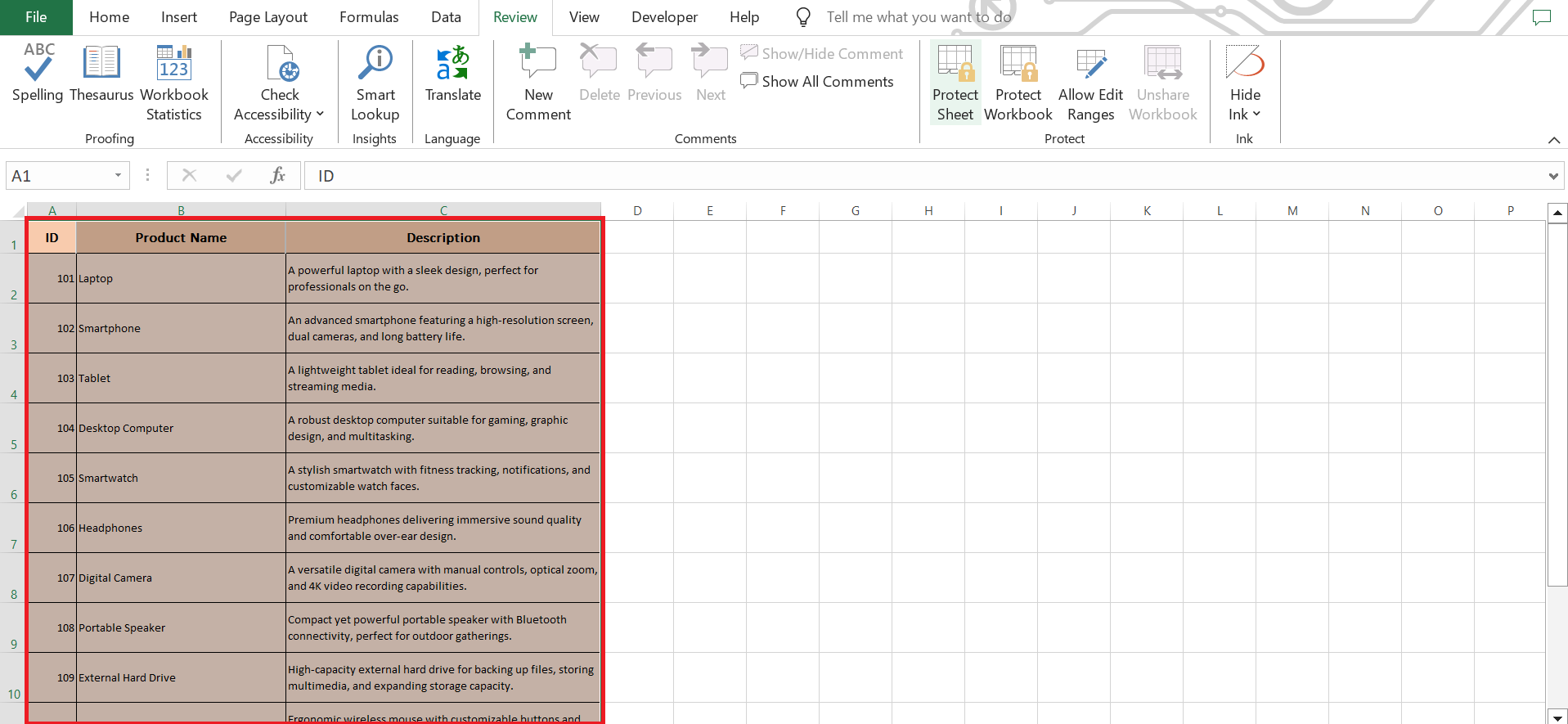
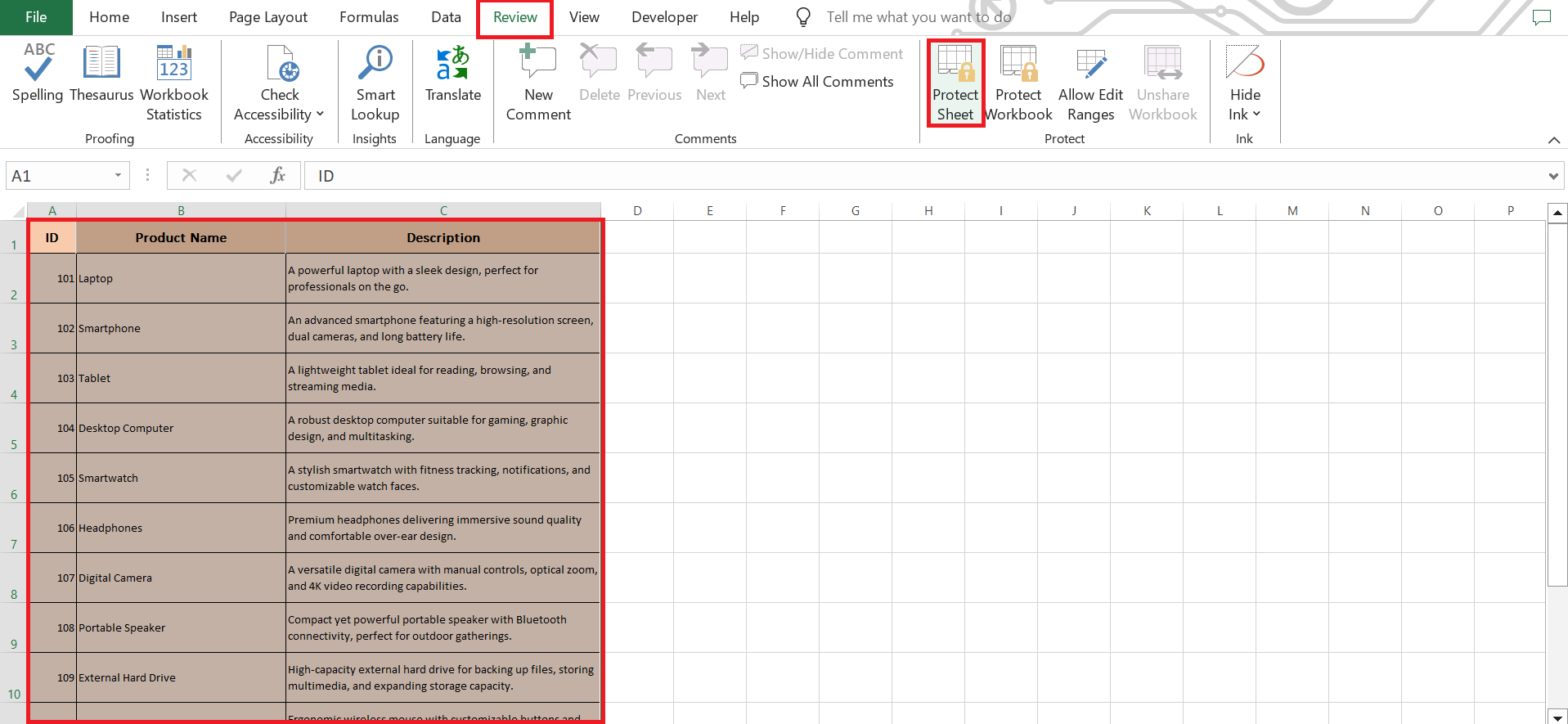
STEP 2: Go to the Review tab and click on Protect Sheet.
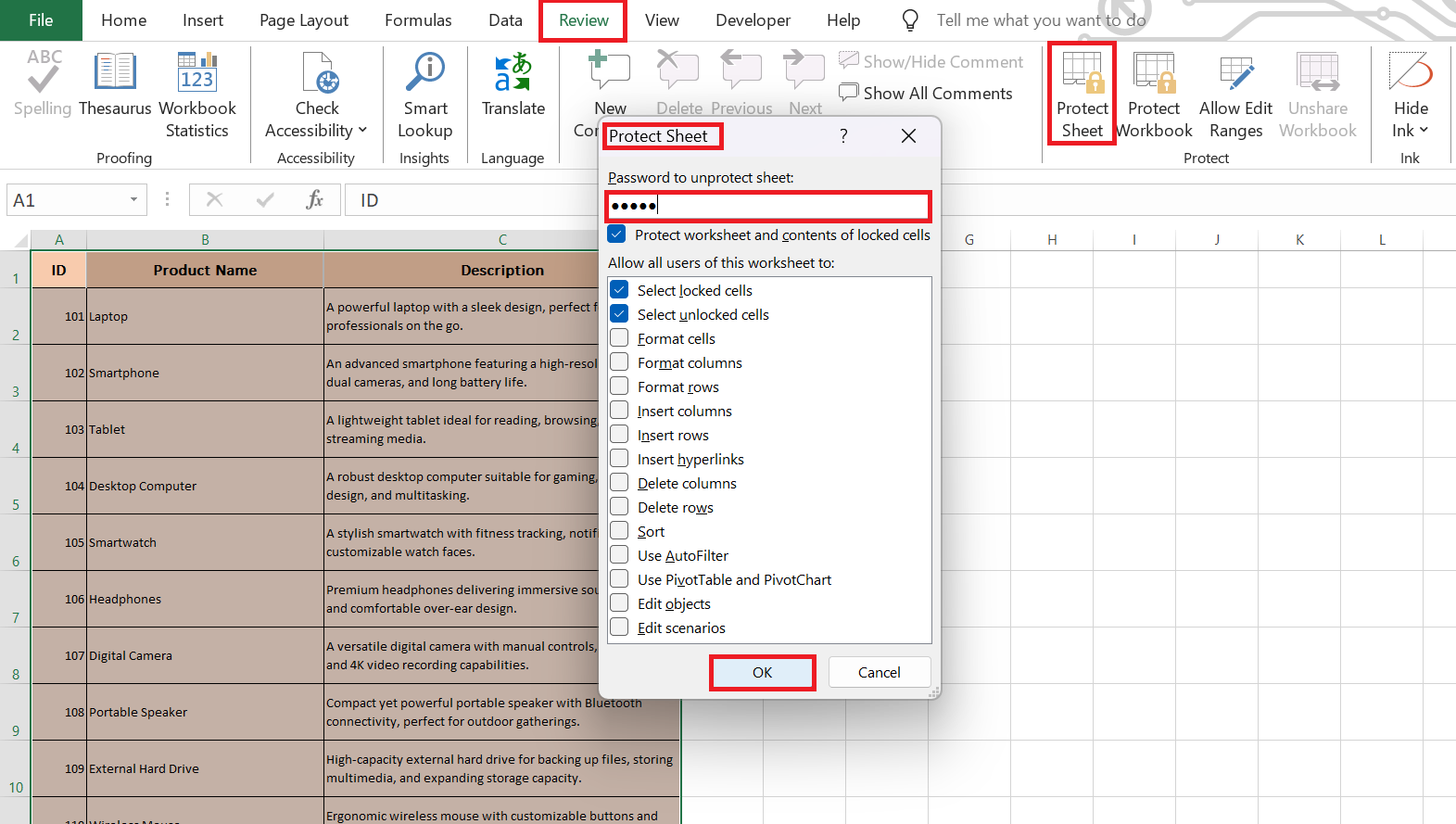
STEP 3: Set a password if required.
Save a Template
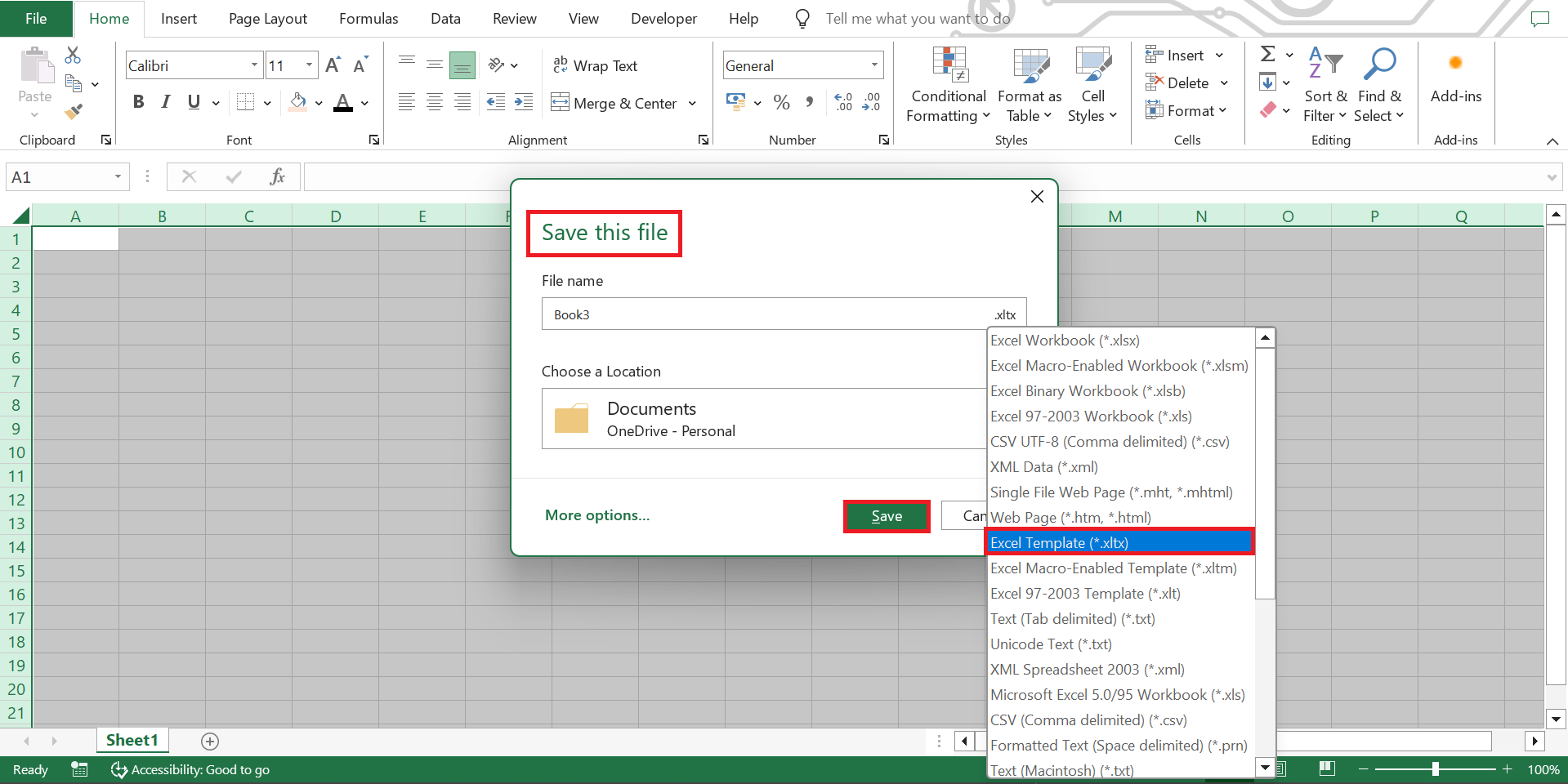
To save the desired settings as a template, follow the steps below:
STEP 1: Adjust a row or column to your preferred size.
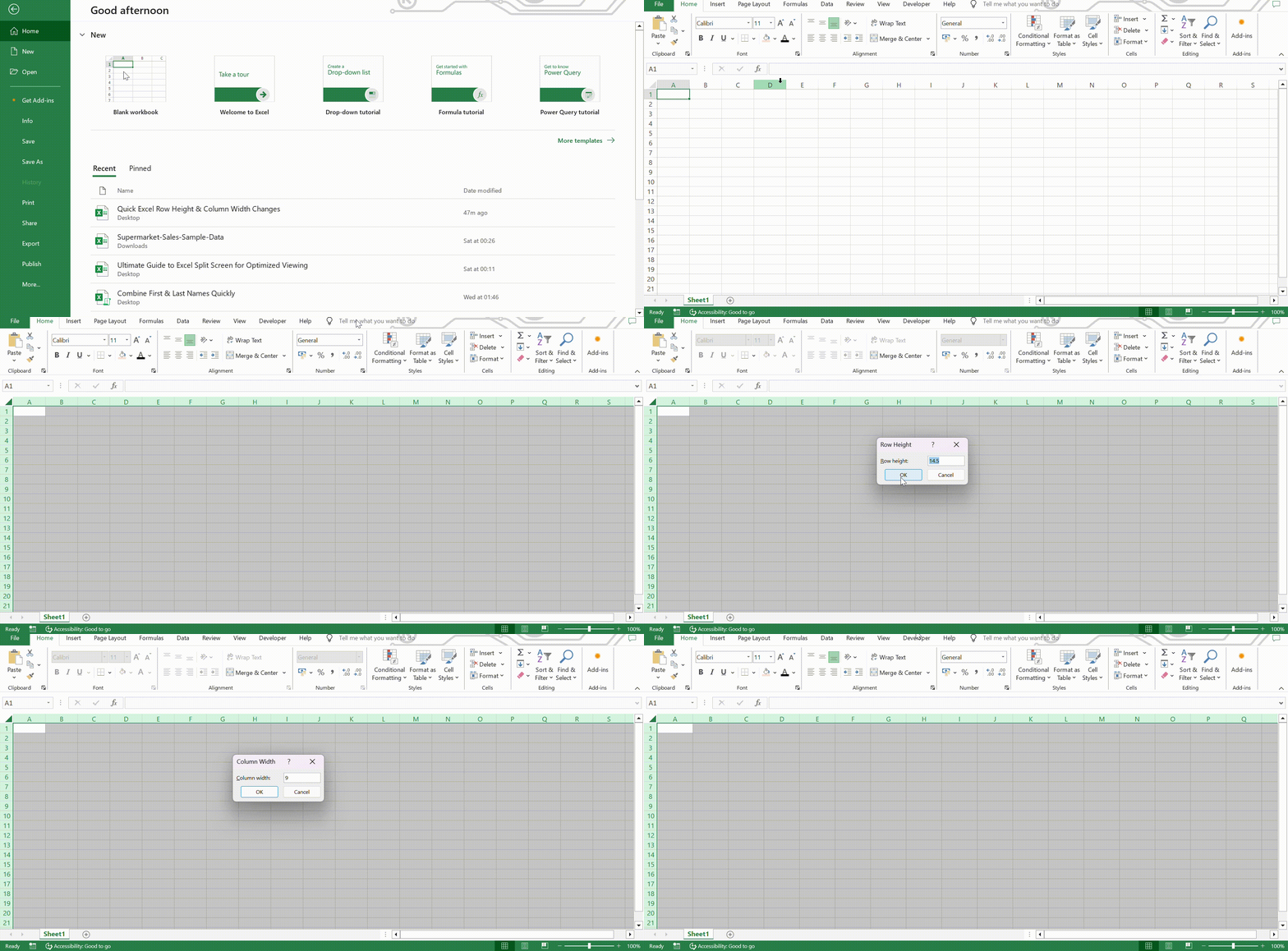
STEP 2: Go to File > Save As > ‘Excel Template‘ (*.xltx) to save as template.
FAQs
How to set a standard row height for all new Excel sheets?
You can set a standard row height for all new Excel sheets by customizing a template. Adjust your row height as desired, select the entire sheet, replicate the setting across it, and then save this as a template. Use this template for all new sheets to maintain the standard height.
How to adjust multiple columns or rows at once?
You can adjust multiple columns or rows at the same time by following the steps below:
- Select all the cells
- Drag the boundary of any selected row or column.
Selected cells will be resized automatically.
What is the shortcut for row height in Excel?
The keyboard shortcut for row height is ALT + H + O + H. Enter your desired row height in the box and click OK.
What is the standard row height in Excel?
The normal row height in Excel is around 15 points. This height can accommodate standard text sizes.
How to change row height?
To adjust a row height in Excel, right-click the row number, choose ‘Row Height,’ input the desired value, and press ‘OK.’ Alternatively, use your mouse to drag the row boundary or select the row, go to the ‘Home’ tab, click ‘Format,’ and select ‘Row Height.’
What is the purpose of locking width and height in a spreadsheet?
Locking width and height in a spreadsheet maintains your formatting consistency, ensuring that the visual presentation remains as intended, particularly when collaborating with others or using the spreadsheet as a template.

John Michaloudis is a former accountant and finance analyst at General Electric, a Microsoft MVP since 2020, an Amazon #1 bestselling author of 4 Microsoft Excel books and teacher of Microsoft Excel & Office over at his flagship MyExcelOnline Academy Online Course.

 30 Days - Full Access









