 Free Practice Workbook
STEP 1: Click on the cell where you want the total sum to appear.
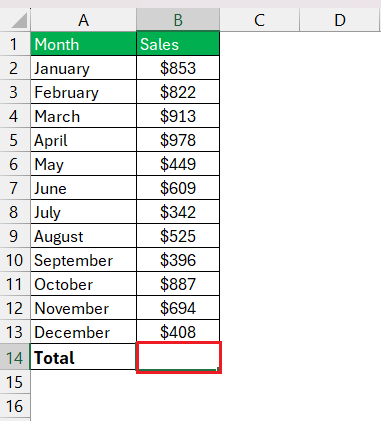
STEP 2: Type in = followed by the cell references you wish to add, separating each with a +. For example, a sum of cells from B2 to B13 would look like =B2+B3+B4+B5+B6+B7+B8+B9+B10+B11+B12+B13.
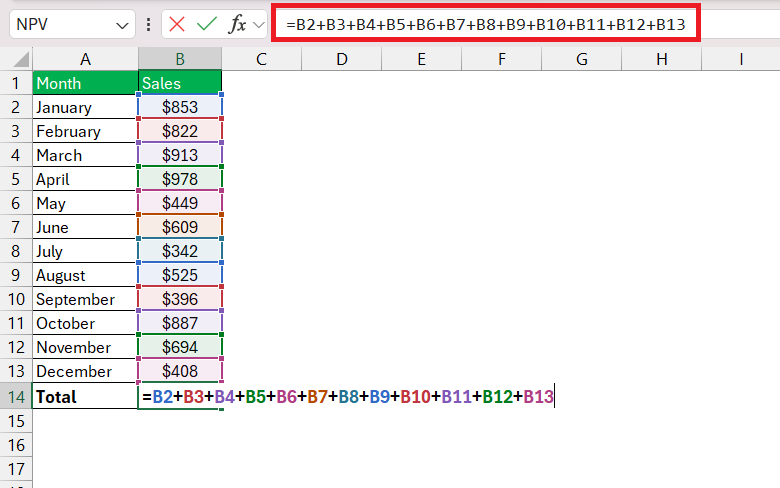
STEP 3: Then hit Enter, and voilà, the sum appears!
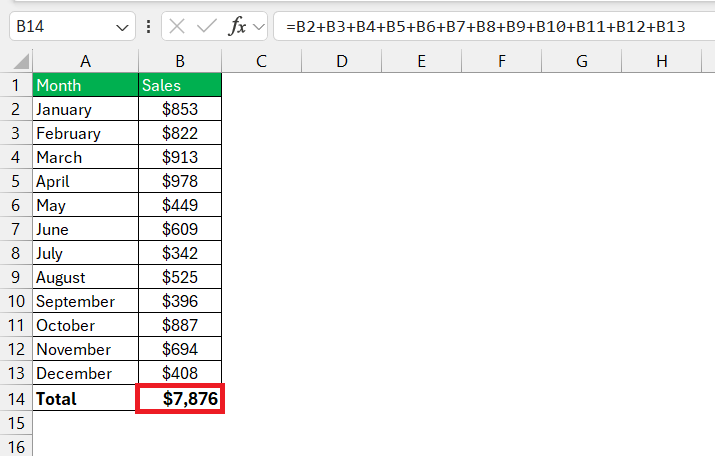
Although this method is straightforward, it’s best suited for scenarios with fewer cells. When dealing with a large number of cells, it can become cumbersome and error-prone.
Method 2: Using Excel’s SUM Function
The first number is required, while those in square brackets are optional.
Here’s how to utilize it for summing a row:
STEP 1: Click the cell where you want to see the row’s total.
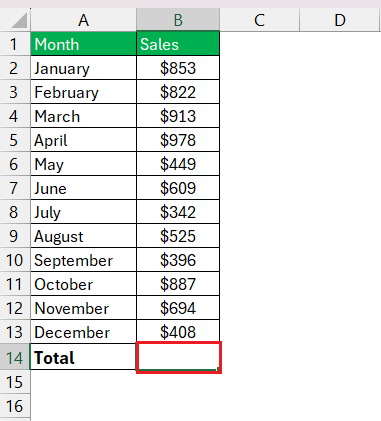
STEP 2: Enter the SUM function followed by an open parenthesis.
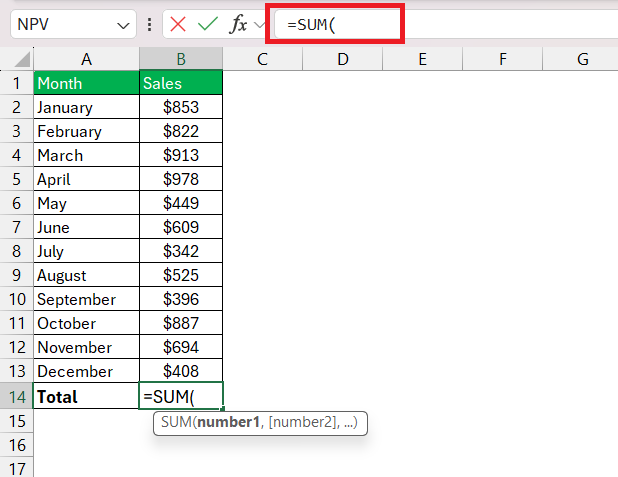
STEP 3: Highlight the row of cells you wish to sum or type the range manually, like SUM(B2:B13). Close the parenthesis and press Enter.
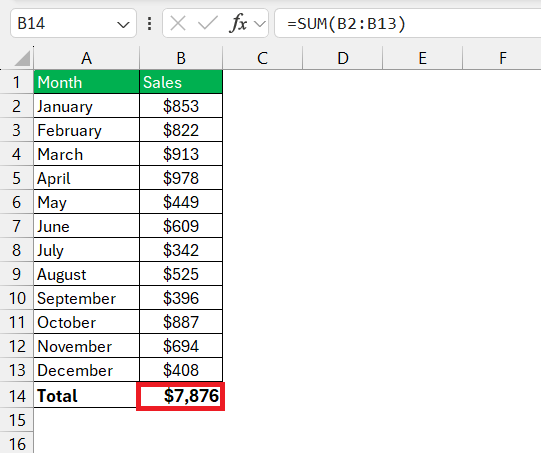
Method 3: AutoSum Magic: Adding Large Rows Instantly
The AutoSum feature, as hinted previously, is like a flash of lightning in summing large rows of data. This Excel trick is perfect when you’re looking at rows brimming with numbers and you need a total, fast. It works like this:
STEP 1: Click on the cell at the end of the row where you want the grand total to shine.
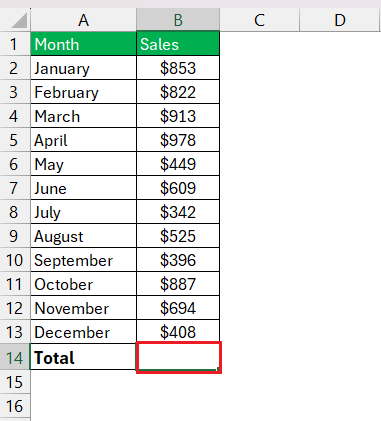
STEP 2: Press the AutoSum button (Σ) on the Home tab, or for more flair, use the ALT + = shortcut. Excel, grasping your need for speed, automatically selects the adjoining row of numbers.

STEP 3: Now comes the encore: press Enter and watch the sum appear with almost no effort.
For those frequent tasks involving large data sets or when you’re flipping between tasks, AutoSum’s speedy service lets you focus on what the numbers are telling you, rather than the process of adding them up.
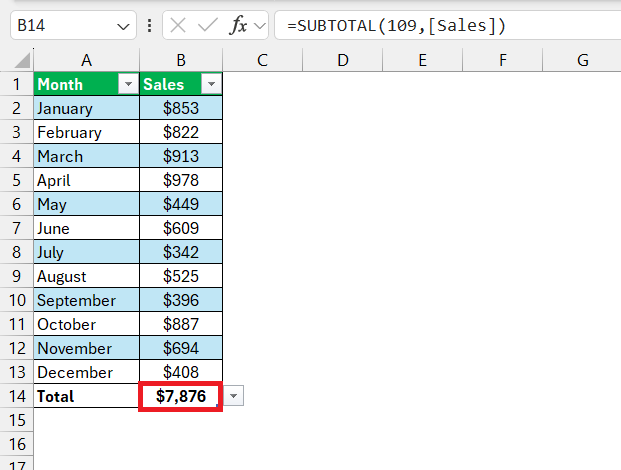
Method 4: Excel Tables with Total Row: The Organized Approach
Excel tables offer a structured and feature-rich way to manage data.
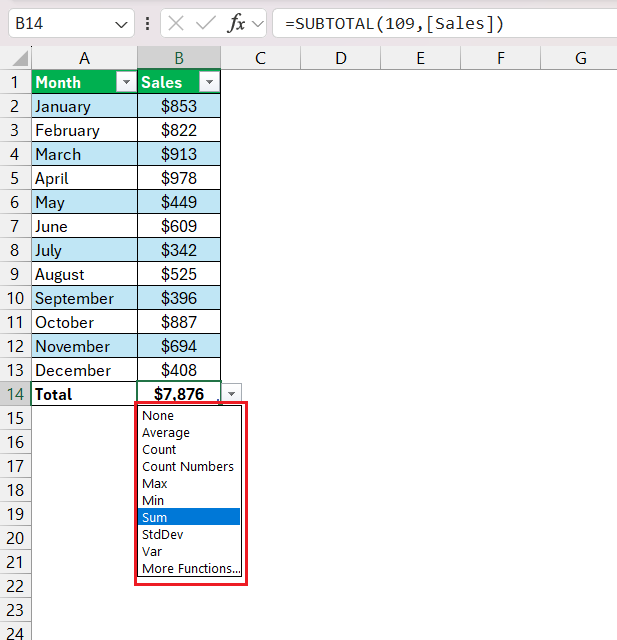
To activate the total row, simply check the Total Row option under the Table Tools Design tab.

This method not only sums your data but also enhances data organization and provides easy access to a suite of other calculations. You can even change the operation from SUM to COUNT, AVERAGE, MINIMUM, etc.
Method 5: Efficient Data Handling with SUMIFS for Multiple Criteria
The SUMIFS function elevates the art of summing in Excel by enabling you to include specific conditions or multiple criteria. It’s particularly useful when you want to sum a row based on certain parameters—like sales in a particular region or within a certain date range. Here’s a brief guide on how to work with SUMIFS:
STEP 1: Open the cell where the conditional total will be displayed. Type =SUMIFS( to start your function.
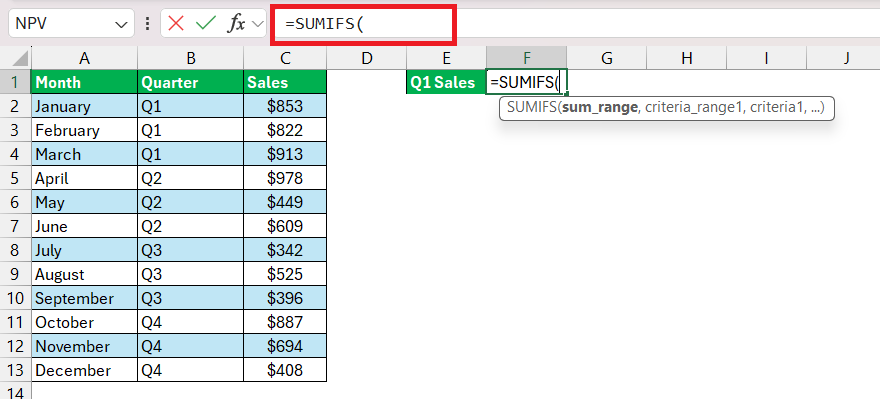
STEP 2: The first argument is your sum_range, the actual cells you’re adding up.
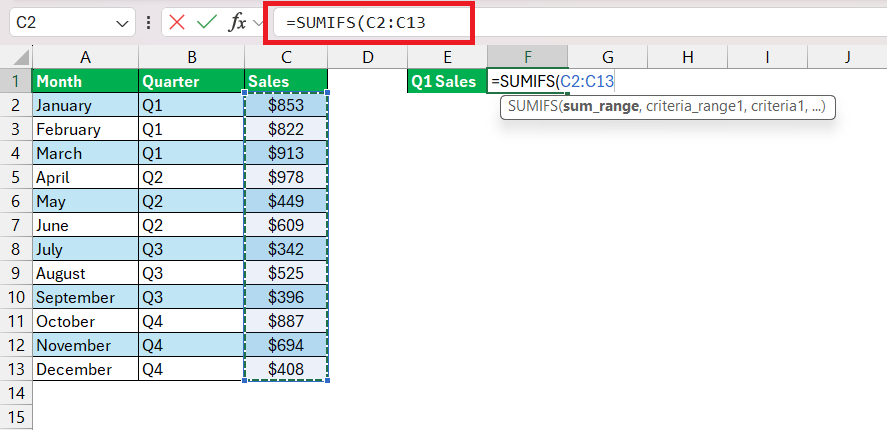
STEP 3: Next, define criteria_range1 which is the range to check for your first condition.
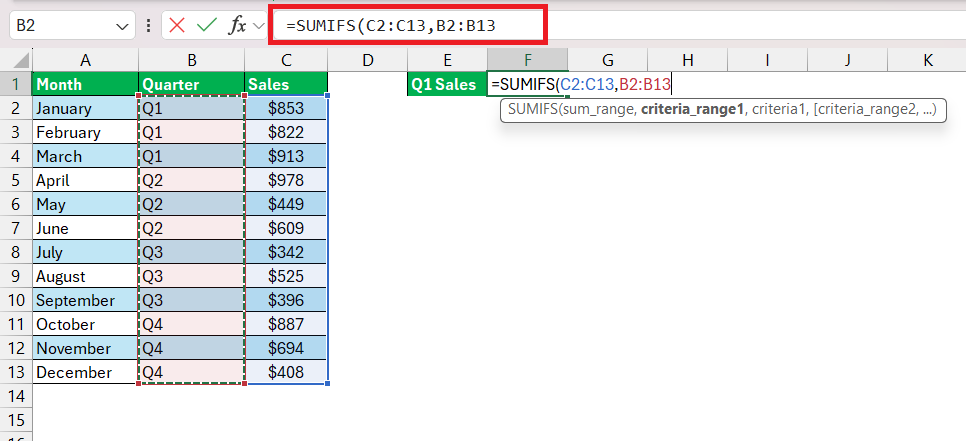
STEP 4: Specify your criteria1, the condition that must be met.
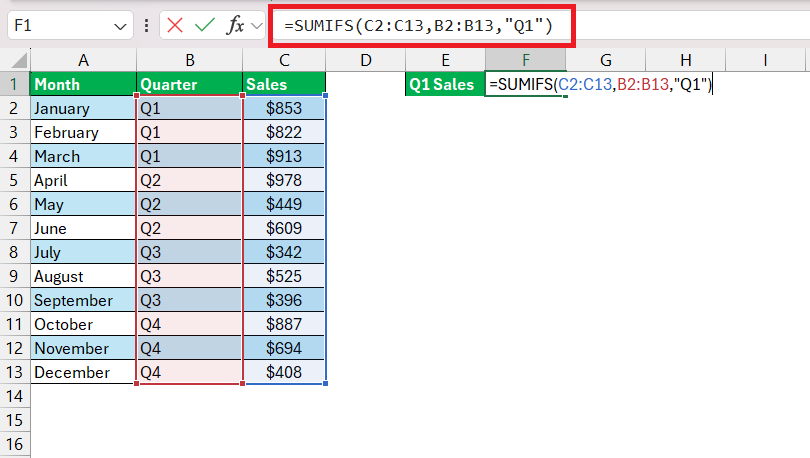
STEP 5: Once all your ranges and criteria are in place, close it off with a parenthesis and press Enter.
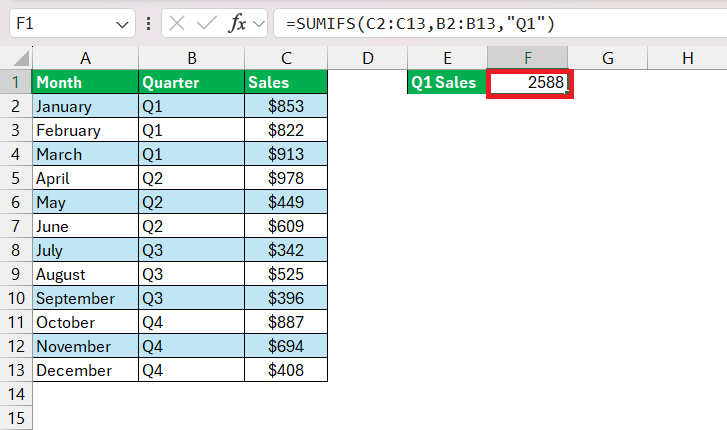
This formula would sum all values in cells C2 through C13 where the corresponding cells in B2 through B13 are “Q1”.
If needed, continue adding conditions by entering additional criteria_range and criteria pairs.
The SUMIFS function can be a game-changer, offering you the ability to analyze and sum data precisely. Its multi-criteria capacity ensures data is not just totaled, but intelligently totaled based on your targeted conditions.
Frequently Asked Questions
How do I sum an entire row in Excel?
To sum an entire row in Excel, use the SUM function with a full row reference like this: =SUM(5:5). This will sum all values in the 5th row. As you add more data to the row, the sum will automatically update to include the new values.
How do I sum a row in a table in Excel?
In an Excel table, click the cell at the end of the row you want to sum. Then, either use the AutoSum feature by pressing ALT + = or enter the SUM function manually, like =SUM(Table1[@[Column1]:[Column5]]), to sum a specific row within a table.
How can I sum a row that includes non-numeric data?
When summing a row with non-numeric data, the SUM function will ignore text and only add up the numbers. Just type =SUM(row_range), replacing “row_range” with your row reference, and Excel will compute the total of numeric cells only.

John Michaloudis is a former accountant and finance analyst at General Electric, a Microsoft MVP since 2020, an Amazon #1 bestselling author of 4 Microsoft Excel books and teacher of Microsoft Excel & Office over at his flagship MyExcelOnline Academy Online Course.

 30 Days - Full Access









