 Free Practice Workbook
Adding days to a date in Microsoft Excel is a straightforward process. Whether you’re dealing with deadlines, events, or personal reminders, Excel offers quick and efficient tools to modify dates. By utilizing Excel’s ‘Paste Special’ function or a simple formula, you can seamlessly extend the current date or any selected date by 10 days with just a few clicks.
Key Takeaways
- Date calculations are crucial for effective data management and analysis, allowing tracking of deadlines, measuring durations, and organizing schedules efficiently.
- TODAY() function in Excel dynamically retrieves the current date.
- By combining TODAY() with other Excel functions, users can perform complex date calculations, including variable date additions, which allow for more dynamic and flexible operations.
Download the workbook and follow the blog to learn how to add 10 days from today in Excel – Download excel workbookAdd-10days-from-today-in-excel.xlsx
Getting Started with Excel’s TODAY Function
Understanding TODAY(): A Real-time Date Generator
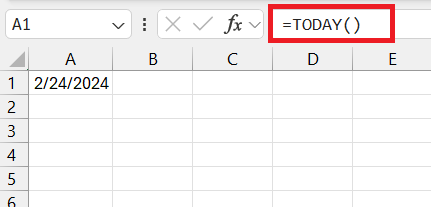
The TODAY() function automatically retrieves the current date, formatted as “month/day/year.”
Key Functions of TODAY():
- Provides the current date every time the Excel spreadsheet is opened.
- Does not require any arguments, offering ease of use by simply typing “=TODAY()” into a cell.
- Updates dynamically – the displayed date will reflect the current day with each opening of the document.
Using TODAY() Alongside Other Functions:
- To calculate one week from the current date: “=TODAY() + 7”
- To determine the date two weeks ago: “=TODAY() – 14”
Simple Steps to Use =TODAY() and Add 10 Days
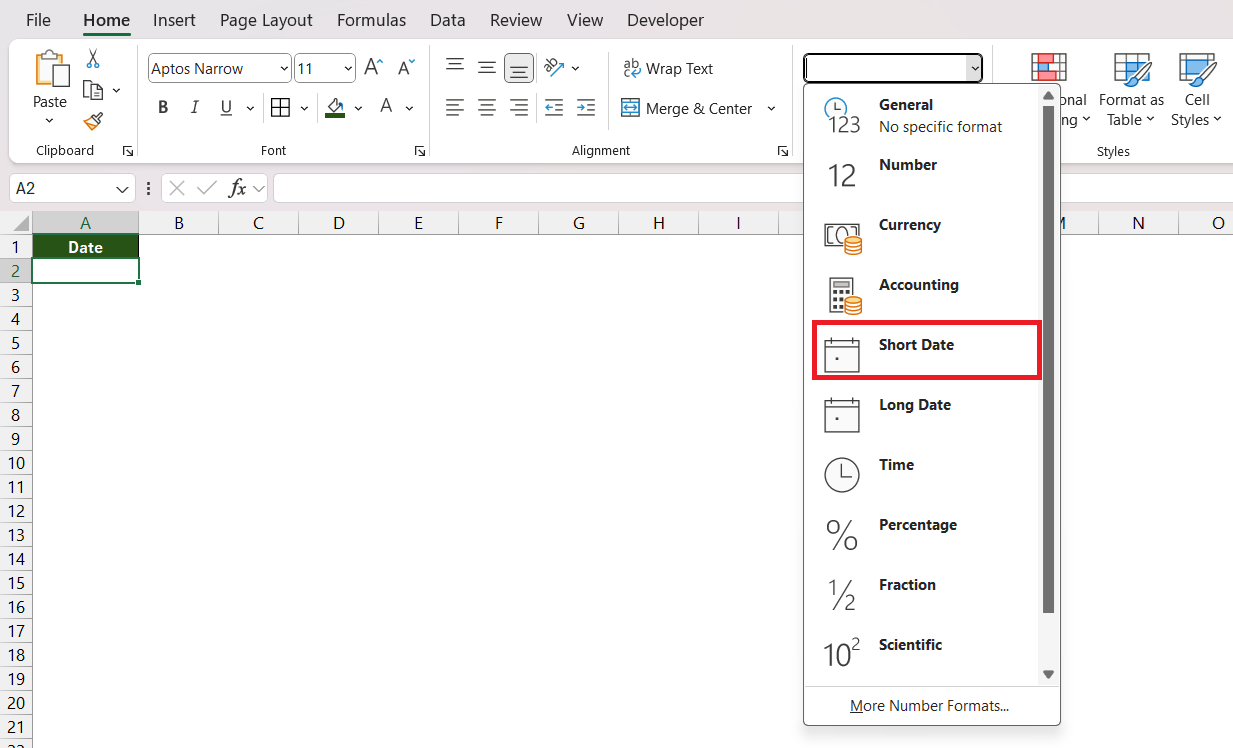
STEP 1: Make sure the cell where you are going to enter the formula is formatted for dates. You can format the cell by going to the Home tab and selecting ‘Short Date’ under the ‘Number’ dropdown.
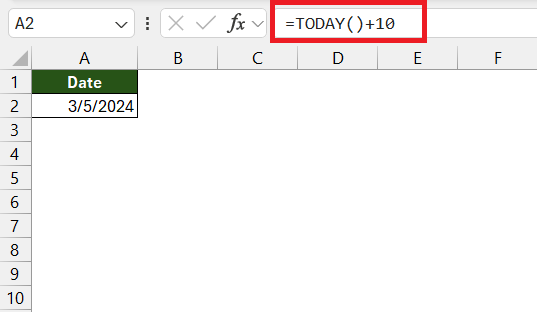
STEP 2: In the desired cell, enter the formula `=TODAY()+10`. This formula adds 10 to the serial number that represents today’s date. Press Enter, and the cell will now display the date that is 10 days in the future from today.
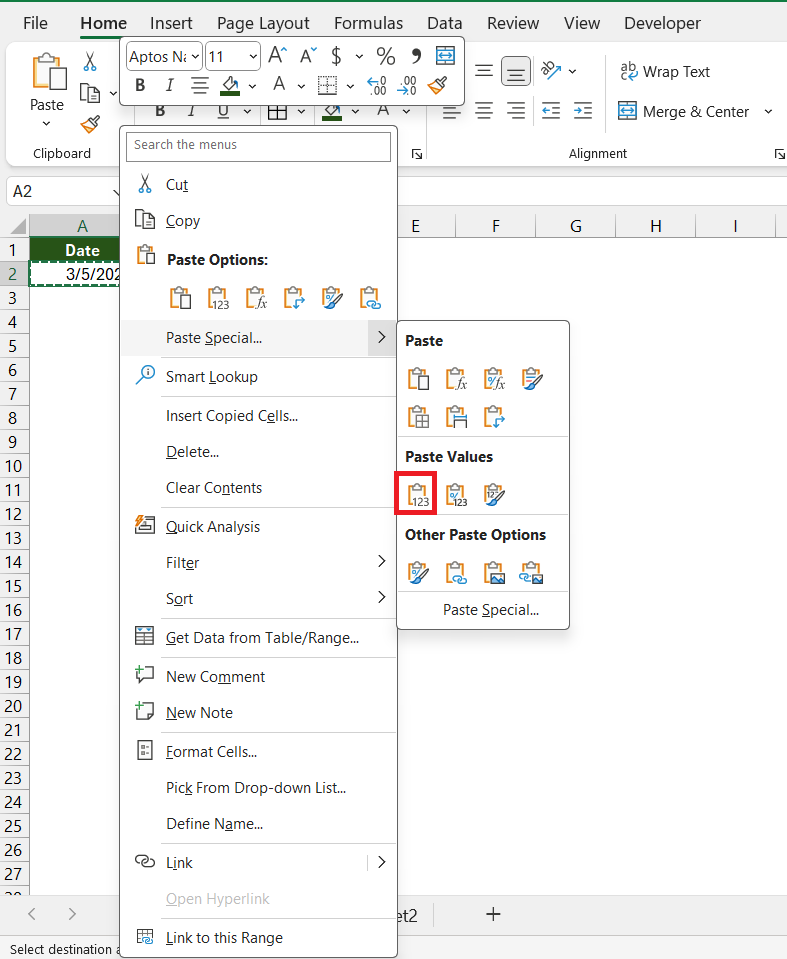
If you need to add 10 days to the current date without the date changing every day, you can copy the cell with the formula and then right-click and select Paste Special > Values to paste only the value into that cell.
Enhancing Your Date Formulas
Variable Date Additions
Adding a specific number of days to a date in Excel, such as 10 days from today, is straightforward, but sometimes flexibility is needed. For cases where the number of days to add varies, Excel can handle this just as smoothly, using cell references or formulas to determine the number of days to add.
One method is to use a designated input cell where users can enter the number of days they wish to add, which is then referenced in formulas. Here’s a simple example:
STEP 1: Type the number of days you want to add in the cell, let’s say, A2.
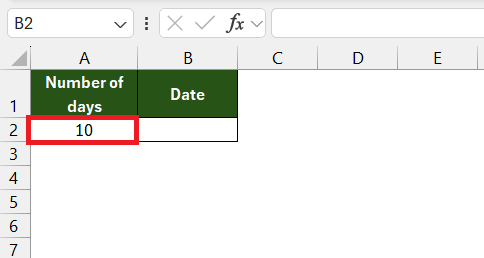
STEP 2: In the cell where you want the new date to appear, insert the formula =TODAY() + A2. This will add the number of days specified A2 to the current date.
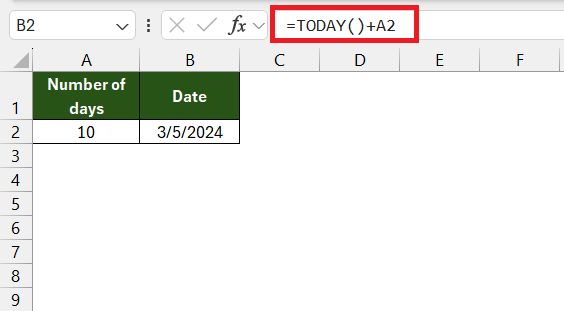
Whenever you need to change the number of days to be added, simply update the cell A2, and the formula will automatically calculate the new date.
Using DATE Function
Another variation is the DATE function, which can use the separation of year, month, and day components to construct a date. Combine this with the DAY, MONTH, and YEAR functions to break down and manipulate existing dates easily.
You can use this function to add 10 days from today –
=DATE(YEAR(A2),MONTH(A2),DAY(A2)+10)
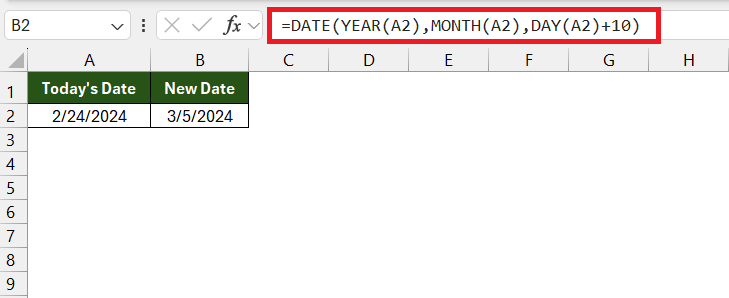
The formula “=DATE(YEAR(A2),MONTH(A2),DAY(A2)+10)” is an Excel formula used to add 10 days to a given date stored in cell A2 and provide you with the desired output.
Here’s a breakdown of how the formula works:
- YEAR(A2): It extracts the year from the date in cell A2.
- MONTH(A2): It extracts the month from the date in cell A2.
- DAY(A2)+10: It extracts the day from the date in cell A2 and adds 10 days to it.
Using SEQUENCE Function
For more dynamic applications, Excel can cater to working with arrays or ranges of values, employing functions like SEQUENCE to generate a series of numbers that represent different intervals to be added to individual dates.
To get a series of 10 days from today, you can use this function –
=SEQUENCE(10, 1,TODAY(), 1)
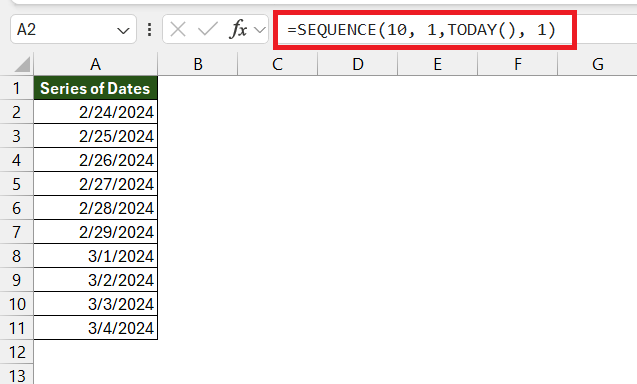
The formula =SEQUENCE(10, 1, TODAY(), 1) generates a sequence of 10 consecutive numbers, each representing a date starting from today and incrementing by 1 day at a time. Let’s break down the components of this formula:
- 10: This specifies the number of elements (or cells) you want in the sequence. In this case, it’s generating a sequence of 10 dates.
- 1: This parameter indicates that the sequence should be arranged in a single column. Each date will be in a separate row.
- TODAY(): This function returns the current date. It’s being used as the starting point for the sequence. So, the sequence will start from today’s date.
- 1: This specifies the step value by which each subsequent element in the sequence is incremented. In this case, it’s 1 day. So, each date in the sequence will be exactly 1 day ahead of the previous one.
Remember, Excel stores dates as serial numbers starting from January 1, 1900, which is day 1. This means that when you add a numeric value to a date, you’re essentially moving forward that many days in the calendar. By referencing variable inputs or cells in your formulas, Excel can accommodate a wide range of date calculations beyond simple, fixed-date additions.
Frequently Asked Questions
How do I ensure that Excel doesn’t give me an error when adding dates?
To ensure that Excel doesn’t give you an error when adding dates, first, make sure your dates are properly formatted as date values and not as text or other formats. If needed, convert them using the DATE function or by changing the cell format. Secondly, if you’re using a helper column to add a variable number of days to each date, double-check that the cells in the helper column contain numerical values representing the days to be added, and then use a simple addition formula like =B2+C2, where B2 is the original date and C2 is the number of days to add.
What are some practical uses for adding 10 days to today’s date in business scenarios?
- Adding 10 days to today’s date is useful in project management for extending deadlines when unforeseen circumstances require adjustments to the project timeline.
- In the context of invoicing and accounting, it may be applied to extend payment terms or due dates for clients who may need a grace period beyond the standard payment cycle.
- Businesses often use this operation to calculate expected delivery dates for orders when providing customers with estimated arrival times, factoring in additional time for processing or shipping delays.
How do I subtract 10 days from a date in Excel?
To subtract 10 days from a date in Excel, select a blank cell, enter the formula `=A2-10` (assuming the date is in cell A2), and press the Enter key. If you need to apply this to other cells, drag the AutoFill handle from your formula cell to the other cells where you want to subtract 10 days.

John Michaloudis is a former accountant and finance analyst at General Electric, a Microsoft MVP since 2020, an Amazon #1 bestselling author of 4 Microsoft Excel books and teacher of Microsoft Excel & Office over at his flagship MyExcelOnline Academy Online Course.

 30 Days - Full Access









