 Free Practice Workbook
An expense tracker is a useful tool to monitor your expenses, and a budget report is used to track income and spending and categorise them. Copilot in Excel simplifies the process by generating tables and formulas using natural‑language prompts. In this article, you will learn how to create a budget or expense tracker with Copilot in Excel.
Key Takeaways:
- Copilot can help create budget and expense trackers in Excel.
- A budget tracker helps plan income and expenses.
- An expense tracker records your actual transactions.
- Copilot can create tables, formulas, and spending summaries.
- Always review Copilot’s formulas and results.
Table of Contents
Explain Budget and Expense Tracker
Budget Tracker
A budget tracker is a tool that helps you plan your money so that you can use it wisely. It focuses on expected income and expected expenses. It allows you to understand how much you want to save.
You can also use it to set spending limits for categories such as groceries, rent, transportation, and entertainment. It allows you to compare your planned spending with your actual expenses.
Expense Tracker
An expense tracker is a tool that helps you record every transaction you make. It focuses on actual spending, not planned spending. You can record details such as the date, category, description, payment method, and amount. It helps you understand where your money is being spent.
In short, both are useful tools. A budget tracker helps you plan your money, and an expense tracker helps you track your money.
How to Create a Budget Tracker with Copilot in Excel
Prerequisite
- A Microsoft 365 subscription with an eligible Copilot license
- Workbook saved to OneDrive or SharePoint
- AutoSave turned on
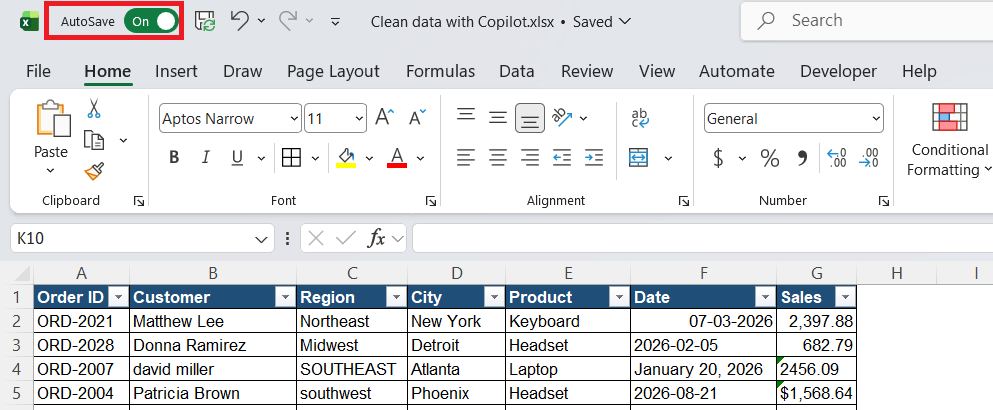
- Clear column headers
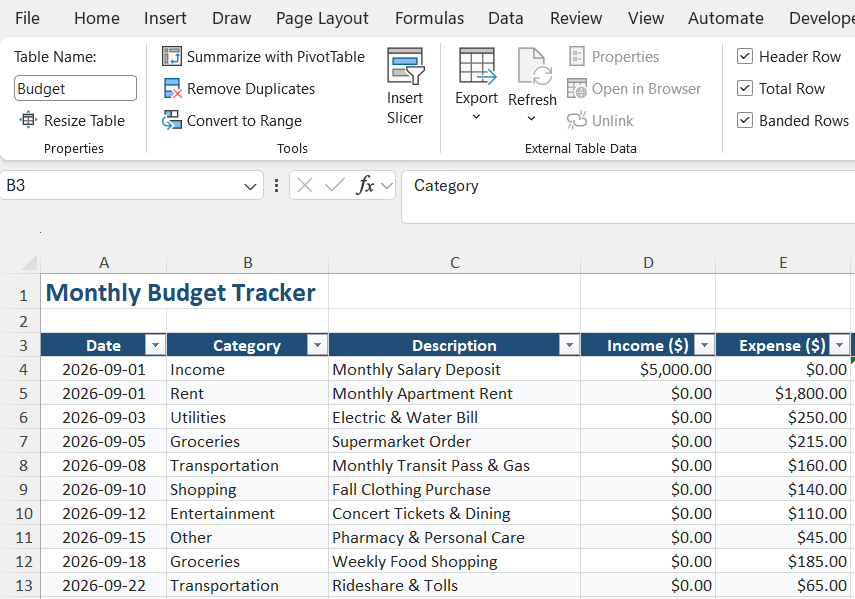
- Data formatted as an Excel Table
Step-by-Step Guide
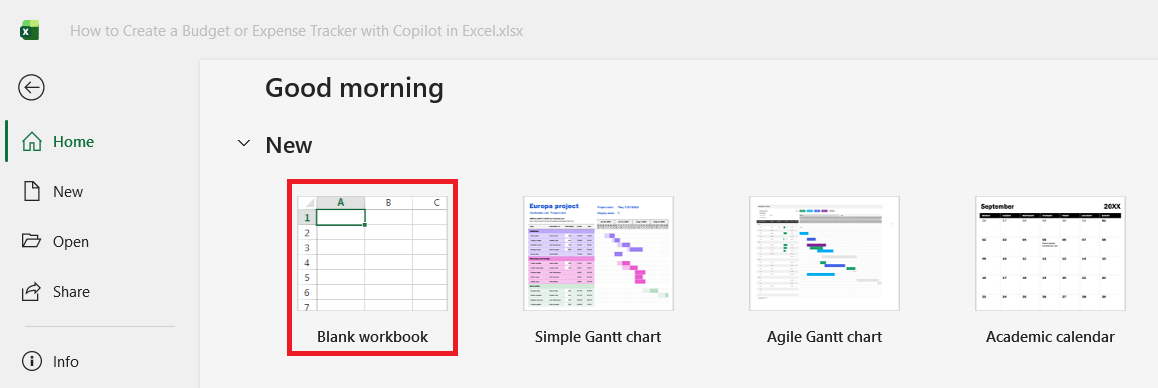
STEP 1: Open Microsoft Excel and create a new workbook.
STEP 2: Click on the Copilot button.

STEP 3: Enter a prompt describing the budget you want.
Create a monthly budget tracker with columns for Date, Category, Description, Income, and Expense.
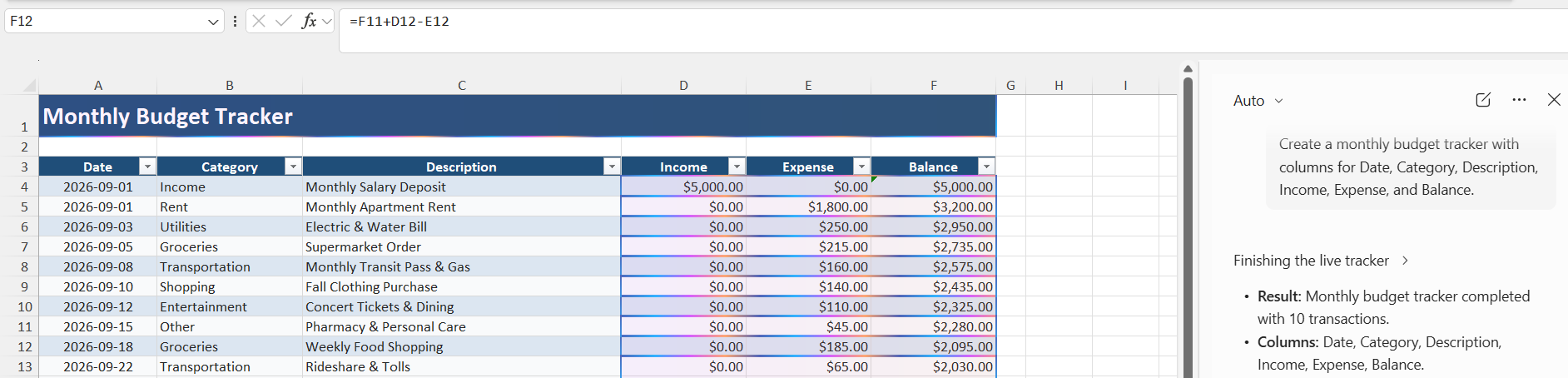
STEP 4: Ask Copilot to add common expense categories.
Add these expense categories: Rent, Groceries, Utilities, Transportation, Shopping, Entertainment, and Other.

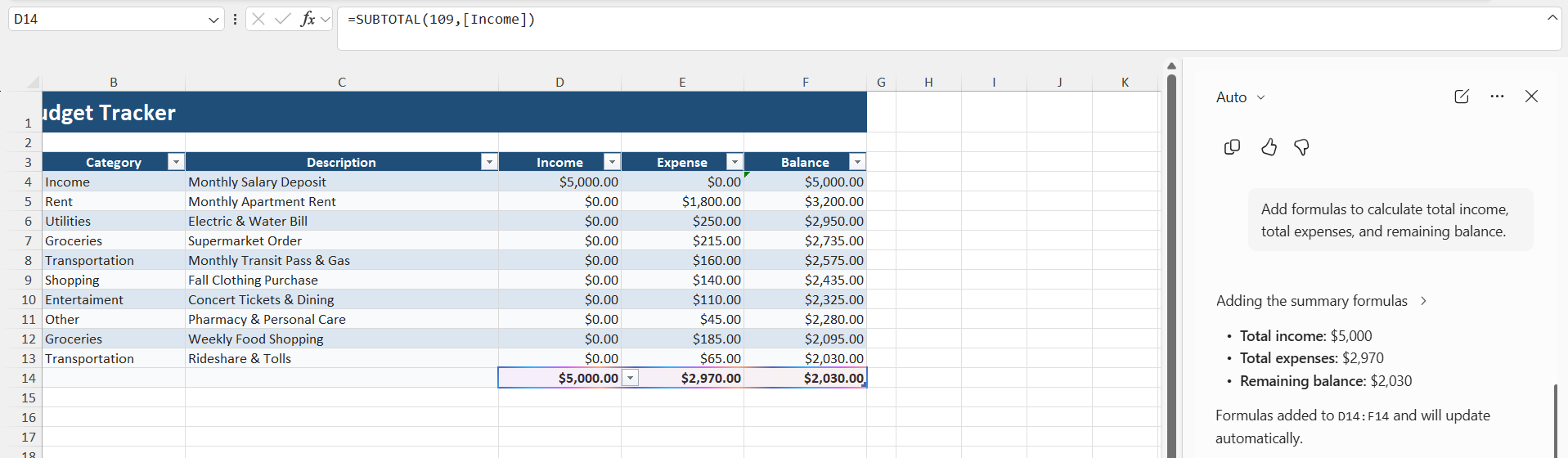
STEP 5: Copilot can create formulas for totals and balances.
Add formulas to calculate total income, total expenses, and remaining balance.
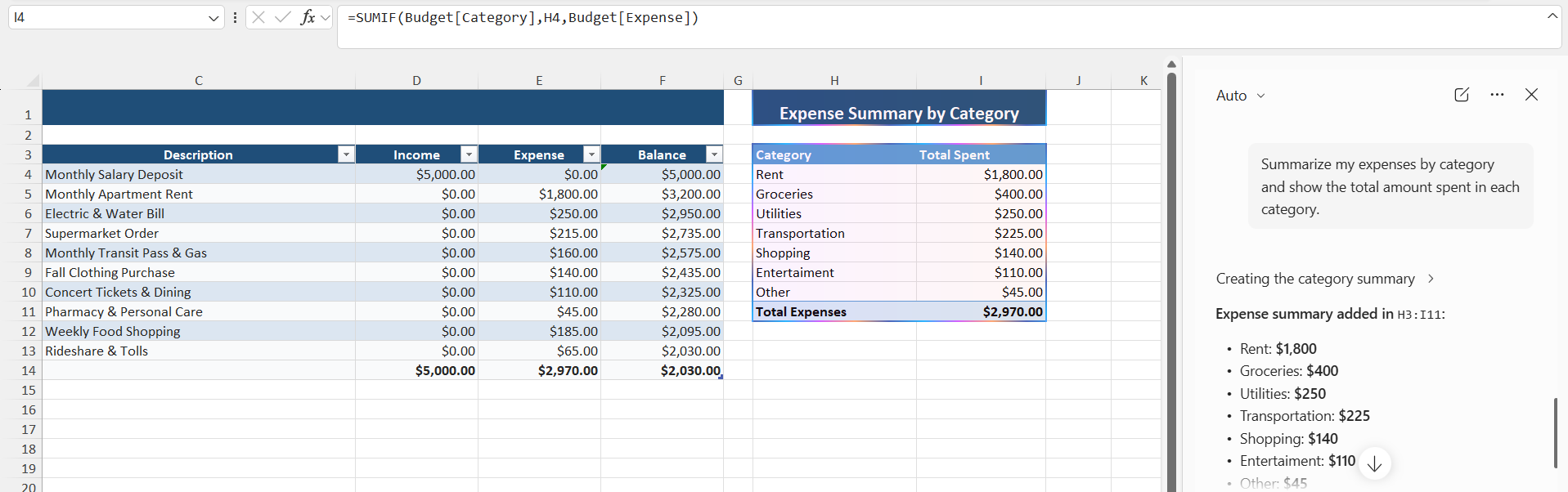
STEP 6: Add a Monthly Summary
Summarize my expenses by category and show the total amount spent in each category.
How to Create an Expense Tracker with Copilot
An expense tracker records individual transactions. You can ask Copilot:
Create an expense tracker using these columns and calculate the total expenses.
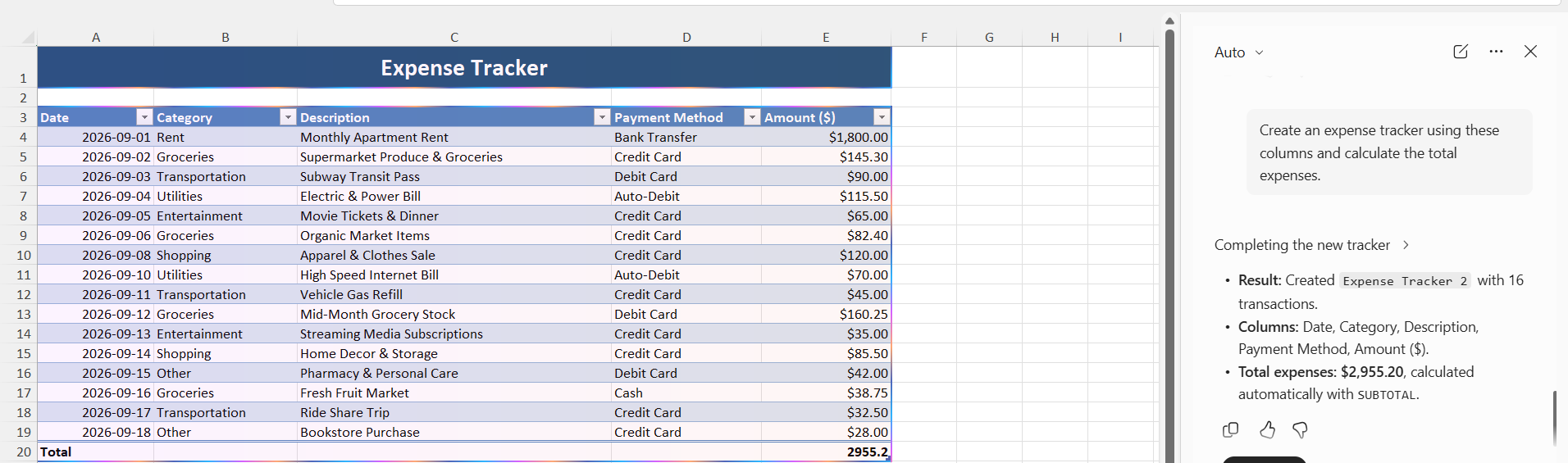
You can include columns such as Date, Category, Description, Payment Method, and Amount. After adding your transactions, Copilot can help summarize the data and identify spending patterns.
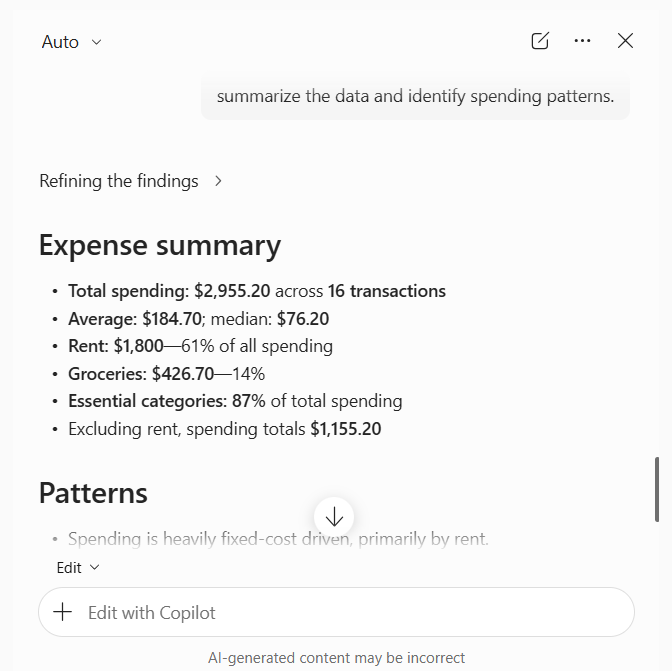
For example, you can ask Copilot to show your total spending for groceries or transportation. You can also ask it to summarize expenses for a specific month.
Tips & Tricks
- You should use clear column headers
- Make sure that the categories are consistent
- Enter transactions regularly
- Use Excel Tables for structured data
- Give Copilot specific prompts
- Review formulas created by Copilot
- Verify results before making financial decisions
- Keep a backup of important financial data
FAQs
1. What is the difference between a budget tracker and an expense tracker?
A budget tracker helps plan your expected income and expenses, while an expense tracker records your actual spending.
2. Can Copilot create a budget tracker in Excel?
Yes. Copilot can create a budget table, add categories, and generate formulas for income and expenses.
3. Can you create an expense tracker with Copilot?
Yes. You can ask Copilot to create an expense table and calculate total spending.
4. Can Copilot summarize expenses by category?
Yes. Copilot can analyze your expense data and summarize spending by categories such as groceries, rent, etc.
5. Do I need a Copilot license to create a budget tracker?
You need a Microsoft 365 subscription with an eligible Copilot license to use Copilot features in Excel.

John Michaloudis is a former accountant and finance analyst at General Electric, a Microsoft MVP since 2020, an Amazon #1 bestselling author of 4 Microsoft Excel books and teacher of Microsoft Excel & Office over at his flagship MyExcelOnline Academy Online Course.

 30 Days - Full Access









