 Free Practice Workbook
Microsoft Excel‘s Harvey Balls can visualize data, making your percentages easy to spot trends at a glance.
Key Takeaways:
- Harvey Balls are versatile symbols that visually represent task completion or data comparison.
- Multiple methods for inserting Harvey Balls in Excel include using the Insert Symbol feature or the =UNICHAR() function for dynamic displays.
- Harvey Balls can be resized, colored, and dynamically displayed using conditional formatting or Excel functions like IF or IFS.
Table of Contents
Inserting Harvey Balls into Your Spreadsheet
Method 1: Using Excel’s Insert Symbol Feature
For a more straightforward, less dynamic method to insert Harvey Balls:
STEP 1: Go to Insert: Click on the “Insert” tab in the ribbon.

STEP 2: Click on “Symbol” in the “Symbols” group.

STEP 3: Choose Font: Select “Segoe UI Symbol” and choose Subset: Geometric Shapes or another font that contains circular symbols.
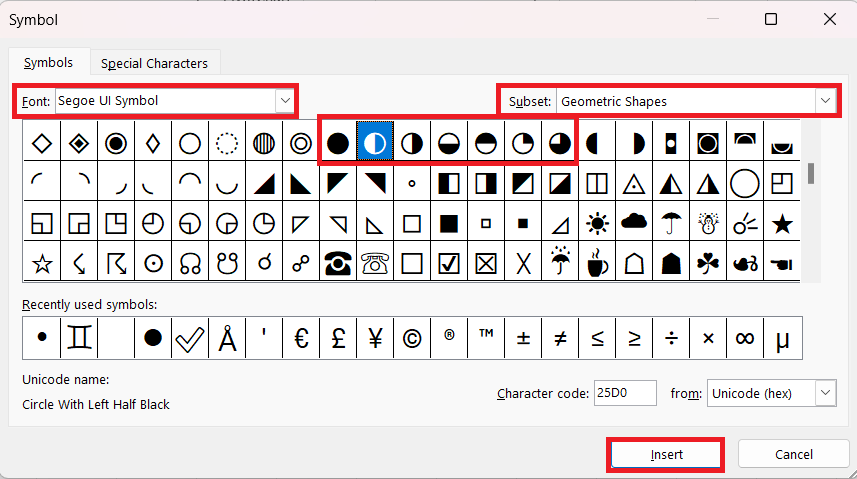
STEP 4: Insert Symbol: Click on the symbol that best represents your desired Harvey Ball completion level and click “Insert.”
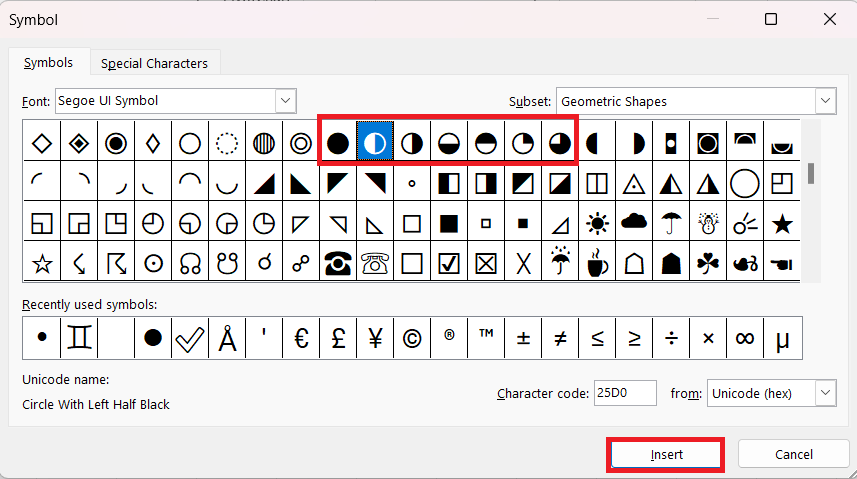
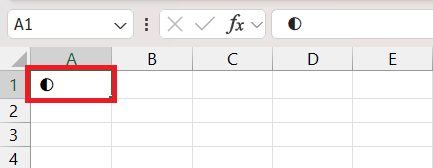
STEP 5: Check result.
Method 2: Using the =UNICHAR() Function
You can use the =UNICHAR() function to insert Harvey Balls. While it’s a bit more manual than add-ins, this method does not require any additional downloads.
STEP 1: Click on the cell where you want to add the Harvey Ball.
STEP 2: Type =UNICHAR() into the formula bar, then insert the appropriate Unicode number for the Harvey Ball you need. Hit Enter and watch as the Harvey Ball appears in the cell.
Remember, each Harvey Ball corresponds to a specific Unicode number:
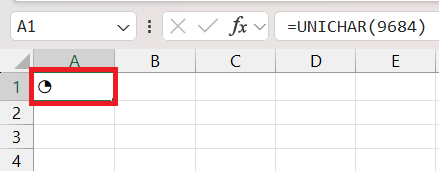
- For a quarter-filled circle, use
=UNICHAR(9684)
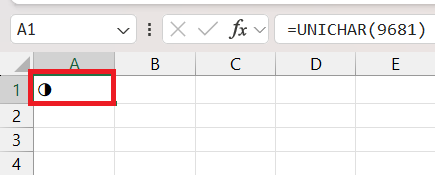
- A half-filled circle,
=UNICHAR(9681)
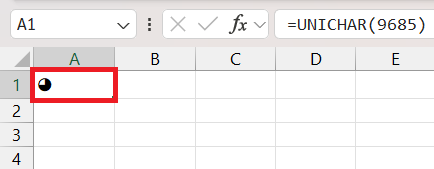
- A three quarters-filled circle,
=UNICHAR(9685)
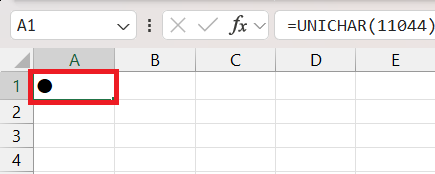
- For a full circle,
=UNICHAR(11044)
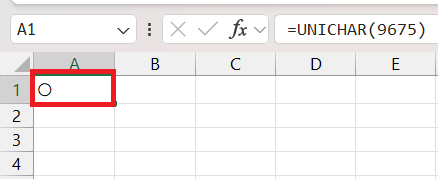
- Empty Circle:
=UNICHAR(9675)
Customizing Harvey Balls for Effective Visualization
Applying Conditional Formatting for Dynamic Display using Custom formatting
Applying conditional formatting with Harvey Balls creates a dynamic display that responds in real-time as your data changes.
STEP 1: Select the cell where you plan to show the Harvey Ball.
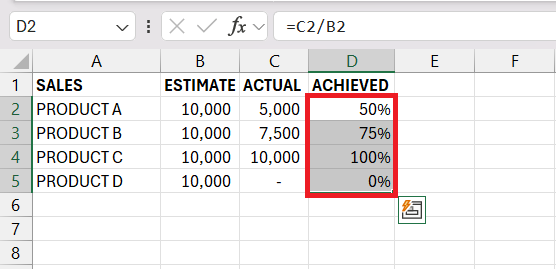
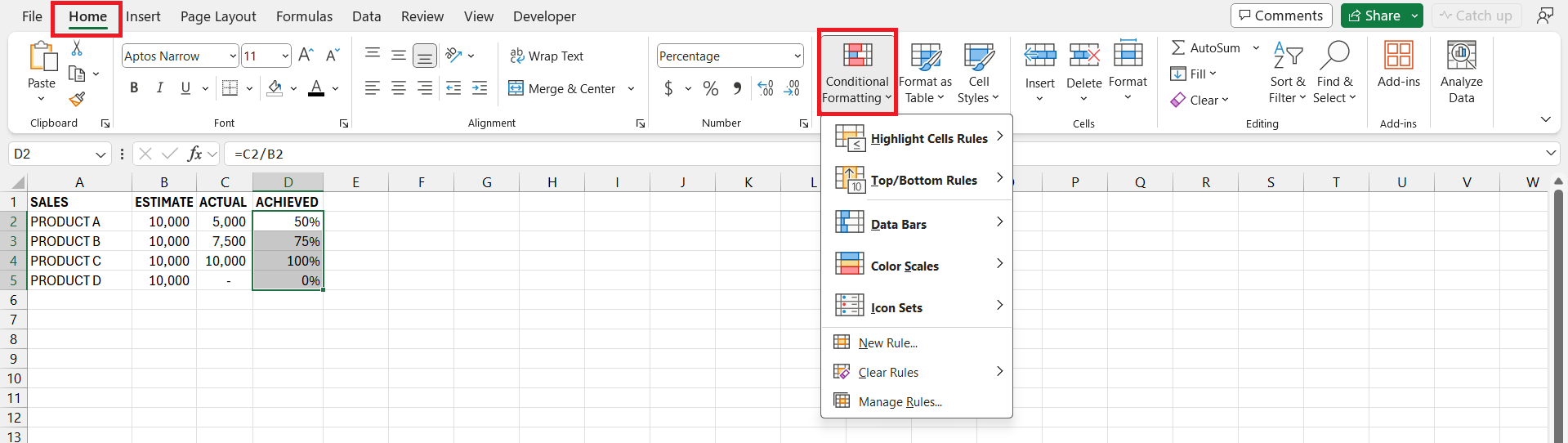
STEP 2: Navigate to the ‘Home’ tab in Excel.

STEP 3: Click on ‘Conditional Formatting’.
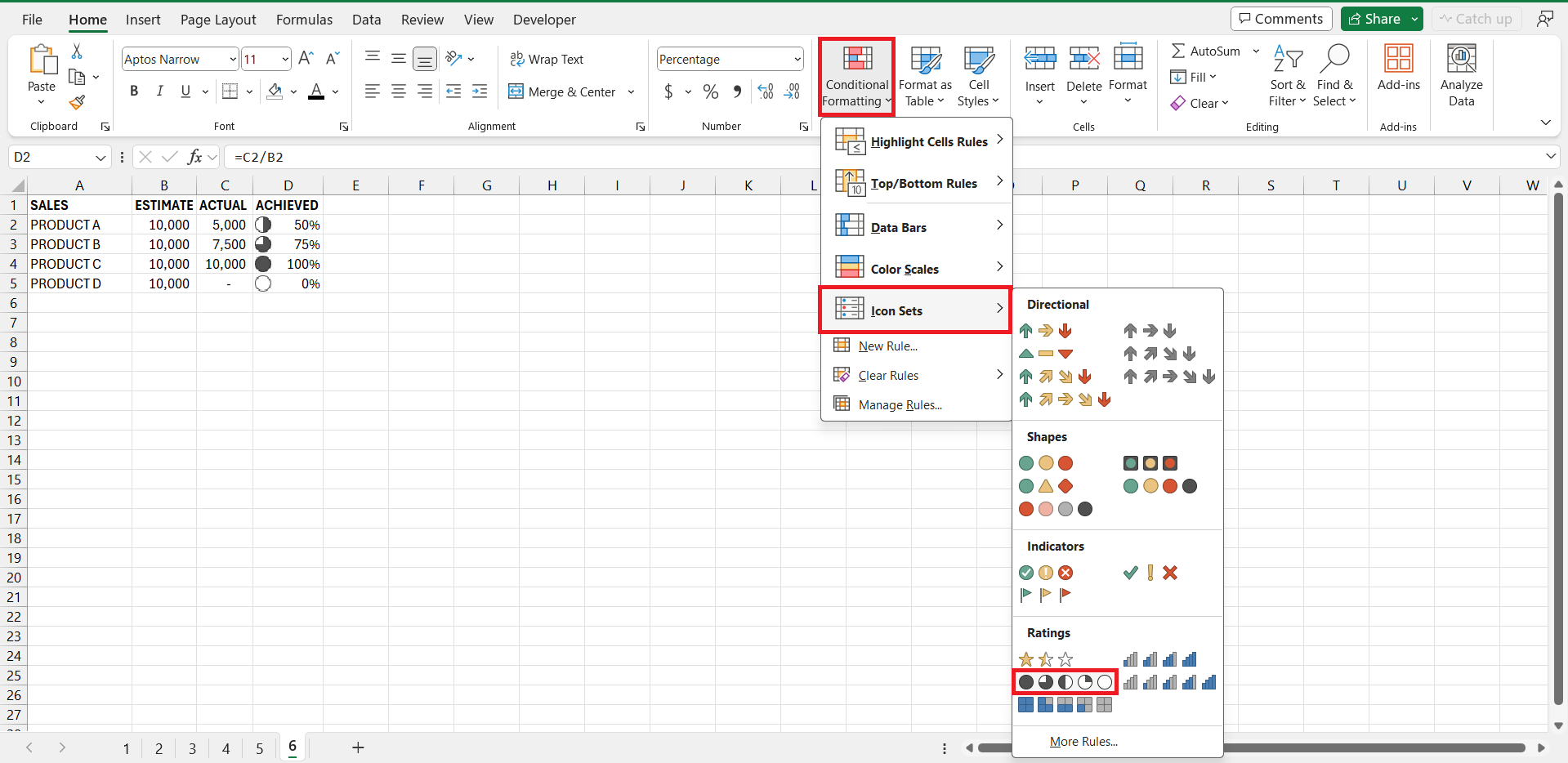
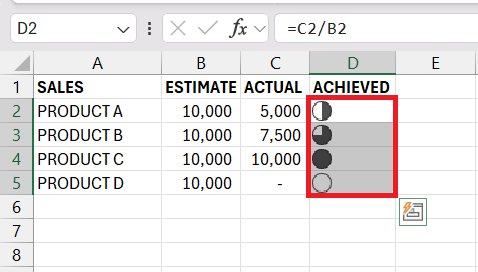
STEP 4: Choose ‘Icon Sets‘, and then select the preferred style of Harvey Balls.
After you’ve set up the basic icons, it’s time to get into the specifics:
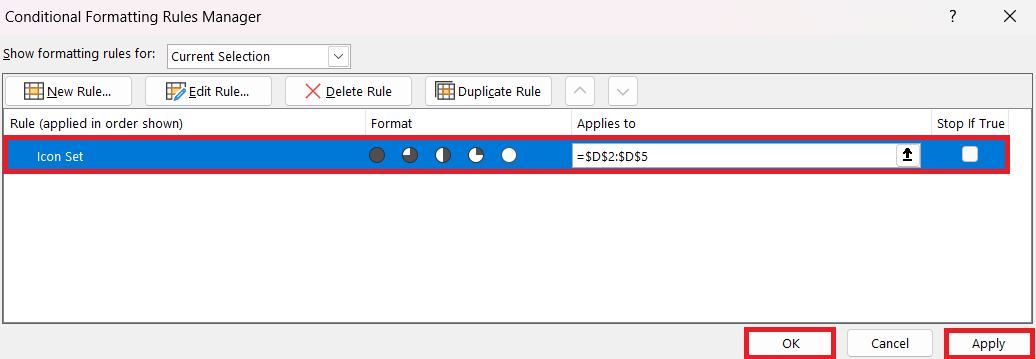
STEP 5: Return to ‘Conditional Formatting’ and click on ‘Manage Rules’.
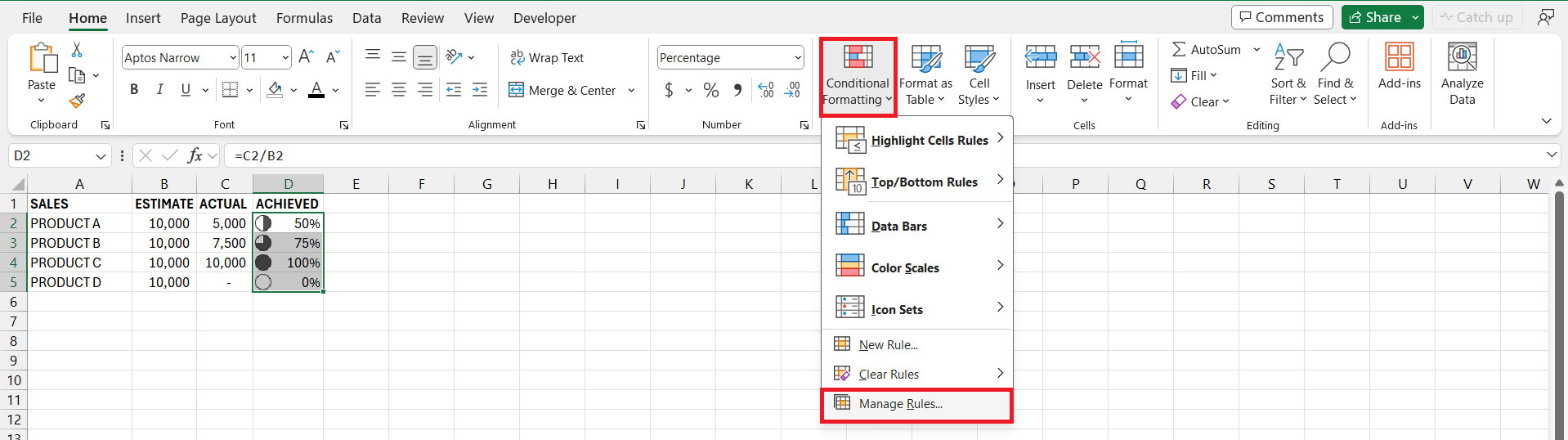
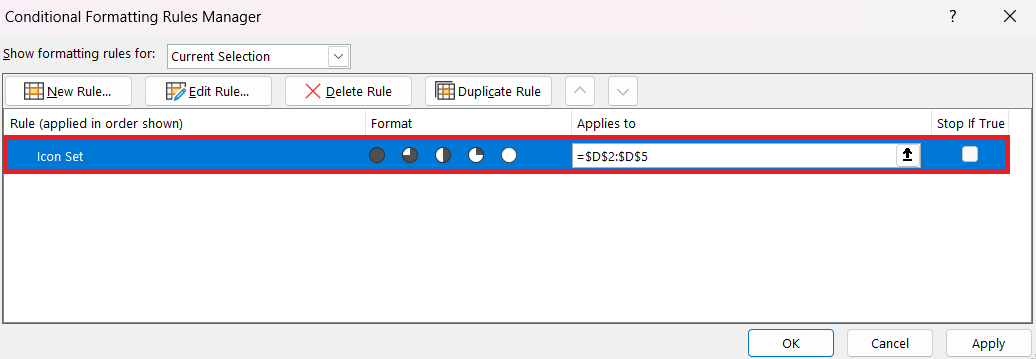
STEP 6: Double-click the rule you’ve just set up to tweak the appearance.
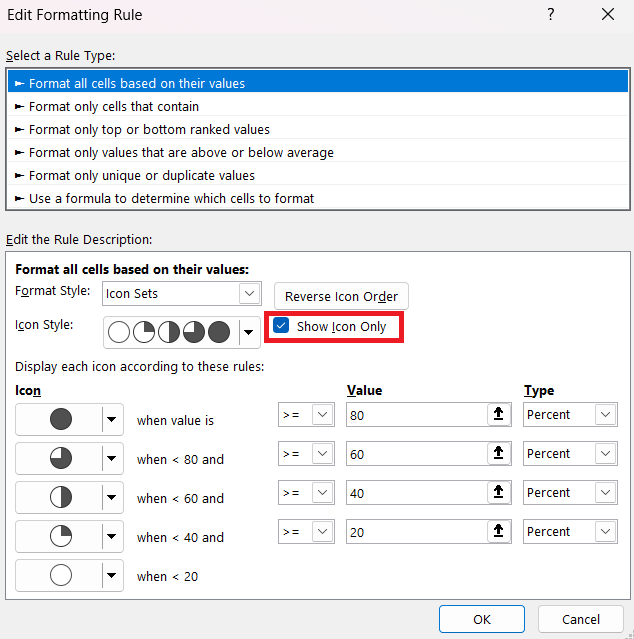
STEP 7: Check the ‘Show Icon Only’ box to display only the Harvey Ball without accompanying numbers.
STEP 8: Define the value range for each Harvey Ball symbol to match your data context. Click on “OK”.
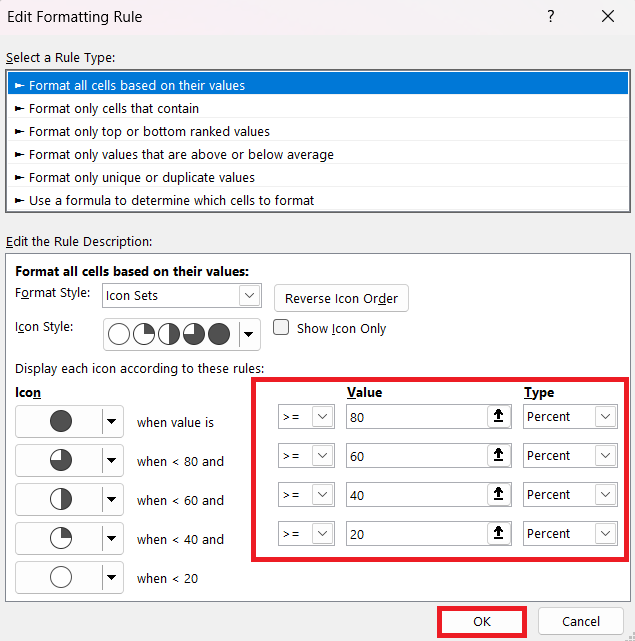
STEP 9: Click on Apply and “OK”.
STEP 10: Check the result.
Dynamically Displaying Harvey Balls Based on Data using IF or IFS function
If you have a column of numerical data representing the completion percentage (ranging from 0% to 100%), you can use the UNICHAR function combined with IF or IFS functions to display Harvey Balls dynamically.
For example, assuming your data is in column A to D, starting from A2:
STEP 1: Click on the cell where you want to display the Harvey Ball (say, E2).
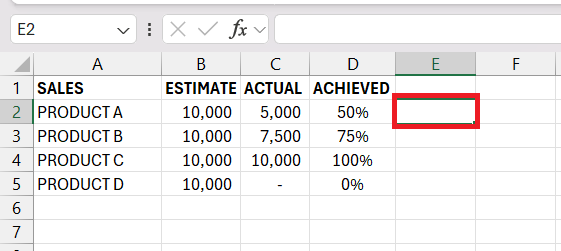
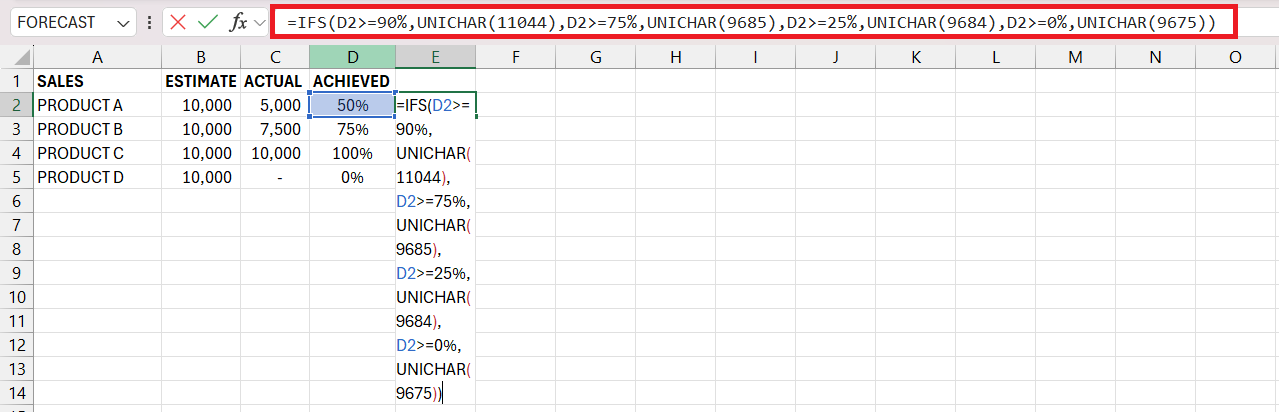
STEP 2: Enter a formula to dynamically choose the Harvey Ball symbol based on the percentage.
An example formula using IFS: =IFS(D2>=90%,UNICHAR(11044),D2>=75%,UNICHAR(9685), D2>=25%,UNICHAR(9684),D2>=0%,UNICHAR(9675))
STEP 3: Press Enter. Drag the fill handle (small square at the bottom right corner of the cell) down to fill the cells below with the formula.

This formula checks the value in column D and displays a different Harvey Ball based on the range in which the value falls. Adjust the thresholds as needed to match your specific requirements.
FAQs
What Are Harvey Balls in Excel?
Harvey Balls are visual indicators used in comparison tables to represent qualitative information or progress level.
Can Harvey Balls be Resized and Colored in Excel?
Yes, Harvey Balls can be resized and colored in Excel to suit different presentation needs or to align with corporate branding. This customization can be done through conditional formatting or by using specific fonts and symbols that can be adjusted in size and color.
What font is the Harvey Balls in Excel?
In Excel, Harvey Balls are often represented using the Wingdings or Webdings fonts, which include a range of circular symbols that can approximate the look of Harvey Balls.

John Michaloudis is a former accountant and finance analyst at General Electric, a Microsoft MVP since 2020, an Amazon #1 bestselling author of 4 Microsoft Excel books and teacher of Microsoft Excel & Office over at his flagship MyExcelOnline Academy Online Course.

 30 Days - Full Access









