 Free Practice Workbook
Microsoft Excel‘s tool in visualizing data as a normal distribution chart, resembling a bell curve, is a useful graph to analyze data.
Key Takeaways:
- Excel combines statistical concepts with visualization. This is useful in doing analysis in fields like quality control and risk assessment.
- The NORM.DIST function calculates probability density within a normal distribution for data analysis.
- A step-by-step guide facilitates the creation of bell curves in Excel, you can visualize data distributions with this.
Table of Contents
Introduction to Normal Distribution in Excel
Data Visualization with Normal Distribution
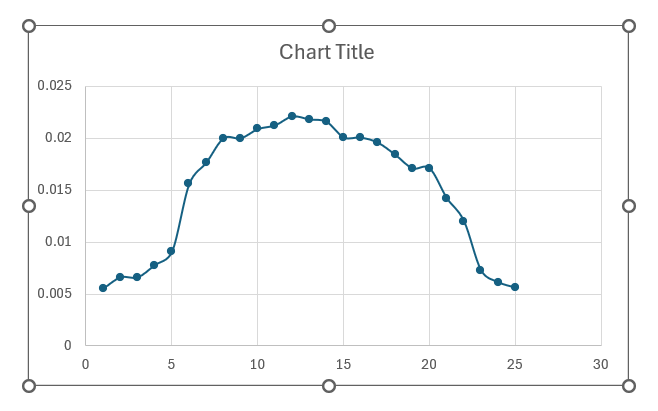
With a bell curve in Excel, you can predict occurrences and understand phenomena in various fields, such as quality control, performance analysis, and risk assessment, all within the familiar environment of your spreadsheet. Visualizing normal distribution helps you to comprehend the consistency of a process or the expected variation within a set of data – making you a master of your numbers.
NORM.DIST Formula
What is NORM.DIST function?
The NORM.DIST formula in Excel is used to calculate the probability density function (PDF) for a given value in a normal distribution. It gives the probability that a variable falls within a specified range, based on the mean and standard deviation of the distribution.
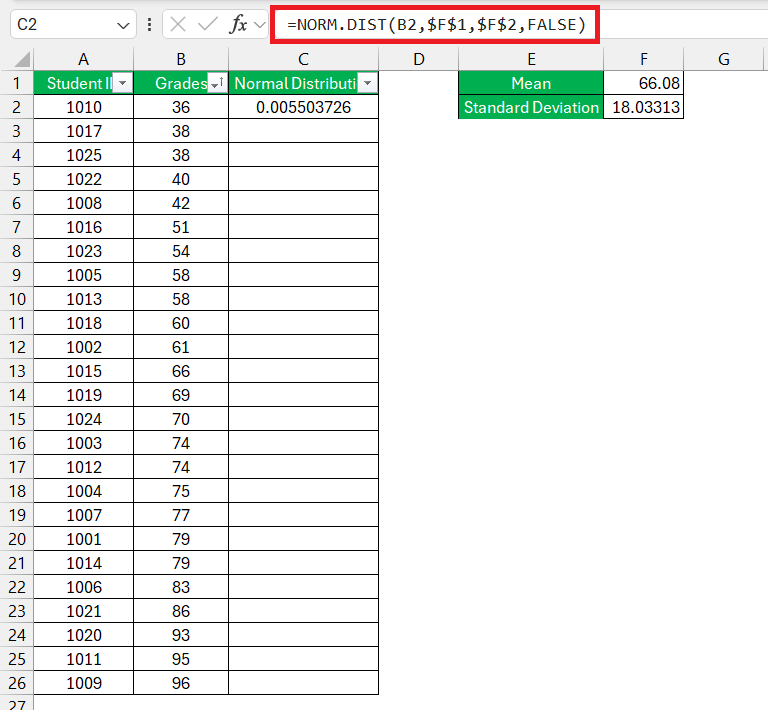
=NORM.DIST(x, mean, standard_dev, cumulative)
- x: This represents the value for which you seek to determine the probability.
- mean: This denotes the arithmetic mean (average) within the distribution.
- standard_dev: This signifies the standard deviation characterizing the distribution.
- cumulative: This represents a logical value that dictates the distribution type. If set to TRUE, the function returns the cumulative distribution function (CDF), which is the probability that a random variable takes a value less than or equal to x. If set to FALSE, the function returns the probability density function (PDF), which represents the probability density of a continuous random variable falling within a particular range
Step-by-Step Guide to Creating a Bell Curve
Calculate Normal Distribution
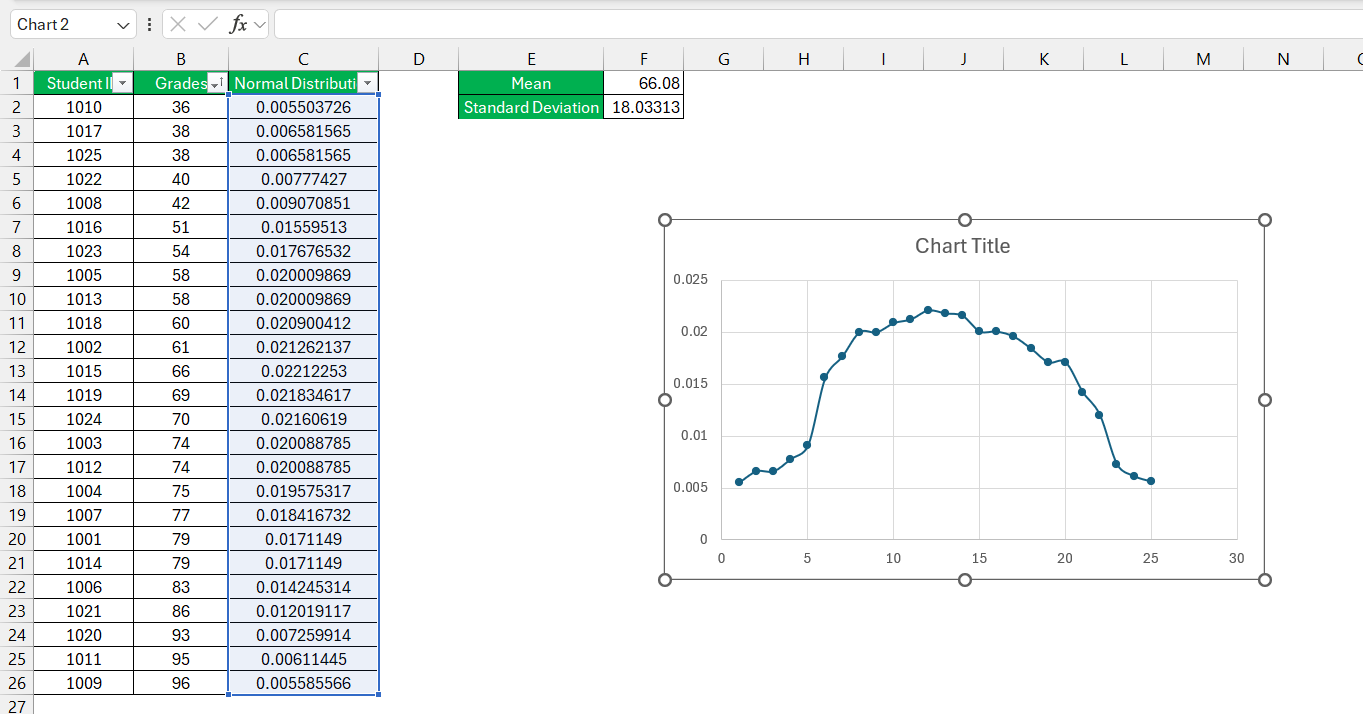
Here we have the grades of the students and we want to create a bell curve using this data –
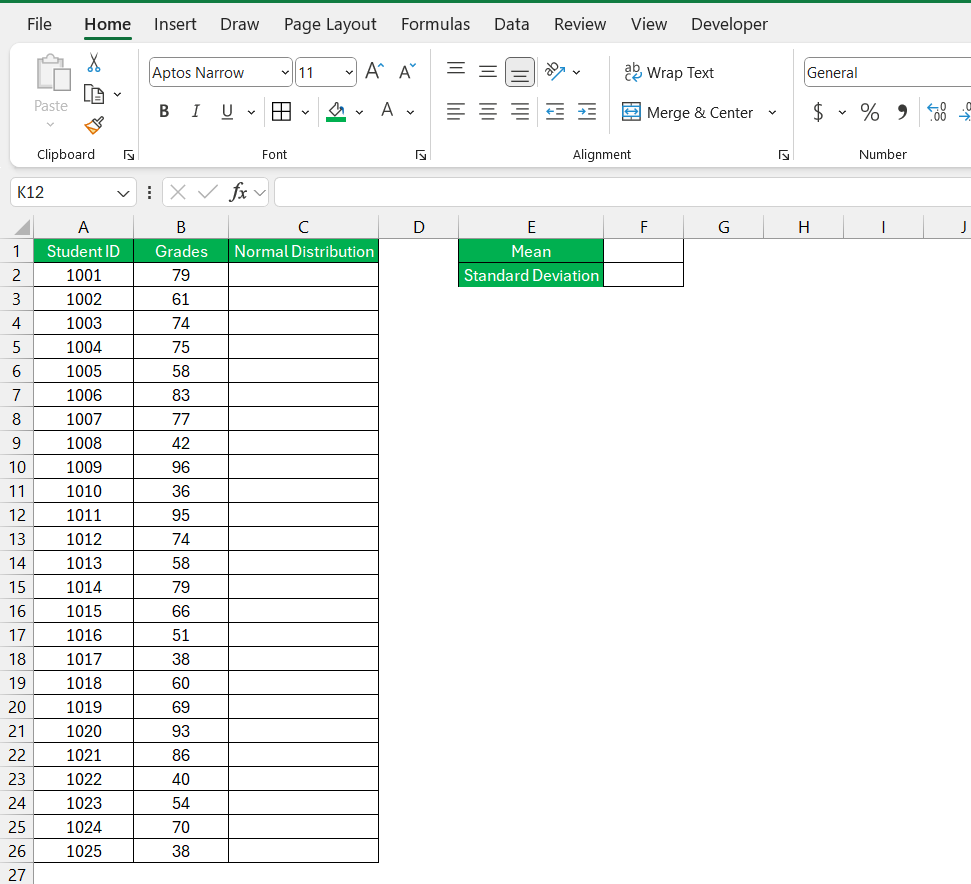
STEP 1: First, find the mean of the dataset, which represents the average value.
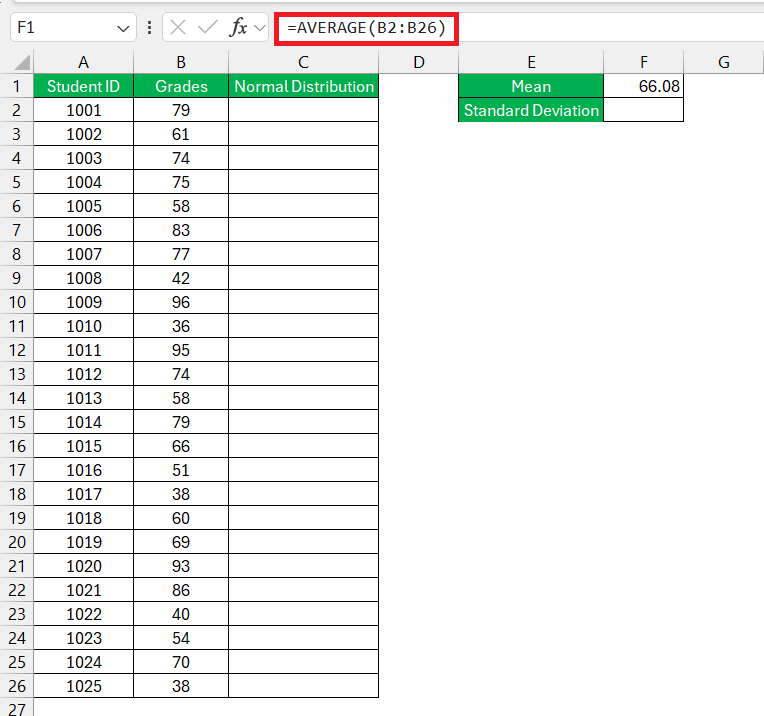
STEP 2: Next, determine the standard deviation for the provided data.
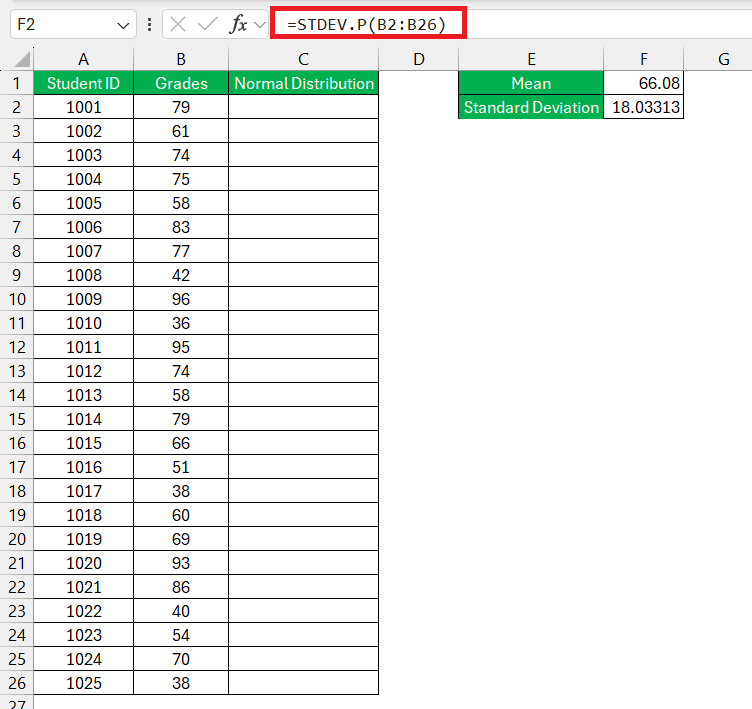
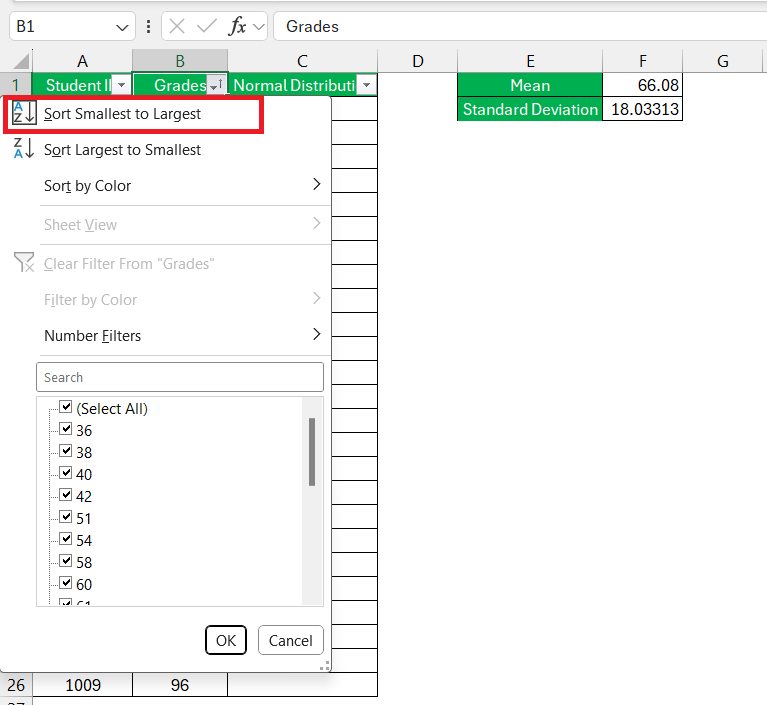
STEP 3: Right-click the data column and select Sort smallest to largest.
STEP 4: Calculate the normal distribution using Excel’s built-in formula – NORM.DIST.
STEP 5: Drag the formula down to apply it to the entire dataset.
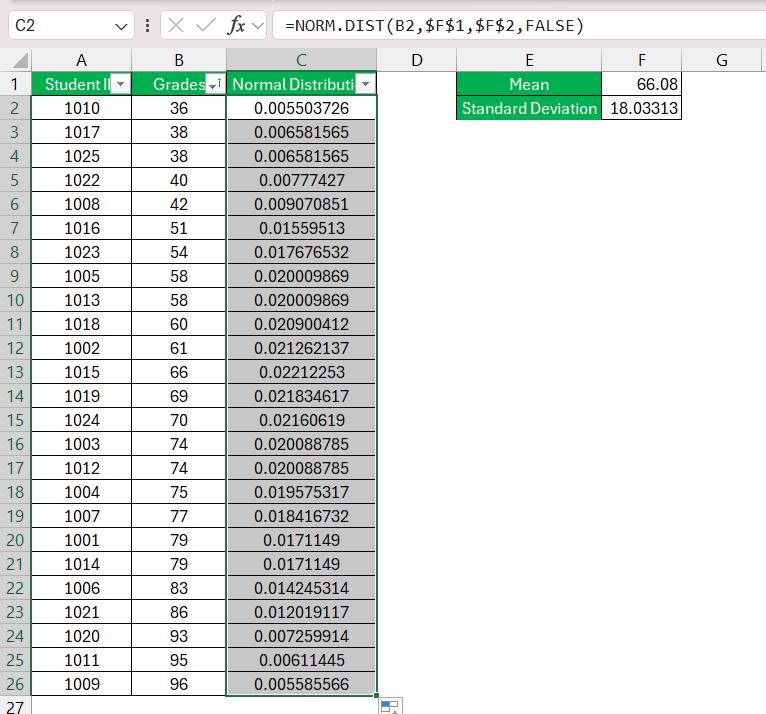
The column for the normal distribution of the data will be created.
Normal Distribution Graph
To create a normal distribution graph, navigate to the “Insert” tab, and under “Charts,” choose a “Scatter” chart with smoothed lines and markers.
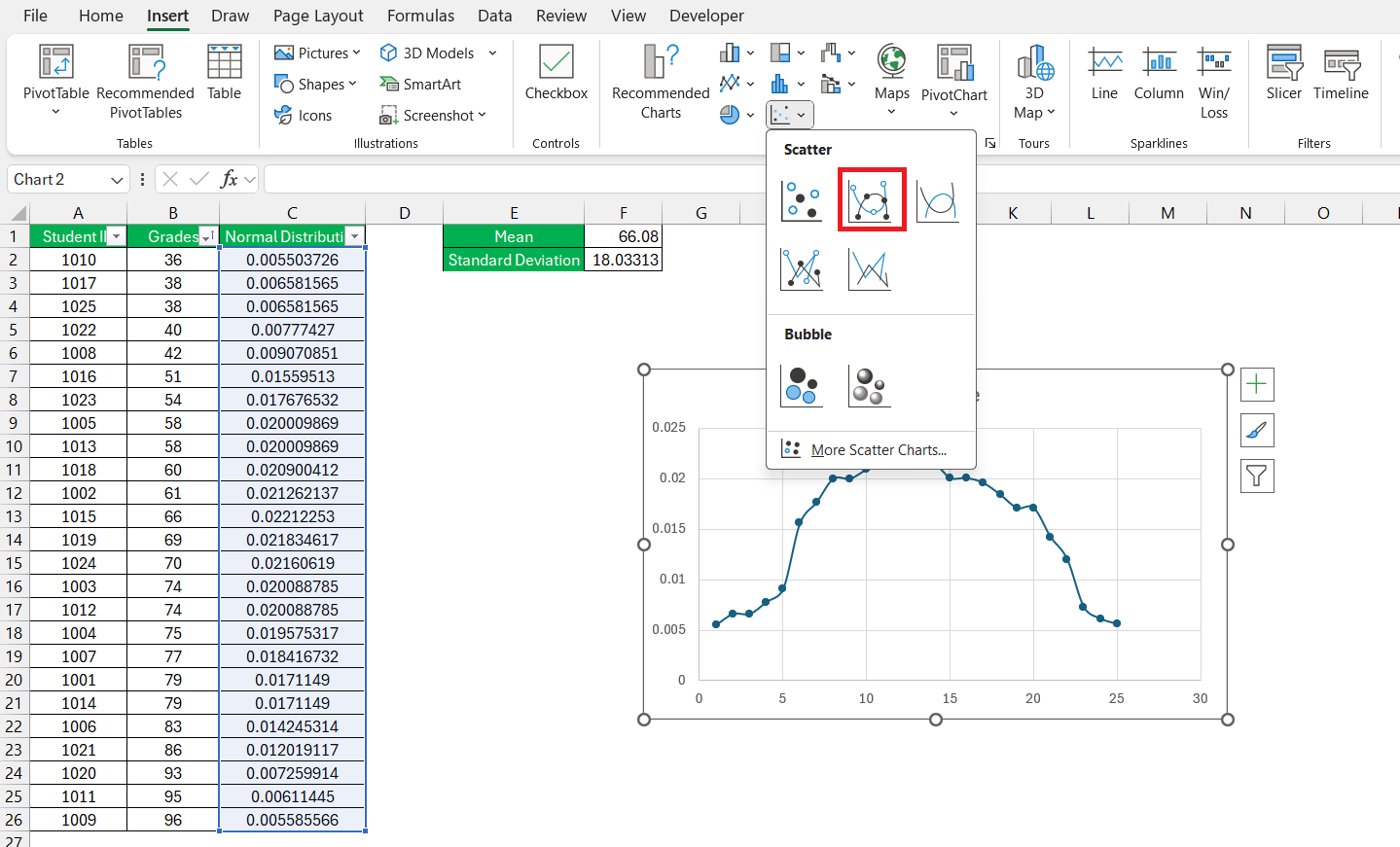
Upon inserting the chart, you’ll observe the creation of our bell curve or normal distribution graph.
FAQs
Can Excel handle large data sets for normal distribution graphs?
Yes, Excel can manage large data sets for normal distribution graphs easily.
How to calculate the normal distribution in Excel?
To calculate the normal distribution in Excel, you can use the NORM.DIST function. Enter the x value, mean, and standard deviation, and set the cumulative parameter to TRUE for the cumulative distribution function or FALSE for the probability density function. Then hit Enter to see the result.
How do I sort data into a normal distribution in Excel?
Sorting data into a normal distribution isn’t something you do to your data per se. Instead, what you’ll likely want to do is graph your data on a bell curve to see if it approximates a normal distribution. Use Excel’s chart functions to create a histogram or scatter plot with a trendline to visualize the distribution.
Which area of financial analysis did you meet the normal distribution?
You’ll often encounter the normal distribution in financial analysis when assessing investment returns, as many asset returns tend to follow a distribution pattern that can be modeled by a bell curve. It’s crucial in risk management, portfolio optimization, and in the application of the Black-Scholes model for options pricing.
How do I create a bell curve graph in Excel?
To create a bell curve graph in Excel, enter your data, calculate the mean and standard deviation, and then use the NORM.DIST function to create a normal distribution set based on your data. Select this set and insert a Scatter Plot with Smooth Lines to get your bell curve. Adjust the chart elements as needed for clarity.

John Michaloudis is a former accountant and finance analyst at General Electric, a Microsoft MVP since 2020, an Amazon #1 bestselling author of 4 Microsoft Excel books and teacher of Microsoft Excel & Office over at his flagship MyExcelOnline Academy Online Course.

 30 Days - Full Access









