 Free Practice Workbook
When working with datasets or testing applications, a random phone number generator can be an important tool. Microsoft Excel offers powerful functions to create random and seemingly authentic phone numbers with ease. By employing simple formulas or the program’s built-in random number functions, users can efficiently produce a random series of phone numbers customized to their specifications.
Key Takeaways
- Excel can create random phone numbers using simple formulas.
- RAND and RANDBETWEEN are the main functions used.
- Numbers can be formatted to look like real phone numbers.
- Formulas should be converted to values to stop changes.
- Formats can be adjusted for different countries.
Download the spreadsheet and follow the tutorial on Random Phone Number Generator in Excel – Download excel workbookRandom-Phone-Number-Generator.xlsx
Table of Contents
How to Generate Random Phone Numbers
Using the RAND Function
To begin generating random phone numbers, we start with the RAND function. Here is a step-by-step guide:
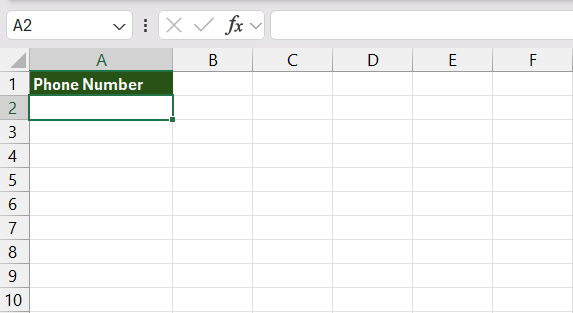
STEP 1: Select a cell in your Excel sheet where you want the random number to be generated, such as cell A2.
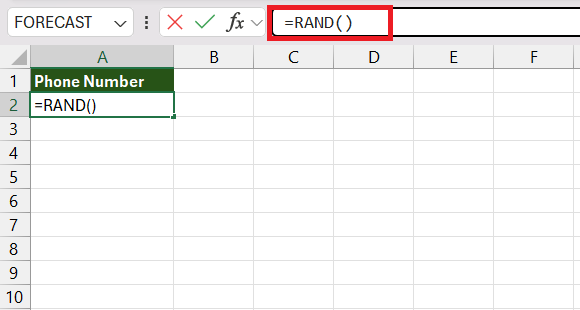
STEP 2: Type =RAND() into the cell and press Enter.
STEP 3: Excel will now produce a random decimal number between 0 and 1 in cell A1.
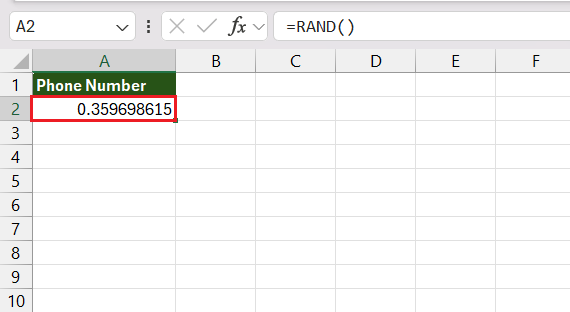
Notice that because RAND is volatile, every time there’s a recalculation on the sheet, the number in the cell will change. To generate a series of random decimal numbers, you can drag the corner of cell A1 downwards to fill more cells.
These random decimals will serve as the foundation for creating random phone numbers. The generated numbers will still need to be formatted and refined to meet the criteria for phone numbers, which we’ll cover in the subsequent steps.
Using Text Functions
To create phone numbers from the results produced by the RAND() function, you’ll need to turn those random decimal values into a string that looks like a phone number. Here’s how to do it:
STEP 1: After generating a column of random decimal numbers using =RAND(), next to the first random decimal in cell B1, input the formula =TEXT(RAND()*9E9,"0000000000"). This multiplies the random decimal by 9,000,000,000 (which is 9 followed by nine zeros, the same number of digits as in a standard U.S. phone number without the area code), and then formats it as a ten-digit number.
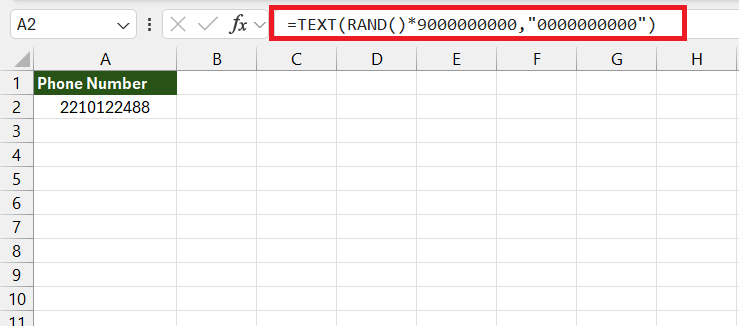
STEP 2: Press Enter, and the cell will now display a ten-digit number formatted as a string, without any decimals.
STEP 3: To add further formatting, such as dashes, parentheses around area codes, or country codes, use Excel’s CONCATENATE function or the & operator. For instance, if you want to format the number with dashes, you would use ="(" & LEFT(A2,3) & ") " & MID(A2,4,3) & "-" & RIGHT(A2,4). This takes the first three numbers as an area code, the next three as the middle digits, and the last four as the final part of the phone number.
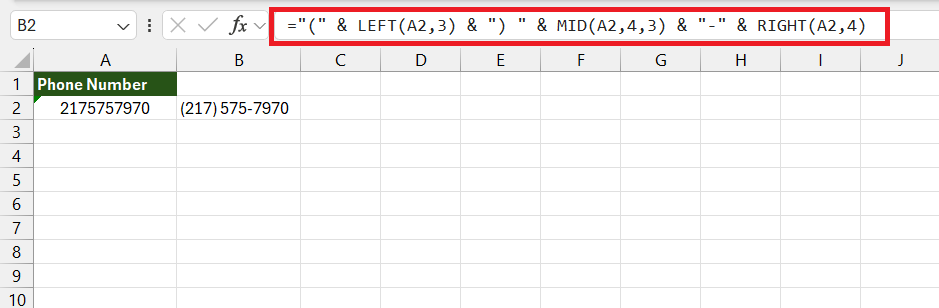
STEP 4: Fill down the formula to create as many random phone numbers as needed. Select the cell with your new formula, and drag the fill handle across the range of cells where you want phone numbers to be populated.
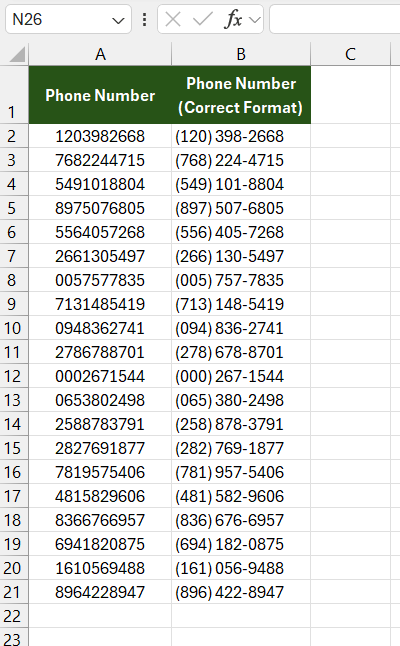
These functions can be combined in various ways to achieve the desired phone number format. Remember to create formats that are consistent with phone number standards in the relevant country or region.
Formatting Techniques
Converting Formulas to Static Values
Excel keeps recalculating random formulas and changing the number. So, converting random formulas to static values is important. Follow the steps below to know how to convert them –
STEP 1: Click on the cell containing your formula-based random phone numbers. Press Ctrl + C to copy the cells or right-click and select ‘Copy.
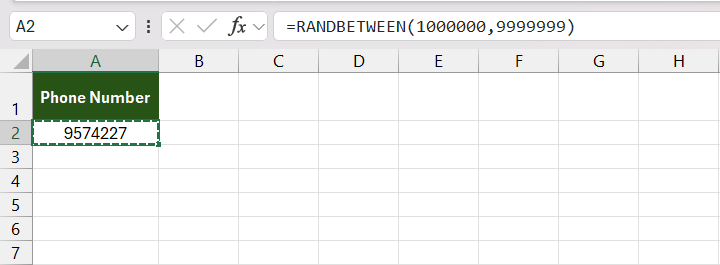
STEP 2: Press Alt + E + S to open ‘Paste Special‘ dialog box and choose ‘Values’ from the options.
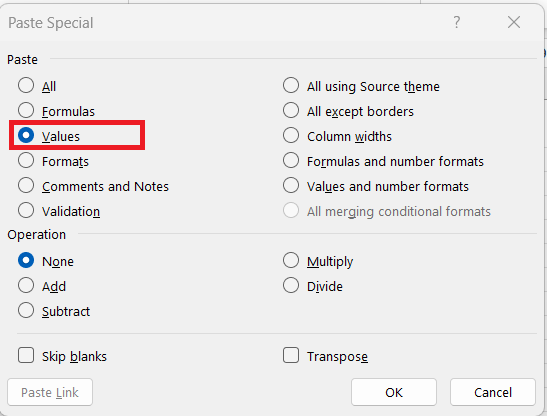
This process will convert formulas to actual phone numbers that stay fixed and do not change later.
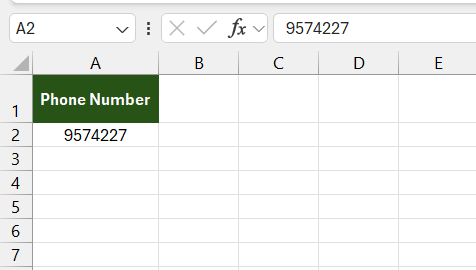
Customizing the Appearance of Phone Numbers
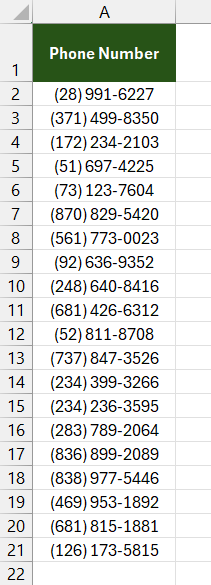
You can change the appearance of the phone numbers to make them more readable. It can also be done to match the common formatting style.
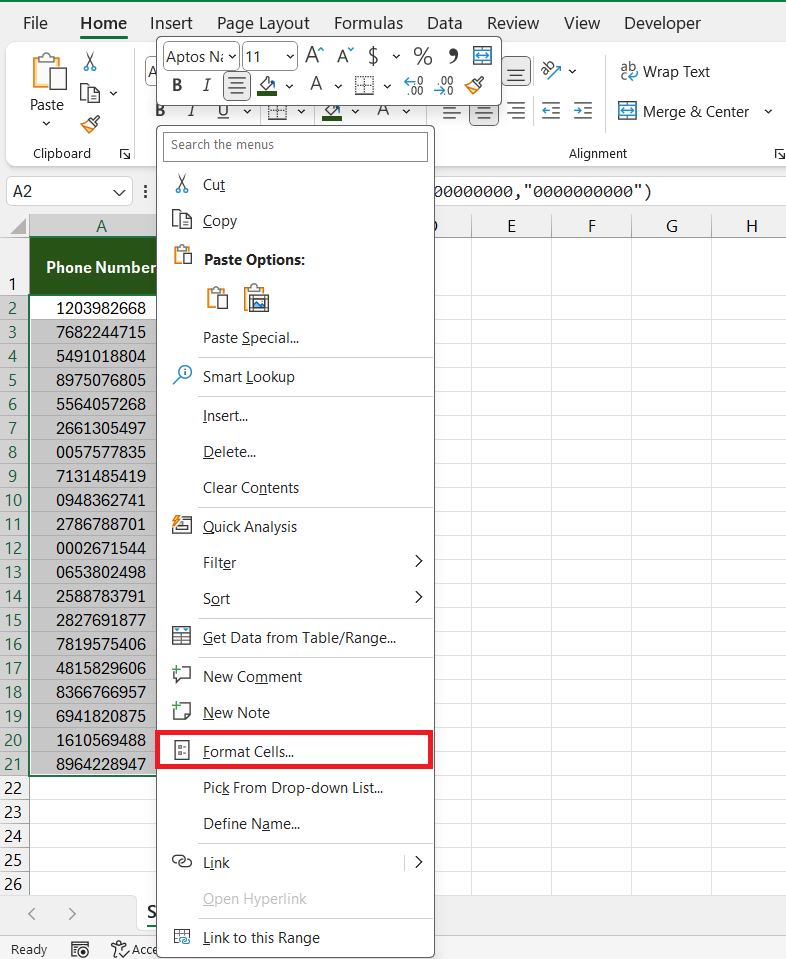
STEP 1: Right-click on the range containing the phone numbers and select Format Cells.
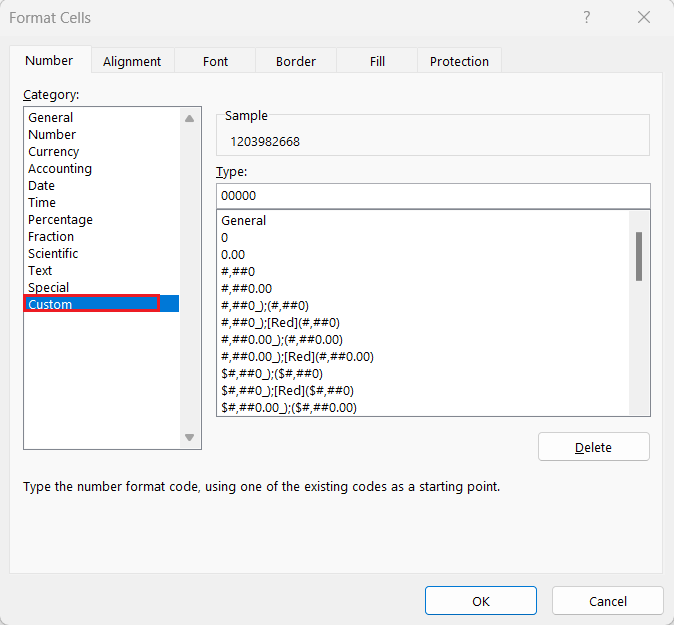
STEP 2: In the Number tab, choose Custom.
STEP 3: Type a custom code in the Type box.
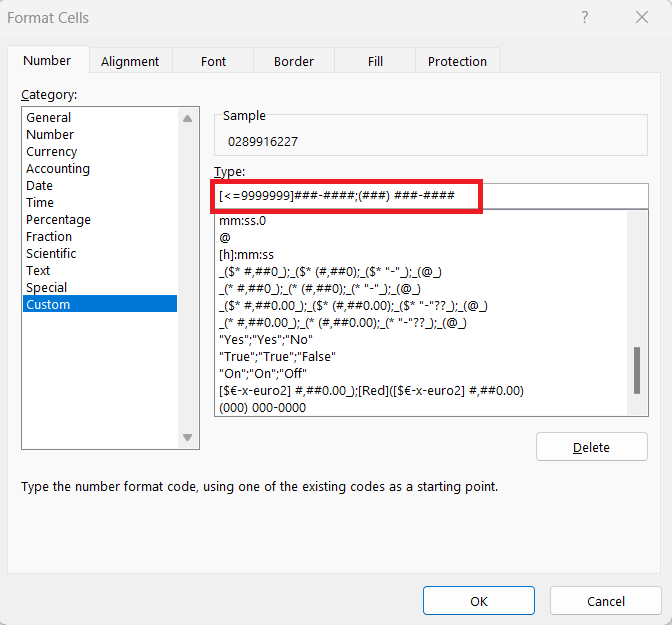
The correct format will be displayed.
Tips and Tricks
Avoiding Duplicates
The randomly generated phone numbers should be unique. Since Excel’s random functions can generate duplicate phone numbers, it is important to remove duplicates. Follow the steps below to know how to remove duplicates –
STEP 1: Select the range containing the random phone number. Go to the Data tab and then select Remove Duplicates.

STEP 2: If the data has no header, uncheck the ‘My data has headers’ option. Click OK.
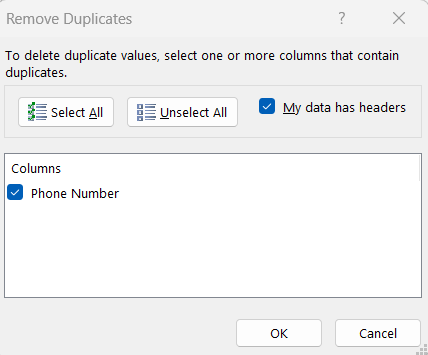
Any duplicate values will be removed by following these steps.
Regional Number Format
Different countries follow different phone number formats with varying lengths and different country codes. The following points should be taken into account when working with country-specific phone number formats –
- Check the country’s rules like the number of digits, prefixes, or area codes, etc.
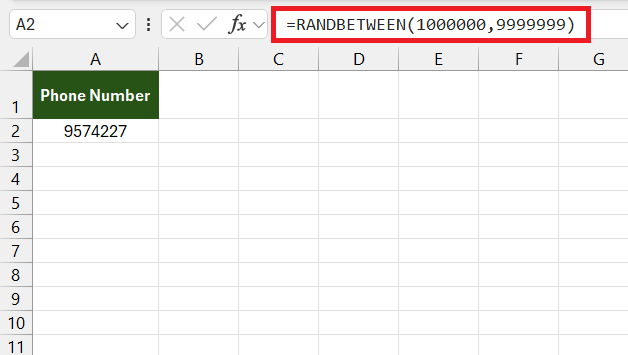
- Change the RANDBETWEEN function to match the number of digits for that country.
- Start phone number with the correct country code, like +1 or +44. etc.
- Use the TEXT function to change the formatting of the value.
- Always check that the data abides by the laws and regulations of the country.
- Create a separate template for each country and automate the formatting process.
FAQs
How to prevent random numbers from recalculating?
You need to convert the formula to a static value to prevent it from recalculating.
- Click on the cell containing the random number
- Press Ctrl + C to copy it
- Right-click and select Paste Special
- Select Value.
This replaces the formula with the current value that will not change.
How to generate random phone numbers for specific countries?
You can generate a random phone number that is country-specific using the correct format in Excel. You need to combine the country code, area code and local number using the CONCATENATE function or & operator.
How to randomly generate numbers in Excel?
Excel lets you randomly generate numbers without having to use any code. Some of the built-in functions to generate random functions are –
- RAND Function: This function generates a random decimal number between 0 and 1. Simply type
=RAND()into a cell and press Enter. - RANDBETWEEN Function: This function generates a random number between two specified values.
- RANDARRAY Function (Excel 365): This function can create an array of random numbers at once.
- Data Analysis Toolpak: Use the ‘Random Number Generation’ tool to produce several random numbers based on various distributions.

John Michaloudis is a former accountant and finance analyst at General Electric, a Microsoft MVP since 2020, an Amazon #1 bestselling author of 4 Microsoft Excel books and teacher of Microsoft Excel & Office over at his flagship MyExcelOnline Academy Online Course.

 30 Days - Full Access









