 Free Practice Workbook
Excel can be used to remove extra spaces and unwanted characters; this will help to keep data clean and reliable. In this article, we will explore different methods that can be used to clean data in Excel.
Key Takeaways
- Excel functions and tools can be used to remove unwanted text.
- The TRIM function is used to remove extra spaces.
- The SUBSTITUTE function is used remove specific text within a cell with new text.
- The Find and Replace tool is used to substitute text with new text.
- Always check the output to make sure the desired text has been removed.
Table of Contents
Excel Text Manipulation
Need for Text Removal
Removing unwanted characters or extra spaces is an important part of the data cleaning process. Extra spaces can affect your analysis and produce incorrect results. Cleaning data is useful as it provides clarity to your data and makes it consistent and also precise.
Excel Tools for Text Management
Excel has a variety of tools and functions that can be used to streamline text within a dataset:
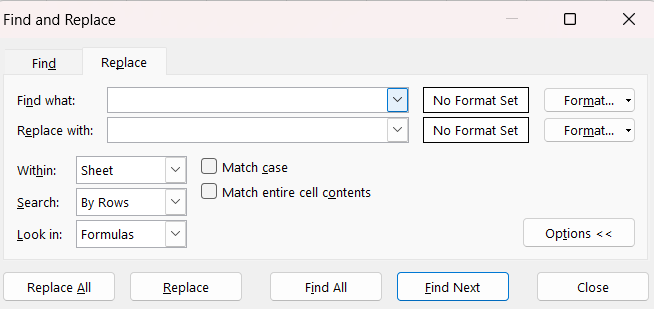
- Find and Replace: A tool that is used to find specific text and replace it with something else.
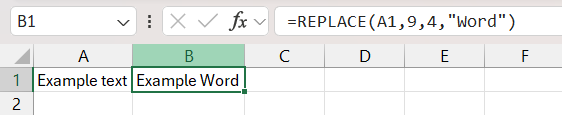
- Text Functions: Functions like Left, Right, Replace, Mid, etc let you extract or change part of the text.
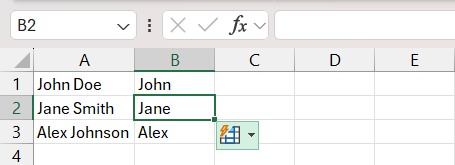
- Flash Fill: A tool that can detect patterns and fill text based on the pattern.
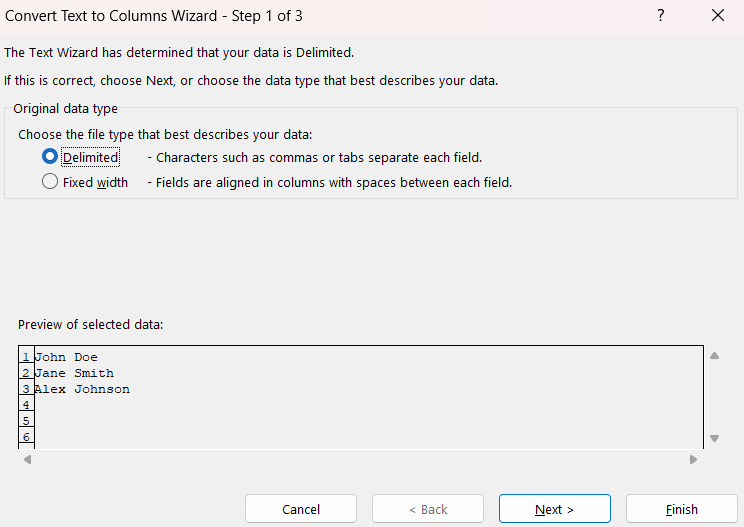
- Text to Columns: A tool that splits text into separate columns using delimiters like a comma, space, or tab.
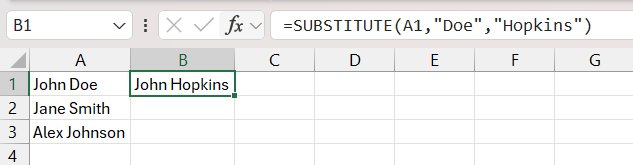
- SUBSTITUTE Function: This function will replace a specific text with a custom text provided by you.
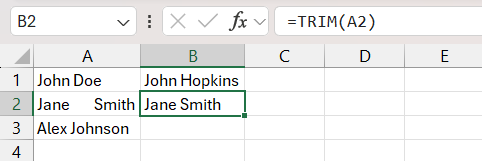
- TRIM Function: This function will remove extra spaces from text.
Excel can be used for different situations, ranging from making small edits to managing large datasets.
How to Delete Unwanted Text in Excel
Using Find and Replace
The Find and Replace feature in Excel is a quick way to remove unwanted characters from your cells. Here’s how you put it into action:
STEP 1: Select the range of cells from which you want to remove a character.
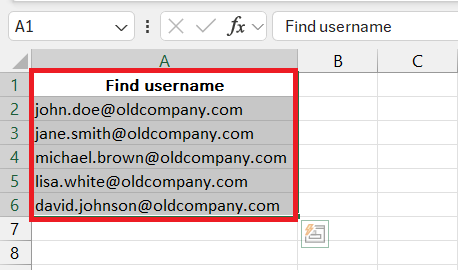
STEP 2: Press Ctrl + H to open the Find and Replace dialog.
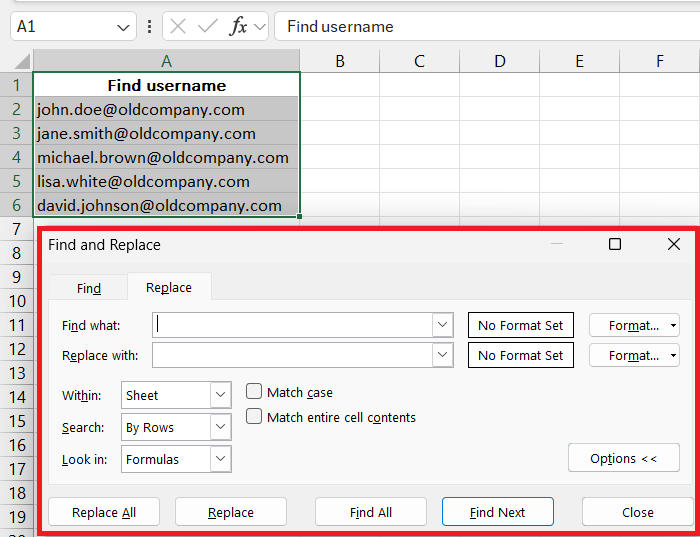
STEP 3: In the ‘Find what’ box, type the character that you need to eliminate.
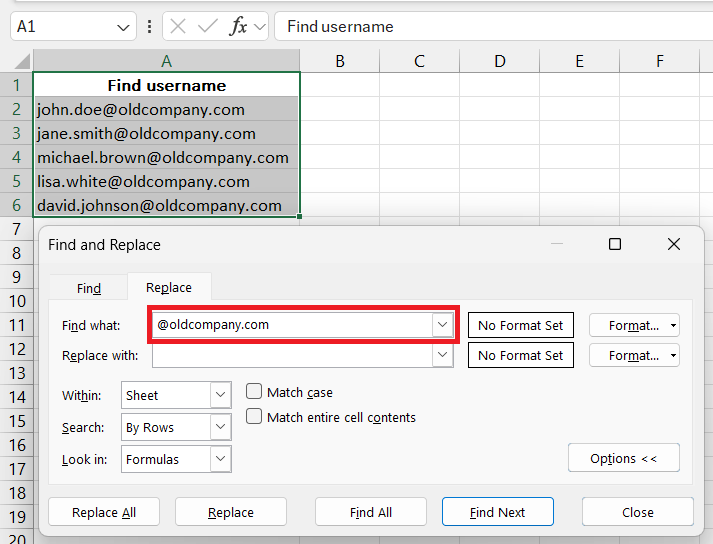
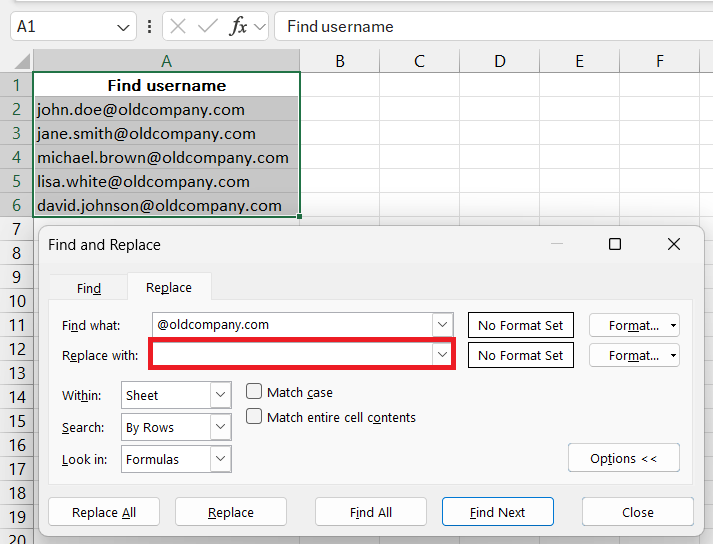
STEP 4: Keep the Replace with box empty to delete the text.
STEP 5: Click Replace All.
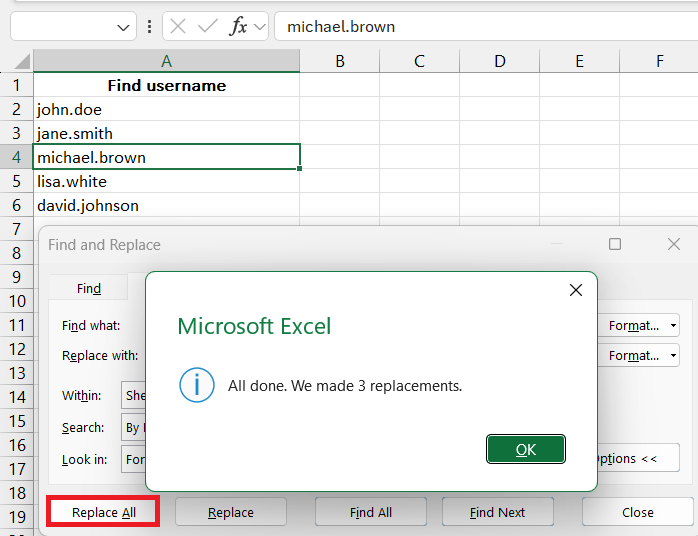
The message box will be displayed showing how many replacements have been made. This change will be applied directly to the source data, and if you want to restore to the old data, just press Ctrl + Z.
Text Functions
Excel functions offer surgical precision when tweaking text within your cells. Here’s a glimpse at how each one works:
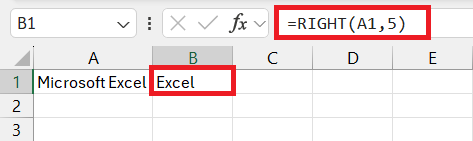
- RIGHT Function: This function extracts characters from the end of a string.
=RIGHT(A1, num_chars)removes all but the specified number (num_chars) of characters from the right.
- LEFT Function: Essentially, the RIGHT function in reverse,
=LEFT(A1, num_chars)keeps only the specified number of characters from the start of the string.
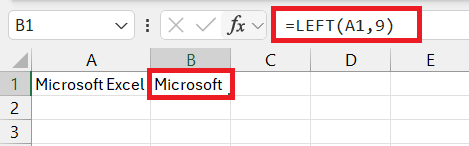
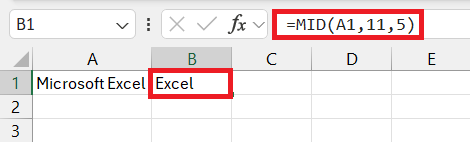
- MID Function: Use this function to extract text from the middle position. You can specify the position from which you want to extract and the number of characters as well.
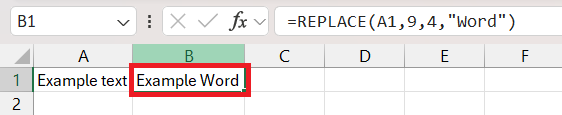
- REPLACE Function: Use this function to replace text from a specified location with new text.
Other Methods
A few other methods that can be used to remove text in Excel are –
- Press Ctrl + A to select all cells and then press Delete.
- Go to the Home tab and select Clear.
- Press Ctrl + – on your keyboard to delete cells.
Advanced Techniques
Flash Fill
Flash Fill is a feature in Excel that detects patterns based on previous data entered and then completes them in the selected cells. Flash Fill is very easy to use and saves time by automating the task.Follow the steps below to know how to use Flash Fill –
Excel’s Flash Fill is a smart feature that automatically completes a pattern you establish, saving you from manual data entry. It’s straightforward to use:
STEP 1: Type a few examples for Excel to detect the pattern. Then, select the cell where you want the data from Flash Fill.
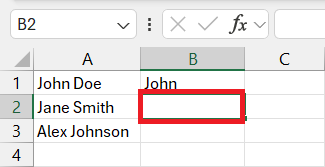
STEP 2: Go to the Data tab on the ribbon, and click on flash fill from Data Tools section.

STEP 3: Check the result.
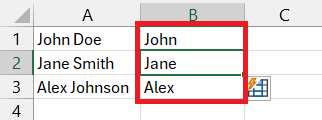
Flash Fill shines in its ability to recognize complex patterns, such as extracting first names from full names or removing certain characters from within a text string. It’s worth noting that Flash Fill may not always catch the pattern—if that happens, provide a few more examples to help it learn.
Remember to check that Flash Fill is enabled under the Excel options. If this clever tool doesn’t do the trick, you may need to revert to manual methods or explore other Excel functions.
Use the SUBSTITUTE Function
The SUBSTITUTE function is used to replace specific text within the cell with new text.

You can also use the Nested SUBSTITUTE function to replace multiple texts with new ones.

FAQs
How to remove unwanted text from multiple cells?
You can use the Find and Replace feature to remove unwanted text from multiple cells.
- Press Ctrl + H to open the Find and Replace box
- Find What – Enter the text you wish to remove.
- Replace With – Leave it empty
- Click Replace All.
This will remove all the unwanted text from the selected cells.
How to remove specific characters within Excel cells?
The best way to remove specific characters or spaces is by using the SUBSTITUTE function. For example, =SUBSTITUTE(A1, "a", "") will remove all ‘a’ characters from cell A1. To remove spaces, use =SUBSTITUTE(A1, " ", ""). This deletes all spaces from the text.
Is there a formula to remove text in Excel?
Yes, there are multiple formulas in Excel to remove text. For example, =REPLACE(A1, 1, number_of_chars, "") removes a specific number of characters from the start of the text in cell A1. Use the SUBSTITUTE, LEFT, RIGHT, and MID functions for different scenarios of text removal.
How do I remove 3 characters from the left in Excel?
To remove the first three characters from the left in Excel, use =RIGHT(A1, LEN(A1)-3). This formula takes the total length of the string minus three and then extracts that many characters from the right side.
How to remove texts before or after a specific character from cells in Excel?
To remove text before or after a specific character in Excel, use the following formula: =LEFT(A1, FIND("character", A1) - 1) to remove text after a character. Replace “character” with the specific character. Use =MID(A1, FIND("character", A1) + length, LEN(A1)) to remove text before it, adjusting length to the character’s length to exclude.

John Michaloudis is a former accountant and finance analyst at General Electric, a Microsoft MVP since 2020, an Amazon #1 bestselling author of 4 Microsoft Excel books and teacher of Microsoft Excel & Office over at his flagship MyExcelOnline Academy Online Course.

 30 Days - Full Access









